أوامر التحليل
أمر computer-metrics
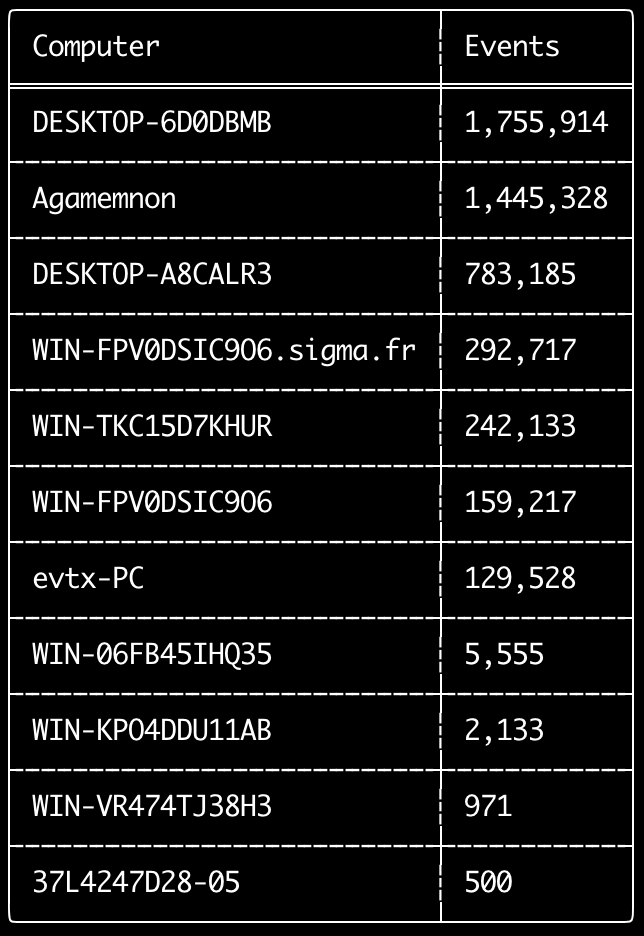
يمكنك استخدام أمر computer-metrics للتحقق من عدد الأحداث وفقًا لكل جهاز كمبيوتر مُعرّف في حقل <System><Computer>.
انتبه إلى أنه لا يمكنك الاعتماد كليًا على حقل Computer للفصل بين الأحداث حسب جهاز الكمبيوتر الأصلي الخاص بها.
سيستخدم Windows 11 أحيانًا أسماء Computer مختلفة تمامًا عند الحفظ في سجلات الأحداث.
كما أن Windows 10 سيسجّل أحيانًا اسم Computer بأحرف صغيرة بالكامل.
لا يستخدم هذا الأمر أي قواعد كشف لذا سيحلّل جميع الأحداث.
هذا أمر جيد لتشغيله لمعرفة أي أجهزة الكمبيوتر تحتوي على أكبر عدد من السجلات بسرعة.
بهذه المعلومات، يمكنك بعد ذلك استخدام خياري --include-computer أو --exclude-computer عند إنشاء جداولك الزمنية لجعل إنشاء الجدول الزمني أكثر كفاءة من خلال إنشاء جداول زمنية متعددة وفقًا لجهاز الكمبيوتر أو استبعاد الأحداث من أجهزة كمبيوتر معينة.
Usage:
  hayabusa.exe computer-metrics <INPUT> [OPTIONS]

Input:
  -d, --directory <DIR>  دليل يحتوي على ملفات .evtx متعددة
  -f, --file <FILE>      مسار ملف .evtx واحد
  -l, --live-analysis    تحليل مجلد C:\Windows\System32\winevt\Logs المحلي

General Options:
  -C, --clobber                        الكتابة فوق الملفات عند الحفظ
  -h, --help                           عرض قائمة المساعدة
  -J, --json-input                     فحص السجلات بتنسيق JSON بدلاً من ملفات .evtx (.json أو .jsonl)
  -Q, --quiet-errors                   وضع كتم الأخطاء: عدم حفظ سجلات الأخطاء
  -x, --recover-records                استخراج سجلات evtx من المساحة المتبقية (default: disabled)
  -c, --rules-config <DIR>             تحديد دليل تهيئة قواعد مخصص (default: ./rules/config)
      --target-file-ext <FILE-EXT...>  تحديد امتدادات ملفات evtx إضافية (ex: evtx_data)
  -V, --validate-checksums             تفعيل التحقق من المجاميع الاختبارية

Filtering:
      --time-offset <OFFSET>  فحص الأحداث الحديثة استنادًا إلى إزاحة زمنية (ex: 1y, 3M, 30d, 24h, 30m)

Output:
  -o, --output <FILE>  حفظ النتائج بتنسيق CSV (ex: computer-metrics.csv)

Display Settings:
  -K, --no-color  تعطيل إخراج الألوان
  -q, --quiet     الوضع الصامت: عدم عرض شعار البدء
  -v, --verbose   إخراج معلومات مفصّلة
أمثلة على أمر computer-metrics
- طباعة مقاييس اسم الكمبيوتر من دليل:
hayabusa.exe computer-metrics -d ../logs - حفظ النتائج في ملف CSV:
hayabusa.exe computer-metrics -d ../logs -o computer-metrics.csv
لقطة شاشة لـ computer-metrics
أمر eid-metrics
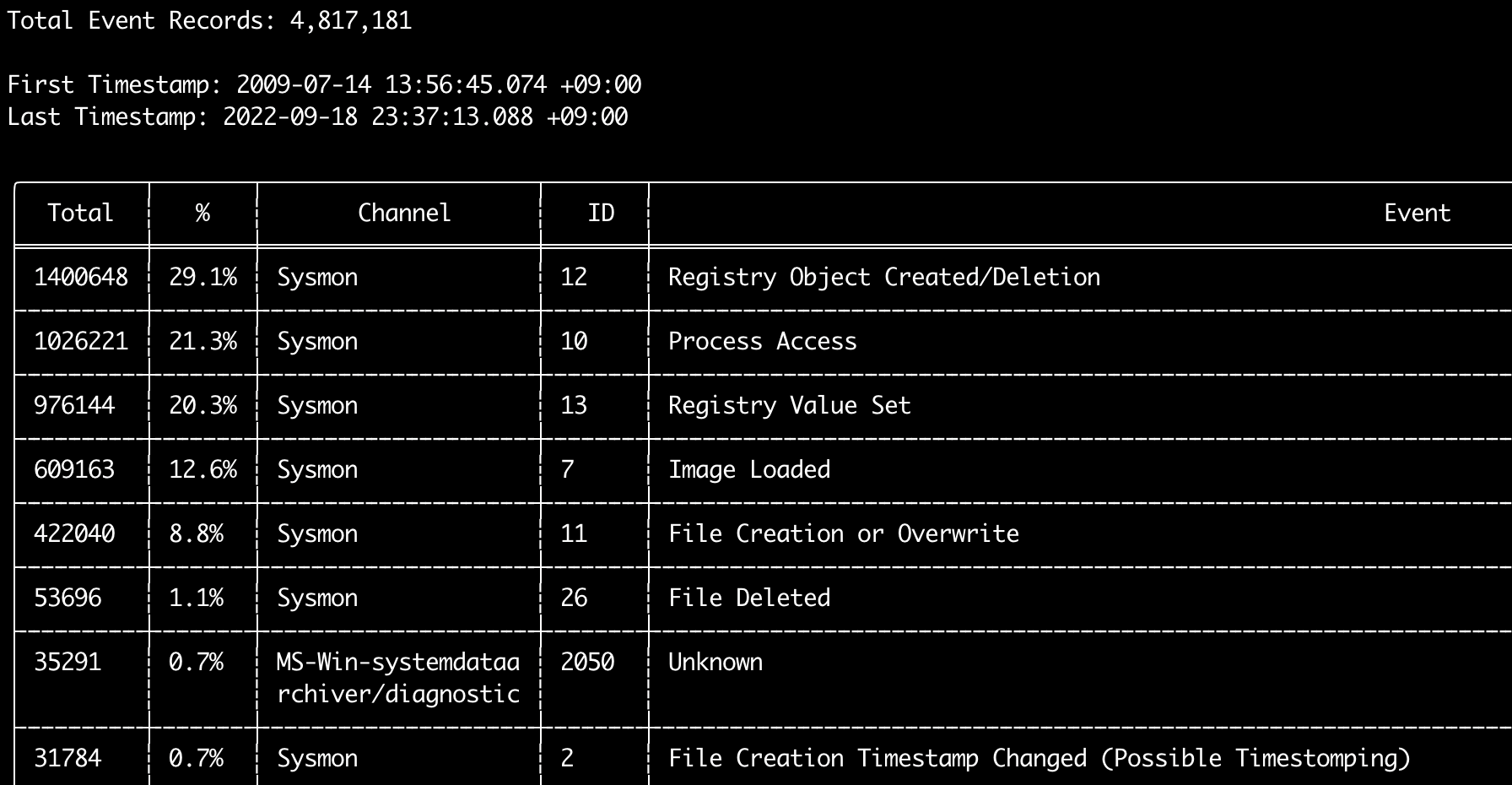
يمكنك استخدام أمر eid-metrics لطباعة العدد الإجمالي والنسبة المئوية لمعرّفات الأحداث (حقل <System><EventID>) مفصولة حسب القنوات.
لا يستخدم هذا الأمر أي قواعد كشف لذا سيفحص جميع الأحداث.
Usage:
  hayabusa.exe eid-metrics <INPUT> [OPTIONS]

Input:
  -d, --directory <DIR>  دليل يحتوي على ملفات .evtx متعددة
  -f, --file <FILE>      مسار ملف .evtx واحد
  -l, --live-analysis    تحليل مجلد C:\Windows\System32\winevt\Logs المحلي

General Options:
  -C, --clobber                        الكتابة فوق الملفات عند الحفظ
  -h, --help                           عرض قائمة المساعدة
  -J, --json-input                     فحص السجلات بتنسيق JSON بدلاً من ملفات .evtx (.json أو .jsonl)
  -Q, --quiet-errors                   وضع كتم الأخطاء: عدم حفظ سجلات الأخطاء
  -x, --recover-records                استخراج سجلات evtx من المساحة المتبقية (default: disabled)
  -c, --rules-config <DIR>             تحديد دليل تهيئة قواعد مخصص (default: ./rules/config)
      --target-file-ext <FILE-EXT...>  تحديد امتدادات ملفات evtx إضافية (ex: evtx_data)
      --threads <NUMBER>               عدد الخيوط (default: optimal number for performance)
  -V, --validate-checksums             تفعيل التحقق من المجاميع الاختبارية

Filtering:
      --exclude-computer <COMPUTER...>  عدم فحص أسماء أجهزة الكمبيوتر المحددة (ex: ComputerA) (ex: ComputerA,ComputerB)
      --include-computer <COMPUTER...>  فحص أسماء أجهزة الكمبيوتر المحددة فقط (ex: ComputerA) (ex: ComputerA,ComputerB)
      --time-offset <OFFSET>            فحص الأحداث الحديثة استنادًا إلى إزاحة زمنية (ex: 1y, 3M, 30d, 24h, 30m)

Output:
  -X, --remove-duplicate-records  إزالة سجلات الأحداث المكررة (default: disabled)
  -o, --output <FILE>             حفظ المقاييس بتنسيق CSV (ex: metrics.csv)

Display Settings:
  -K, --no-color  تعطيل إخراج الألوان
  -q, --quiet     الوضع الصامت: عدم عرض شعار البدء
  -v, --verbose   إخراج معلومات مفصّلة

Time Format:
      --european-time     إخراج الطابع الزمني بتنسيق الوقت الأوروبي (ex: 22-02-2022 22:00:00.123 +02:00)
  -O, --iso-8601          إخراج الطابع الزمني بتنسيق ISO-8601 الأصلي (ex: 2022-02-22T10:10:10.1234567Z) (Always UTC)
      --rfc-2822          إخراج الطابع الزمني بتنسيق RFC 2822 (ex: Fri, 22 Feb 2022 22:00:00 -0600)
      --rfc-3339          إخراج الطابع الزمني بتنسيق RFC 3339 (ex: 2022-02-22 22:00:00.123456-06:00)
  -U, --utc               إخراج الوقت بتنسيق UTC (default: local time)
      --us-military-time  إخراج الطابع الزمني بتنسيق الوقت العسكري الأمريكي (ex: 02-22-2022 22:00:00.123 -06:00)
      --us-time           إخراج الطابع الزمني بتنسيق الوقت الأمريكي (ex: 02-22-2022 10:00:00.123 PM -06:00)
أمثلة على أمر eid-metrics
- طباعة مقاييس معرّف الحدث من ملف واحد:
hayabusa.exe eid-metrics -f Security.evtx - طباعة مقاييس معرّف الحدث من دليل:
hayabusa.exe eid-metrics -d ../logs - حفظ النتائج في ملف CSV:
hayabusa.exe eid-metrics -f Security.evtx -o eid-metrics.csv
ملف إعداد أمر eid-metrics
يتم تعريف القناة ومعرّفات الأحداث وعناوين الأحداث في rules/config/channel_eid_info.txt.
مثال:
Channel,EventID,EventTitle
Microsoft-Windows-Sysmon/Operational,1,Process Creation.
Microsoft-Windows-Sysmon/Operational,2,File Creation Timestamp Changed. (Possible Timestomping)
Microsoft-Windows-Sysmon/Operational,3,Network Connection.
Microsoft-Windows-Sysmon/Operational,4,Sysmon Service State Changed.
لقطة شاشة لـ eid-metrics
أمر expand-list
استخراج العناصر النائبة expand من مجلد القواعد.
هذا مفيد عند إنشاء ملفات الإعداد لاستخدام أي قاعدة تستخدم معدّل الحقل expand.
لاستخدام قواعد expand، تحتاج فقط إلى إنشاء ملف .txt باسم معدّل الحقل expand ضمن دليل ./config/expand/، ووضع جميع القيم التي تريد التحقق منها داخل الملف.
على سبيل المثال، إذا كان منطق detection للقاعدة هو:
detection:
    selection:
        EventID: 5145
        RelativeTargetName|contains: '\winreg'
    filter_main:
        IpAddress|expand: '%Admins_Workstations%'
    condition: selection and not filter_main
فسوف تنشئ الملف النصي ./config/expand/Admins_Workstations.txt وتضع فيه قيمًا مثل:
سيؤدي هذا أساسًا إلى التحقق من نفس المنطق مثل:
إذا لم يكن ملف الإعداد موجودًا، فسيظل Hayabusa يحمّل قاعدة expand لكن سيتجاهلها.
Usage:
  hayabusa.exe expand-list [OPTIONS]

General Options:
  -h, --help              عرض قائمة المساعدة
  -r, --rules <DIR/FILE>  تحديد دليل القواعد (default: ./rules)

Display Settings:
  -K, --no-color  تعطيل إخراج الألوان
  -q, --quiet     الوضع الصامت: عدم عرض شعار البدء
أمثلة على أمر expand-list
- استخراج معدّلات الحقل
expandمن دليلrulesالافتراضي:hayabusa.exe expand-list - استخراج معدّلات الحقل
expandمن دليلsigma:hayabusa.exe expand-list -r ../sigma
نتائج expand-list
5 unique expand placeholders found:
Admins_Workstations
DC-MACHINE-NAME
Workstations
internal_domains
domain_controller_hostnames
أمر extract-base64
سيستخرج هذا الأمر سلاسل base64 من الأحداث التالية، ويفك تشفيرها ويخبرك بنوع الترميز المستخدم. * Security 4688 CommandLine * Sysmon 1 CommandLine, ParentCommandLine * System 7045 ImagePath * PowerShell Operational 4104 * PowerShell Operational 4103
Usage:
  hayabusa.exe extract-base64 <INPUT> [OPTIONS]

Input:
  -d, --directory <DIR>  دليل يحتوي على ملفات .evtx متعددة
  -f, --file <FILE>      مسار ملف .evtx واحد
  -l, --live-analysis    تحليل مجلد C:\Windows\System32\winevt\Logs المحلي

General Options:
  -C, --clobber                        الكتابة فوق الملفات عند الحفظ
  -h, --help                           عرض قائمة المساعدة
  -J, --json-input                     فحص السجلات بتنسيق JSON بدلاً من ملفات .evtx (.json أو .jsonl)
  -Q, --quiet-errors                   وضع كتم الأخطاء: عدم حفظ سجلات الأخطاء
  -x, --recover-records                استخراج سجلات evtx من المساحة المتبقية (default: disabled)
  -c, --rules-config <DIR>             تحديد دليل تهيئة قواعد مخصص (default: ./rules/config)
      --target-file-ext <FILE-EXT...>  تحديد امتدادات ملفات evtx إضافية (ex: evtx_data)
      --threads <NUMBER>               عدد الخيوط (default: optimal number for performance)
  -V, --validate-checksums             تفعيل التحقق من المجاميع الاختبارية

Filtering:
      --exclude-computer <COMPUTER...>  عدم فحص أسماء أجهزة الكمبيوتر المحددة (ex: ComputerA) (ex: ComputerA,ComputerB)
      --include-computer <COMPUTER...>  فحص أسماء أجهزة الكمبيوتر المحددة فقط (ex: ComputerA) (ex: ComputerA,ComputerB)
      --time-offset <OFFSET>            فحص الأحداث الحديثة استنادًا إلى إزاحة زمنية (ex: 1y, 3M, 30d, 24h, 30m)

Output:
  -o, --output <FILE>  حفظ النتائج في ملف CSV

Display Settings:
  -K, --no-color  تعطيل إخراج الألوان
  -q, --quiet     الوضع الصامت: عدم عرض شعار البدء
  -v, --verbose   إخراج معلومات مفصّلة

Time Format:
      --european-time     إخراج الطابع الزمني بتنسيق الوقت الأوروبي (ex: 22-02-2022 22:00:00.123 +02:00)
  -O, --iso-8601          إخراج الطابع الزمني بتنسيق ISO-8601 الأصلي (ex: 2022-02-22T10:10:10.1234567Z) (Always UTC)
      --rfc-2822          إخراج الطابع الزمني بتنسيق RFC 2822 (ex: Fri, 22 Feb 2022 22:00:00 -0600)
      --rfc-3339          إخراج الطابع الزمني بتنسيق RFC 3339 (ex: 2022-02-22 22:00:00.123456-06:00)
  -U, --utc               إخراج الوقت بتنسيق UTC (default: local time)
      --us-military-time  إخراج الطابع الزمني بتنسيق الوقت العسكري الأمريكي (ex: 02-22-2022 22:00:00.123 -06:00)
      --us-time           إخراج الطابع الزمني بتنسيق الوقت الأمريكي (ex: 02-22-2022 10:00:00.123 PM -06:00)
أمثلة على أمر extract-base64
- فحص دليل وإخراج النتائج إلى الطرفية:
hayabusa.exe extract-base64 -d ../hayabusa-sample-evtx - فحص دليل وإخراج النتائج إلى ملف CSV:
hayabusa.exe extract-base64 -d ../hayabusa-sample-evtx -o base64-extracted.csv
نتائج extract-base64
عند الإخراج إلى الطرفية، نظرًا لأن المساحة محدودة، يتم عرض الحقول التالية فقط: * Timestamp * Computer * Base64 String * Decoded String (if not binary)
عند الحفظ في ملف CSV، يتم حفظ الحقول التالية:
* Timestamp
* Computer
* Base64 String
* Decoded String (if not binary)
* Original Field
* Length
* Binary (Y/N)
* Double Encoding (when Y, it usually is malicious)
* Encoding Type
* File Type
* Event
* Record ID
* File Name
أمر log-metrics
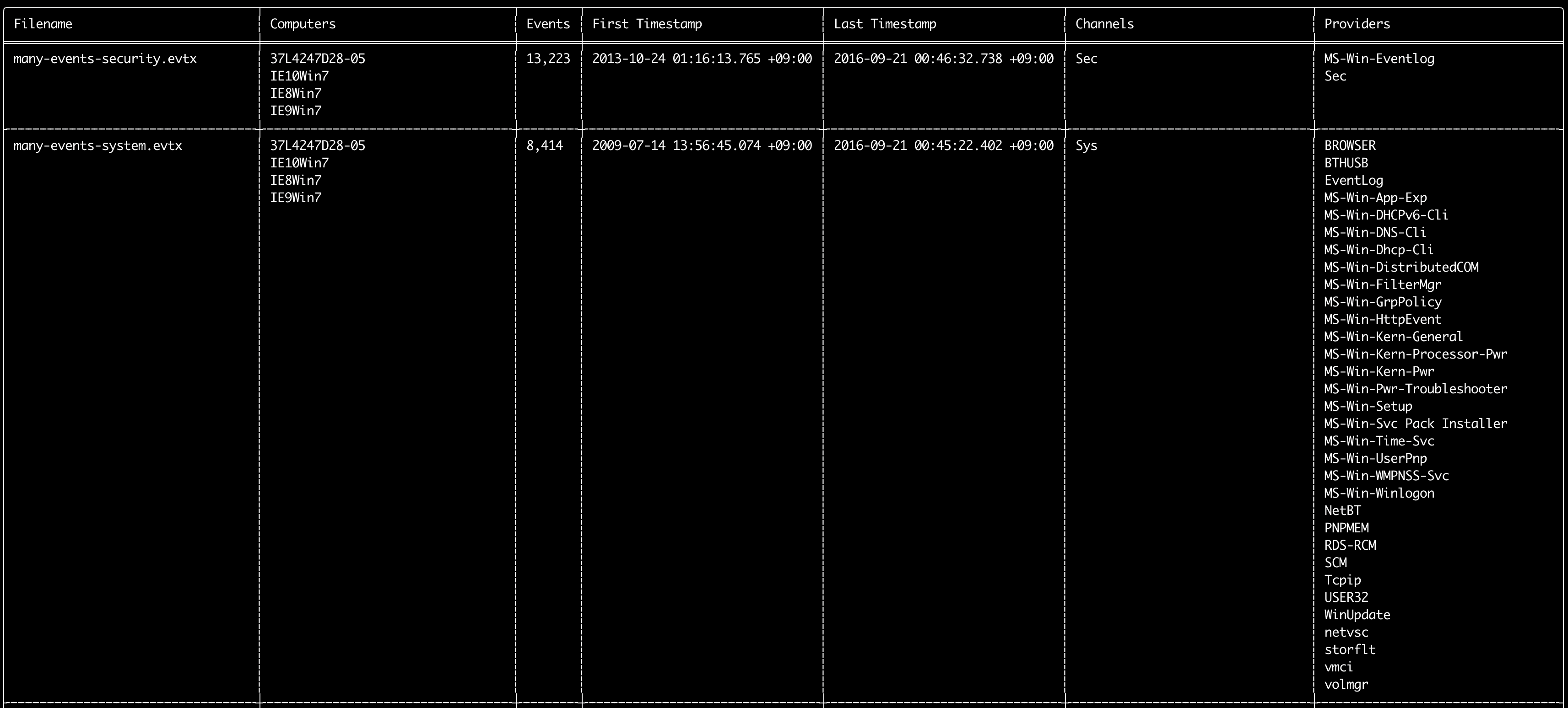
يمكنك استخدام أمر log-metrics لطباعة البيانات الوصفية التالية داخل سجلات الأحداث:
* Filename
* Computer names
* Number of events
* First timestamp
* Last timestamp
* Channels
* Providers
لا يستخدم هذا الأمر أي قواعد كشف لذا سيفحص جميع الأحداث.
Usage:
  hayabusa.exe log-metrics <INPUT> [OPTIONS]

Input:
  -d, --directory <DIR>  دليل يحتوي على ملفات .evtx متعددة
  -f, --file <FILE>      مسار ملف .evtx واحد
  -l, --live-analysis    تحليل مجلد C:\Windows\System32\winevt\Logs المحلي

General Options:
  -C, --clobber                        الكتابة فوق الملفات عند الحفظ
  -h, --help                           عرض قائمة المساعدة
  -J, --json-input                     فحص السجلات بتنسيق JSON بدلاً من ملفات .evtx (.json أو .jsonl)
  -Q, --quiet-errors                   وضع كتم الأخطاء: عدم حفظ سجلات الأخطاء
  -x, --recover-records                استخراج سجلات evtx من المساحة المتبقية (default: disabled)
  -c, --rules-config <DIR>             تحديد دليل تهيئة قواعد مخصص (default: ./rules/config)
      --target-file-ext <FILE-EXT...>  تحديد امتدادات ملفات evtx إضافية (ex: evtx_data)
      --threads <NUMBER>               عدد الخيوط (default: optimal number for performance)
  -V, --validate-checksums             تفعيل التحقق من المجاميع الاختبارية

Filtering:
      --exclude-computer <COMPUTER...>  عدم فحص أسماء أجهزة الكمبيوتر المحددة (ex: ComputerA) (ex: ComputerA,ComputerB)
      --exclude-channel <CHANNEL...>    عدم فحص القنوات المحددة (ex: System,Security)
      --exclude-filename <FILE...>      عدم فحص ملفات evtx المحددة (ex: Security.evtx,System.evtx)
      --include-computer <COMPUTER...>  فحص أسماء أجهزة الكمبيوتر المحددة فقط (ex: ComputerA) (ex: ComputerA,ComputerB)
      --include-channel <CHANNEL...>    تضمين القنوات المحددة فقط (ex: System,Security)
      --include-filename <FILE...>      تضمين ملفات evtx المحددة فقط (ex: Security.evtx,System.evtx)
      --time-offset <OFFSET>            فحص الأحداث الحديثة استنادًا إلى إزاحة زمنية (ex: 1y, 3M, 30d, 24h, 30m)

Output:
  -b, --disable-abbreviations  تعطيل الاختصارات
  -M, --multiline              فصل معلومات حقول الأحداث بأحرف سطر جديد لإخراج CSV
  -o, --output <FILE>          حفظ المقاييس بتنسيق CSV (ex: metrics.csv)
  -S, --tab-separator          فصل معلومات حقول الأحداث بعلامات جدولة (tabs)

Display Settings:
  -K, --no-color  تعطيل إخراج الألوان
  -q, --quiet     الوضع الصامت: عدم عرض شعار البدء
  -v, --verbose   إخراج معلومات مفصّلة

Time Format:
      --european-time     إخراج الطابع الزمني بتنسيق الوقت الأوروبي (ex: 22-02-2022 22:00:00.123 +02:00)
  -O, --iso-8601          إخراج الطابع الزمني بتنسيق ISO-8601 الأصلي (ex: 2022-02-22T10:10:10.1234567Z) (Always UTC)
      --rfc-2822          إخراج الطابع الزمني بتنسيق RFC 2822 (ex: Fri, 22 Feb 2022 22:00:00 -0600)
      --rfc-3339          إخراج الطابع الزمني بتنسيق RFC 3339 (ex: 2022-02-22 22:00:00.123456-06:00)
  -U, --utc               إخراج الوقت بتنسيق UTC (default: local time)
      --us-military-time  إخراج الطابع الزمني بتنسيق الوقت العسكري الأمريكي (ex: 02-22-2022 22:00:00.123 -06:00)
      --us-time           إخراج الطابع الزمني بتنسيق الوقت الأمريكي (ex: 02-22-2022 10:00:00.123 PM -06:00)
أمثلة على أمر log-metrics
- طباعة مقاييس ملف السجل من ملف واحد:
hayabusa.exe log-metrics -f Security.evtx - طباعة مقاييس ملف السجل من دليل:
hayabusa.exe log-metrics -d ../logs - حفظ النتائج في ملف CSV:
hayabusa.exe log-metrics -d ../logs -o log-metrics.csv
لقطة شاشة لـ log-metrics
أمر logon-summary
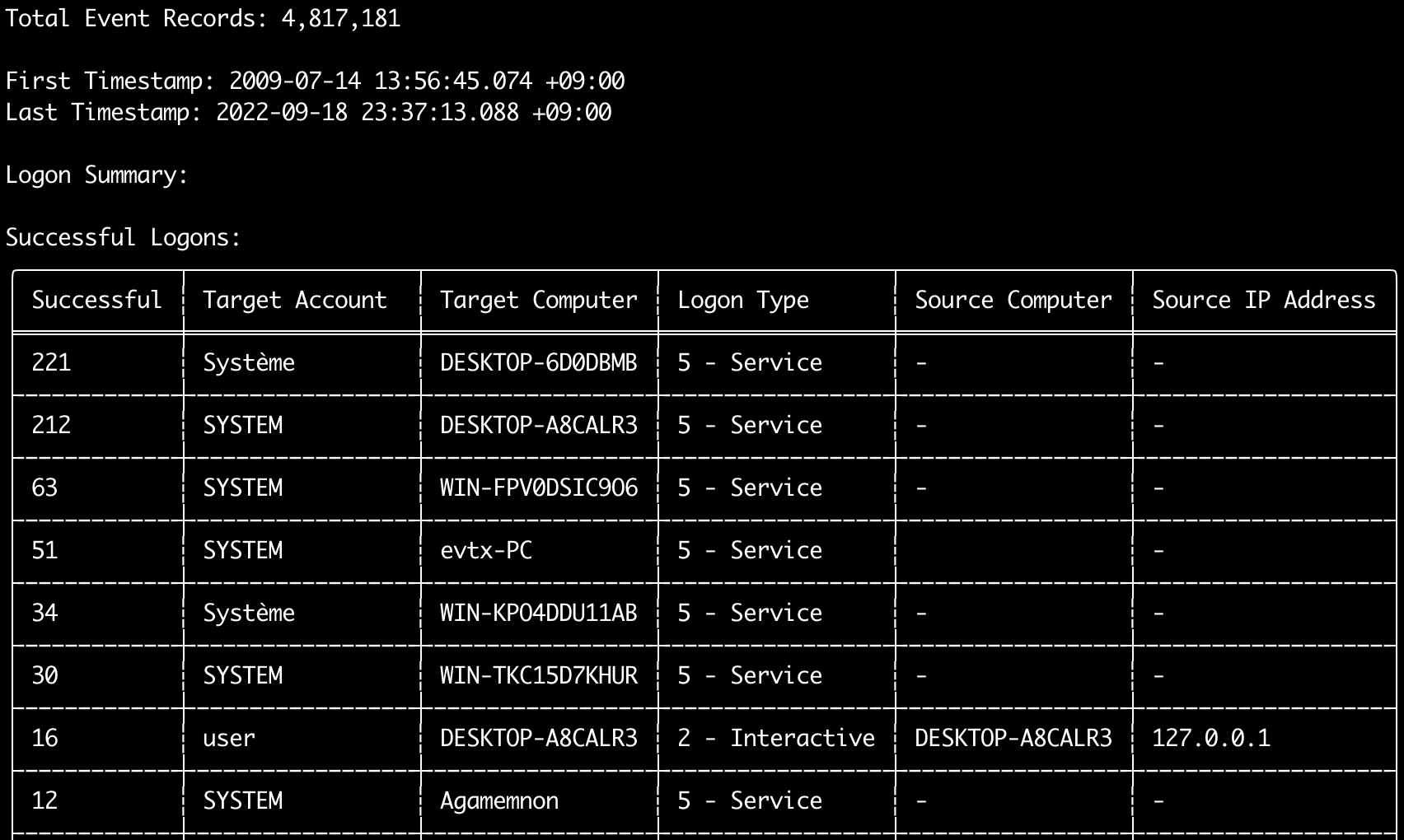
يمكنك استخدام أمر logon-summary لإخراج ملخص معلومات تسجيل الدخول (أسماء مستخدمي تسجيل الدخول وعدد عمليات تسجيل الدخول الناجحة والفاشلة).
يمكنك عرض معلومات تسجيل الدخول لملف evtx واحد باستخدام -f أو ملفات evtx متعددة باستخدام خيار -d.
تؤخذ عمليات تسجيل الدخول الناجحة من الأحداث التالية:
* Security 4624 (Successful Logon)
* RDS-LSM 21 (Remote Desktop Service Local Session Manager Logon)
* RDS-GTW 302 (Remote Desktop Service Gateway Logon)
تؤخذ عمليات تسجيل الدخول الفاشلة من أحداث Security 4625.
Usage:
  hayabusa.exe logon-summary <INPUT> [OPTIONS]

Input:
  -d, --directory <DIR>  دليل يحتوي على ملفات .evtx متعددة
  -f, --file <FILE>      مسار ملف .evtx واحد
  -l, --live-analysis    تحليل مجلد C:\Windows\System32\winevt\Logs المحلي

General Options:
  -C, --clobber                        الكتابة فوق الملفات عند الحفظ
  -h, --help                           عرض قائمة المساعدة
  -J, --json-input                     فحص السجلات بتنسيق JSON بدلاً من ملفات .evtx (.json أو .jsonl)
  -Q, --quiet-errors                   وضع كتم الأخطاء: عدم حفظ سجلات الأخطاء
  -x, --recover-records                استخراج سجلات evtx من المساحة المتبقية (default: disabled)
  -c, --rules-config <DIR>             تحديد دليل تهيئة قواعد مخصص (default: ./rules/config)
      --target-file-ext <FILE-EXT...>  تحديد امتدادات ملفات evtx إضافية (ex: evtx_data)
      --threads <NUMBER>               عدد الخيوط (default: optimal number for performance)
  -V, --validate-checksums             تفعيل التحقق من المجاميع الاختبارية

Filtering:
      --exclude-computer <COMPUTER...>  عدم فحص أسماء أجهزة الكمبيوتر المحددة (ex: ComputerA) (ex: ComputerA,ComputerB)
      --include-computer <COMPUTER...>  فحص أسماء أجهزة الكمبيوتر المحددة فقط (ex: ComputerA) (ex: ComputerA,ComputerB)
      --time-offset <OFFSET>            فحص الأحداث الحديثة استنادًا إلى إزاحة زمنية (ex: 1y, 3M, 30d, 24h, 30m)
      --timeline-end <DATE>             وقت انتهاء سجلات الأحداث المراد تحميلها (ex: "2022-02-22 23:59:59 +09:00")
      --timeline-start <DATE>           وقت بدء سجلات الأحداث المراد تحميلها (ex: "2020-02-22 00:00:00 +09:00")

Output:
  -G, --geo-ip <MAXMIND-DB-DIR>   إضافة معلومات GeoIP (ASN، المدينة، الدولة) إلى عناوين IP المصدر
  -X, --remove-duplicate-records  إزالة سجلات الأحداث المكررة (default: disabled)
  -o, --output <FILENAME-PREFIX>  حفظ ملخص تسجيل الدخول في ملفي CSV (ex: -o logon-summary)

Display Settings:
  -K, --no-color  تعطيل إخراج الألوان
  -q, --quiet     الوضع الصامت: عدم عرض شعار البدء
  -v, --verbose   إخراج معلومات مفصّلة

Time Format:
      --european-time     إخراج الطابع الزمني بتنسيق الوقت الأوروبي (ex: 22-02-2022 22:00:00.123 +02:00)
  -O, --iso-8601          إخراج الطابع الزمني بتنسيق ISO-8601 الأصلي (ex: 2022-02-22T10:10:10.1234567Z) (Always UTC)
      --rfc-2822          إخراج الطابع الزمني بتنسيق RFC 2822 (ex: Fri, 22 Feb 2022 22:00:00 -0600)
      --rfc-3339          إخراج الطابع الزمني بتنسيق RFC 3339 (ex: 2022-02-22 22:00:00.123456-06:00)
  -U, --utc               إخراج الوقت بتنسيق UTC (default: local time)
      --us-military-time  إخراج الطابع الزمني بتنسيق الوقت العسكري الأمريكي (ex: 02-22-2022 22:00:00.123 -06:00)
      --us-time           إخراج الطابع الزمني بتنسيق الوقت الأمريكي (ex: 02-22-2022 10:00:00.123 PM -06:00)
إثراء معلومات GeoIP في أمر logon-summary
عند تمرير -G, --geo-ip مع مسار مجلد يحتوي على قواعد بيانات MaxMind وهي GeoLite2-ASN.mmdb وGeoLite2-Country.mmdb وGeoLite2-City.mmdb، يتم البحث عن عنوان IP المصدر لكل صف وتُضاف الأعمدة Source ASN وSource Country وSource City إلى كلا ملفي CSV.
لا يتسع جدول الطرفية إلا لعمود واحد منها، لذا يعرض Source Country (ويعود إلى عمود ASN عند كونه فارغًا، لأن القيمتين البديلتين Local/Private للعناوين غير القابلة للتوجيه تظهران هناك).
أمثلة على أمر logon-summary
- طباعة ملخص تسجيل الدخول:
hayabusa.exe logon-summary -f Security.evtx - حفظ نتائج ملخص تسجيل الدخول:
hayabusa.exe logon-summary -d ../logs -o logon-summary.csv - إضافة معلومات GeoIP إلى عناوين IP المصدر:
hayabusa.exe logon-summary -d ../logs -G /usr/local/share/GeoIP -o logon-summary.csv
لقطات شاشة لـ logon-summary

أمر pivot-keywords-list
يمكنك استخدام أمر pivot-keywords-list لإنشاء قائمة بالكلمات المفتاحية المحورية الفريدة لتحديد المستخدمين وأسماء المضيفين والعمليات وما إلى ذلك غير الطبيعية بسرعة، بالإضافة إلى ربط الأحداث.
مهم: بشكل افتراضي، سيعيد hayabusa النتائج من جميع الأحداث (المعلوماتية والأعلى) لذا نوصي بشدة بدمج أمر pivot-keywords-list مع خيار -m, --min-level.
على سبيل المثال، ابدأ بإنشاء كلمات مفتاحية من التنبيهات critical فقط باستخدام -m critical ثم استمر مع -m high و -m medium وما إلى ذلك.
على الأرجح ستكون هناك كلمات مفتاحية شائعة في نتائجك تطابق العديد من الأحداث الطبيعية، لذا بعد التحقق يدويًا من النتائج وإنشاء قائمة بالكلمات المفتاحية الفريدة في ملف واحد، يمكنك بعد ذلك إنشاء جدول زمني مُضيّق للنشاط المشبوه باستخدام أمر مثل grep -f keywords.txt timeline.csv.
Usage:
  hayabusa.exe pivot-keywords-list <INPUT> [OPTIONS]

Input:
  -d, --directory <DIR>  دليل يحتوي على ملفات .evtx متعددة
  -f, --file <FILE>      مسار ملف .evtx واحد
  -l, --live-analysis    تحليل مجلد C:\Windows\System32\winevt\Logs المحلي

General Options:
  -C, --clobber                        الكتابة فوق الملفات عند الحفظ
  -h, --help                           عرض قائمة المساعدة
  -J, --json-input                     فحص السجلات بتنسيق JSON بدلاً من ملفات .evtx (.json أو .jsonl)
  -w, --no-wizard                      عدم طرح الأسئلة. فحص جميع الأحداث والتنبيهات
  -Q, --quiet-errors                   وضع كتم الأخطاء: عدم حفظ سجلات الأخطاء
  -x, --recover-records                استخراج سجلات evtx من المساحة المتبقية (default: disabled)
  -c, --rules-config <DIR>             تحديد دليل تهيئة قواعد مخصص (default: ./rules/config)
      --target-file-ext <FILE-EXT...>  تحديد امتدادات ملفات evtx إضافية (ex: evtx_data)
      --threads <NUMBER>               عدد الخيوط (default: optimal number for performance)
  -V, --validate-checksums             تفعيل التحقق من المجاميع الاختبارية

Filtering:
  -E, --eid-filter                      فحص معرّفات الأحداث الشائعة فقط لسرعة أكبر (./rules/config/target_event_IDs.txt)
  -D, --enable-deprecated-rules         تفعيل القواعد ذات الحالة المهملة (deprecated)
  -n, --enable-noisy-rules              تفعيل القواعد المصنّفة كمزعجة (noisy) (./rules/config/noisy_rules.txt)
  -u, --enable-unsupported-rules        تفعيل القواعد ذات الحالة غير المدعومة (unsupported)
  -e, --exact-level <LEVEL>             تحميل القواعد ذات مستوى محدد فقط (informational, low, medium, high, critical)
      --exclude-computer <COMPUTER...>  عدم فحص أسماء أجهزة الكمبيوتر المحددة (ex: ComputerA) (ex: ComputerA,ComputerB)
      --exclude-eid <EID...>            عدم فحص معرّفات أحداث محددة لسرعة أكبر (ex: 1) (ex: 1,4688)
      --exclude-status <STATUS...>      عدم تحميل القواعد وفقًا للحالة (ex: experimental) (ex: stable,test)
      --exclude-tag <TAG...>            عدم تحميل القواعد ذات وسوم محددة (ex: sysmon)
      --include-computer <COMPUTER...>  فحص أسماء أجهزة الكمبيوتر المحددة فقط (ex: ComputerA) (ex: ComputerA,ComputerB)
      --include-eid <EID...>            فحص معرّفات الأحداث المحددة فقط لسرعة أكبر (ex: 1) (ex: 1,4688)
      --include-status <STATUS...>      تحميل القواعد ذات حالة محددة فقط (ex: experimental) (ex: stable,test)
      --include-tag <TAG...>            تحميل القواعد ذات وسوم محددة فقط (ex: attack.execution,attack.discovery)
  -m, --min-level <LEVEL>               الحد الأدنى لمستوى القواعد المراد تحميلها (default: informational)
      --time-offset <OFFSET>            فحص الأحداث الحديثة استنادًا إلى إزاحة زمنية (ex: 1y, 3M, 30d, 24h, 30m)
      --timeline-end <DATE>             وقت انتهاء سجلات الأحداث المراد تحميلها (ex: "2022-02-22 23:59:59 +09:00")
      --timeline-start <DATE>           وقت بدء سجلات الأحداث المراد تحميلها (ex: "2020-02-22 00:00:00 +09:00")

Output:
  -o, --output <FILENAME-PREFIX>  حفظ الكلمات المحورية في ملفات منفصلة (ex: PivotKeywords)

Display Settings:
  -K, --no-color  تعطيل إخراج الألوان
  -q, --quiet     الوضع الصامت: عدم عرض شعار البدء
  -v, --verbose   إخراج معلومات مفصّلة
أمثلة على أمر pivot-keywords-list
- إخراج الكلمات المفتاحية المحورية إلى الشاشة:
hayabusa.exe pivot-keywords-list -d ../logs -m critical - إنشاء قائمة بالكلمات المفتاحية المحورية من التنبيهات الحرجة وحفظ النتائج. (سيتم حفظ النتائج في
keywords-Ip Addresses.txtوkeywords-Users.txtوما إلى ذلك):
ملف إعداد pivot-keywords-list
يمكنك تخصيص الكلمات المفتاحية التي تريد البحث عنها عن طريق تحرير ./rules/config/pivot_keywords.txt.
هذه الصفحة هي الإعداد الافتراضي.
التنسيق هو KeywordName.FieldName. على سبيل المثال، عند إنشاء قائمة Users، سيُدرج hayabusa جميع القيم في حقول SubjectUserName و TargetUserName و User.
أمر search
سيتيح لك أمر search البحث بالكلمات المفتاحية في جميع الأحداث.
(ليس فقط نتائج كشف Hayabusa.)
هذا مفيد لتحديد ما إذا كان هناك أي دليل في الأحداث التي لا يكتشفها Hayabusa.
Usage:
  hayabusa.exe search <INPUT> <--keywords "<KEYWORDS>" OR --regex "<REGEX>"> [OPTIONS]

Display Settings:
  -K, --no-color  تعطيل إخراج الألوان
  -q, --quiet     الوضع الصامت: عدم عرض شعار البدء
  -v, --verbose   إخراج معلومات مفصّلة

General Options:
  -C, --clobber                        الكتابة فوق الملفات عند الحفظ
  -h, --help                           عرض قائمة المساعدة
  -Q, --quiet-errors                   وضع كتم الأخطاء: عدم حفظ سجلات الأخطاء
  -x, --recover-records                استخراج سجلات evtx من المساحة المتبقية (default: disabled)
  -c, --rules-config <DIR>             تحديد دليل تهيئة قواعد مخصص (default: ./rules/config)
      --target-file-ext <FILE-EXT...>  تحديد امتدادات ملفات evtx إضافية (ex: evtx_data)
      --threads <NUMBER>               عدد الخيوط (default: optimal number for performance)
  -s, --sort                           فرز النتائج قبل حفظ الملف (تحذير: يستهلك هذا ذاكرة أكبر بكثير!)
  -V, --validate-checksums             تفعيل التحقق من المجاميع الاختبارية

Input:
  -d, --directory <DIR>  دليل يحتوي على ملفات .evtx متعددة
  -f, --file <FILE>      مسار ملف .evtx واحد
  -l, --live-analysis    تحليل مجلد C:\Windows\System32\winevt\Logs المحلي

Filtering:
  -a, --and-logic              البحث عن الكلمات المفتاحية بمنطق AND (default: OR)
  -F, --filter <FILTER...>     التصفية حسب حقل (حقول) محددة
  -i, --ignore-case            بحث عن الكلمات المفتاحية غير حساس لحالة الأحرف
  -k, --keyword <KEYWORD...>   البحث بواسطة كلمة (كلمات) مفتاحية
  -r, --regex <REGEX>          البحث بواسطة تعبير نمطي
      --time-offset <OFFSET>   فحص الأحداث الحديثة استنادًا إلى إزاحة زمنية (ex: 1y, 3M, 30d, 24h, 30m)
      --timeline-end <DATE>    وقت انتهاء سجلات الأحداث المراد تحميلها (ex: "2022-02-22 23:59:59 +09:00")
      --timeline-start <DATE>  وقت بدء سجلات الأحداث المراد تحميلها (ex: "2020-02-22 00:00:00 +09:00")

Output:
  -b, --disable-abbreviations  تعطيل الاختصارات
  -J, --json-output            حفظ نتائج البحث بتنسيق JSON (ex: -J -o results.json)
  -L, --jsonl-output           حفظ نتائج البحث بتنسيق JSONL (ex: -L -o results.jsonl)
  -M, --multiline              فصل معلومات حقول الأحداث بأحرف سطر جديد لإخراج CSV
  -o, --output <FILE>          حفظ نتائج البحث بتنسيق CSV (ex: search.csv)
  -S, --tab-separator          فصل معلومات حقول الأحداث بعلامات جدولة (tabs)

Time Format:
      --european-time     إخراج الطابع الزمني بتنسيق الوقت الأوروبي (ex: 22-02-2022 22:00:00.123 +02:00)
  -O, --iso-8601          إخراج الطابع الزمني بتنسيق ISO-8601 الأصلي (ex: 2022-02-22T10:10:10.1234567Z) (Always UTC)
      --rfc-2822          إخراج الطابع الزمني بتنسيق RFC 2822 (ex: Fri, 22 Feb 2022 22:00:00 -0600)
      --rfc-3339          إخراج الطابع الزمني بتنسيق RFC 3339 (ex: 2022-02-22 22:00:00.123456-06:00)
  -U, --utc               إخراج الوقت بتنسيق UTC (default: local time)
      --us-military-time  إخراج الطابع الزمني بتنسيق الوقت العسكري الأمريكي (ex: 02-22-2022 22:00:00.123 -06:00)
      --us-time           إخراج الطابع الزمني بتنسيق الوقت الأمريكي (ex: 02-22-2022 10:00:00.123 PM -06:00)
أمثلة على أمر search
- البحث في دليل
../hayabusa-sample-evtxعن الكلمة المفتاحيةmimikatz:
ملاحظة: ستطابق الكلمة المفتاحية إذا تم العثور على
mimikatzفي أي مكان في البيانات. إنها ليست مطابقة تامة.
- البحث في دليل
../hayabusa-sample-evtxعن الكلمات المفتاحيةmimikatzأوkali:
- البحث في دليل
../hayabusa-sample-evtxعن الكلمة المفتاحيةmimikatzمع تجاهل حالة الأحرف:
- البحث في دليل
../hayabusa-sample-evtxعن عناوين IP باستخدام التعبيرات النمطية:
- البحث في دليل
../hayabusa-sample-evtxوعرض جميع الأحداث حيث يكون حقلWorkstationNameهوkali:
ملاحظة:
.*هو التعبير النمطي للمطابقة على كل حدث.
ملفات إعداد أمر search
./rules/config/channel_abbreviations.txt: تعيينات أسماء القنوات واختصاراتها.