Comandos de análisis
Comando computer-metrics
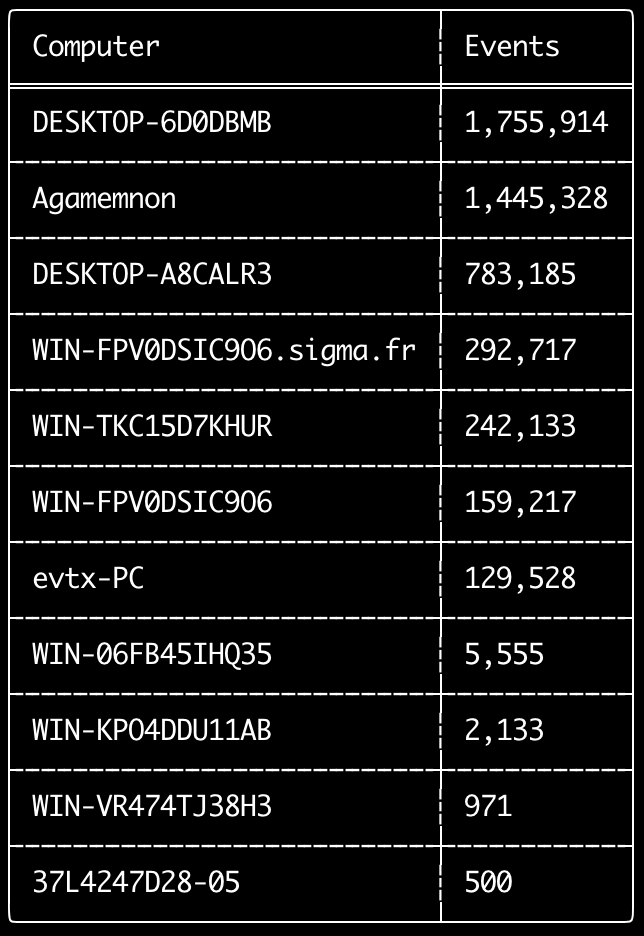
Puede usar el comando computer-metrics para comprobar cuántos eventos hay según cada equipo definido en el campo <System><Computer>.
Tenga en cuenta que no puede confiar completamente en el campo Computer para separar eventos por su equipo de origen.
Windows 11 a veces usará nombres de Computer completamente diferentes al guardar en los registros de eventos.
Además, Windows 10 a veces registrará el nombre de Computer todo en minúsculas.
Este comando no usa ninguna regla de detección, por lo que analizará todos los eventos.
Este es un buen comando para ejecutar y ver rápidamente qué equipos tienen más registros.
Con esta información, puede usar las opciones --include-computer o --exclude-computer al crear sus líneas de tiempo para hacer que la generación de su línea de tiempo sea más eficiente creando varias líneas de tiempo según el equipo o excluyendo eventos de ciertos equipos.
Usage:
  hayabusa.exe computer-metrics <INPUT> [OPTIONS]

Input:
  -d, --directory <DIR>  Directorio con múltiples archivos .evtx
  -f, --file <FILE>      Ruta a un único archivo .evtx
  -l, --live-analysis    Analizar la carpeta local C:\Windows\System32\winevt\Logs

General Options:
  -C, --clobber                        Sobrescribir los archivos al guardar
  -h, --help                           Mostrar el menú de ayuda
  -J, --json-input                     Escanear registros en formato JSON en lugar de .evtx (.json o .jsonl)
  -Q, --quiet-errors                   Modo de errores silencioso: no guardar los registros de errores
  -x, --recover-records                Extraer registros evtx del slack space (default: disabled)
  -c, --rules-config <DIR>             Especificar un directorio de configuración de reglas personalizado (default: ./rules/config)
      --target-file-ext <FILE-EXT...>  Especificar extensiones de archivo evtx adicionales (ex: evtx_data)
  -V, --validate-checksums             Habilitar la validación de sumas de verificación (checksums)

Filtering:
      --time-offset <OFFSET>  Escanear eventos recientes según un desplazamiento (offset) (ex: 1y, 3M, 30d, 24h, 30m)

Output:
  -o, --output <FILE>  Guardar los resultados en formato CSV (ex: computer-metrics.csv)

Display Settings:
  -K, --no-color  Deshabilitar la salida en color
  -q, --quiet     Modo silencioso: no mostrar el banner de inicio
  -v, --verbose   Mostrar información detallada
Ejemplos del comando computer-metrics
- Imprimir métricas de nombres de equipos desde un directorio:
hayabusa.exe computer-metrics -d ../logs - Guardar los resultados en un archivo CSV:
hayabusa.exe computer-metrics -d ../logs -o computer-metrics.csv
Captura de pantalla de computer-metrics
Comando eid-metrics
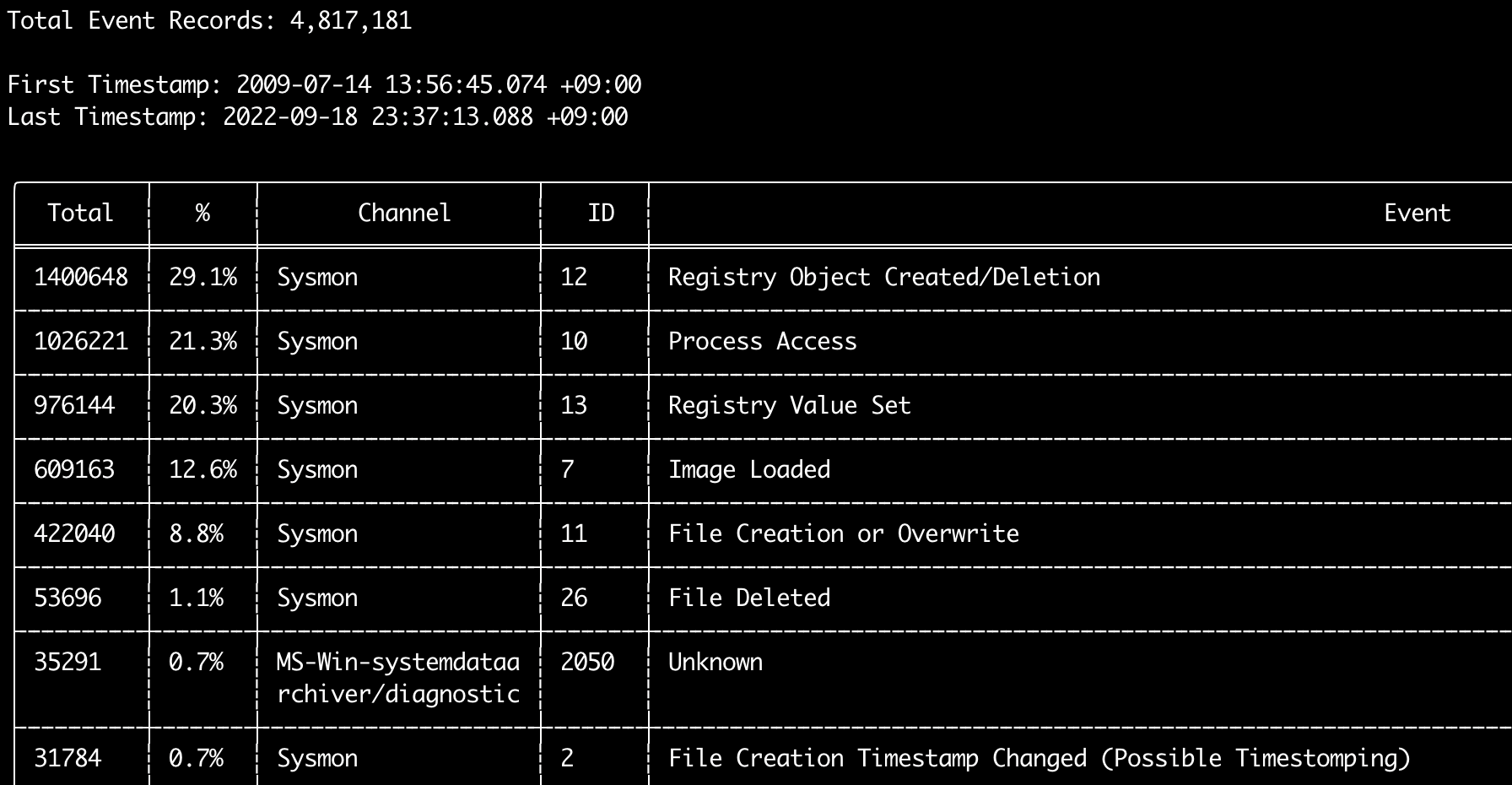
Puede usar el comando eid-metrics para imprimir el número total y el porcentaje de los IDs de evento (campo <System><EventID>) separados por canales.
Este comando no usa ninguna regla de detección, por lo que escaneará todos los eventos.
Usage:
  hayabusa.exe eid-metrics <INPUT> [OPTIONS]

Input:
  -d, --directory <DIR>  Directorio con múltiples archivos .evtx
  -f, --file <FILE>      Ruta a un único archivo .evtx
  -l, --live-analysis    Analizar la carpeta local C:\Windows\System32\winevt\Logs

General Options:
  -C, --clobber                        Sobrescribir los archivos al guardar
  -h, --help                           Mostrar el menú de ayuda
  -J, --json-input                     Escanear registros en formato JSON en lugar de .evtx (.json o .jsonl)
  -Q, --quiet-errors                   Modo de errores silencioso: no guardar los registros de errores
  -x, --recover-records                Extraer registros evtx del slack space (default: disabled)
  -c, --rules-config <DIR>             Especificar un directorio de configuración de reglas personalizado (default: ./rules/config)
      --target-file-ext <FILE-EXT...>  Especificar extensiones de archivo evtx adicionales (ex: evtx_data)
      --threads <NUMBER>               Número de hilos (default: optimal number for performance)
  -V, --validate-checksums             Habilitar la validación de sumas de verificación (checksums)

Filtering:
      --exclude-computer <COMPUTER...>  No escanear los nombres de equipo especificados (ex: ComputerA) (ex: ComputerA,ComputerB)
      --include-computer <COMPUTER...>  Escanear solo los nombres de equipo especificados (ex: ComputerA) (ex: ComputerA,ComputerB)
      --time-offset <OFFSET>            Escanear eventos recientes según un desplazamiento (offset) (ex: 1y, 3M, 30d, 24h, 30m)

Output:
  -X, --remove-duplicate-records  Eliminar registros de eventos duplicados (default: disabled)
  -o, --output <FILE>             Guardar las métricas en formato CSV (ex: metrics.csv)

Display Settings:
  -K, --no-color  Deshabilitar la salida en color
  -q, --quiet     Modo silencioso: no mostrar el banner de inicio
  -v, --verbose   Mostrar información detallada

Time Format:
      --european-time     Mostrar la marca de tiempo en formato de hora europeo (ex: 22-02-2022 22:00:00.123 +02:00)
  -O, --iso-8601          Mostrar la marca de tiempo en el formato ISO-8601 original (ex: 2022-02-22T10:10:10.1234567Z) (siempre en UTC)
      --rfc-2822          Mostrar la marca de tiempo en formato RFC 2822 (ex: Fri, 22 Feb 2022 22:00:00 -0600)
      --rfc-3339          Mostrar la marca de tiempo en formato RFC 3339 (ex: 2022-02-22 22:00:00.123456-06:00)
  -U, --utc               Mostrar la hora en formato UTC (default: local time)
      --us-military-time  Mostrar la marca de tiempo en formato de hora militar de EE. UU. (ex: 02-22-2022 22:00:00.123 -06:00)
      --us-time           Mostrar la marca de tiempo en formato de hora de EE. UU. (ex: 02-22-2022 10:00:00.123 PM -06:00)
Ejemplos del comando eid-metrics
- Imprimir métricas de ID de evento desde un solo archivo:
hayabusa.exe eid-metrics -f Security.evtx - Imprimir métricas de ID de evento desde un directorio:
hayabusa.exe eid-metrics -d ../logs - Guardar los resultados en un archivo CSV:
hayabusa.exe eid-metrics -f Security.evtx -o eid-metrics.csv
Archivo de configuración del comando eid-metrics
El canal, los IDs de evento y los títulos de los eventos están definidos en rules/config/channel_eid_info.txt.
Ejemplo:
Channel,EventID,EventTitle
Microsoft-Windows-Sysmon/Operational,1,Process Creation.
Microsoft-Windows-Sysmon/Operational,2,File Creation Timestamp Changed. (Possible Timestomping)
Microsoft-Windows-Sysmon/Operational,3,Network Connection.
Microsoft-Windows-Sysmon/Operational,4,Sysmon Service State Changed.
Captura de pantalla de eid-metrics
Comando expand-list
Extrae marcadores de posición expand de la carpeta de reglas.
Esto es útil al crear archivos de configuración para usar cualquier regla que use el modificador de campo expand.
Para usar reglas expand, solo necesita crear un archivo .txt con el nombre del modificador de campo expand en el directorio ./config/expand/, y poner todos los valores que desee comprobar dentro del archivo.
Por ejemplo, si la lógica de detection de la regla es:
detection:
    selection:
        EventID: 5145
        RelativeTargetName|contains: '\winreg'
    filter_main:
        IpAddress|expand: '%Admins_Workstations%'
    condition: selection and not filter_main
crearía el archivo de texto ./config/expand/Admins_Workstations.txt y pondría valores como:
Esto comprobaría esencialmente la misma lógica que:
Si el archivo de configuración no existe, Hayabusa aún cargará la regla expand pero la ignorará.
Usage:
  hayabusa.exe expand-list [OPTIONS]

General Options:
  -h, --help              Mostrar el menú de ayuda
  -r, --rules <DIR/FILE>  Especificar el directorio de reglas (default: ./rules)

Display Settings:
  -K, --no-color  Deshabilitar la salida en color
  -q, --quiet     Modo silencioso: no mostrar el banner de inicio
Ejemplos del comando expand-list
- Extraer los modificadores de campo
expanddel directoriorulespredeterminado:hayabusa.exe expand-list - Extraer los modificadores de campo
expanddel directoriosigma:hayabusa.exe expand-list -r ../sigma
Resultados de expand-list
5 unique expand placeholders found:
Admins_Workstations
DC-MACHINE-NAME
Workstations
internal_domains
domain_controller_hostnames
Comando extract-base64
Este comando extraerá cadenas base64 de los siguientes eventos, las decodificará e indicará qué tipo de codificación se está usando. * Security 4688 CommandLine * Sysmon 1 CommandLine, ParentCommandLine * System 7045 ImagePath * PowerShell Operational 4104 * PowerShell Operational 4103
Usage:
  hayabusa.exe extract-base64 <INPUT> [OPTIONS]

Input:
  -d, --directory <DIR>  Directorio con múltiples archivos .evtx
  -f, --file <FILE>      Ruta a un único archivo .evtx
  -l, --live-analysis    Analizar la carpeta local C:\Windows\System32\winevt\Logs

General Options:
  -C, --clobber                        Sobrescribir los archivos al guardar
  -h, --help                           Mostrar el menú de ayuda
  -J, --json-input                     Escanear registros en formato JSON en lugar de .evtx (.json o .jsonl)
  -Q, --quiet-errors                   Modo de errores silencioso: no guardar los registros de errores
  -x, --recover-records                Extraer registros evtx del slack space (default: disabled)
  -c, --rules-config <DIR>             Especificar un directorio de configuración de reglas personalizado (default: ./rules/config)
      --target-file-ext <FILE-EXT...>  Especificar extensiones de archivo evtx adicionales (ex: evtx_data)
      --threads <NUMBER>               Número de hilos (default: optimal number for performance)
  -V, --validate-checksums             Habilitar la validación de sumas de verificación (checksums)

Filtering:
      --exclude-computer <COMPUTER...>  No escanear los nombres de equipo especificados (ex: ComputerA) (ex: ComputerA,ComputerB)
      --include-computer <COMPUTER...>  Escanear solo los nombres de equipo especificados (ex: ComputerA) (ex: ComputerA,ComputerB)
      --time-offset <OFFSET>            Escanear eventos recientes según un desplazamiento (offset) (ex: 1y, 3M, 30d, 24h, 30m)

Output:
  -o, --output <FILE>  Guardar los resultados en un archivo CSV

Display Settings:
  -K, --no-color  Deshabilitar la salida en color
  -q, --quiet     Modo silencioso: no mostrar el banner de inicio
  -v, --verbose   Mostrar información detallada

Time Format:
      --european-time     Mostrar la marca de tiempo en formato de hora europeo (ex: 22-02-2022 22:00:00.123 +02:00)
  -O, --iso-8601          Mostrar la marca de tiempo en el formato ISO-8601 original (ex: 2022-02-22T10:10:10.1234567Z) (siempre en UTC)
      --rfc-2822          Mostrar la marca de tiempo en formato RFC 2822 (ex: Fri, 22 Feb 2022 22:00:00 -0600)
      --rfc-3339          Mostrar la marca de tiempo en formato RFC 3339 (ex: 2022-02-22 22:00:00.123456-06:00)
  -U, --utc               Mostrar la hora en formato UTC (default: local time)
      --us-military-time  Mostrar la marca de tiempo en formato de hora militar de EE. UU. (ex: 02-22-2022 22:00:00.123 -06:00)
      --us-time           Mostrar la marca de tiempo en formato de hora de EE. UU. (ex: 02-22-2022 10:00:00.123 PM -06:00)
Ejemplos del comando extract-base64
- Escanear un directorio y mostrar la salida en la terminal:
hayabusa.exe extract-base64 -d ../hayabusa-sample-evtx - Escanear un directorio y guardar la salida en un archivo CSV:
hayabusa.exe extract-base64 -d ../hayabusa-sample-evtx -o base64-extracted.csv
Resultados de extract-base64
Al mostrar la salida en la terminal, debido a que el espacio es limitado, solo se muestran los siguientes campos: * Timestamp * Computer * Base64 String * Decoded String (if not binary)
Al guardar en un archivo CSV, se guardan los siguientes campos:
* Timestamp
* Computer
* Base64 String
* Decoded String (if not binary)
* Original Field
* Length
* Binary (Y/N)
* Double Encoding (when Y, it usually is malicious)
* Encoding Type
* File Type
* Event
* Record ID
* File Name
Comando log-metrics
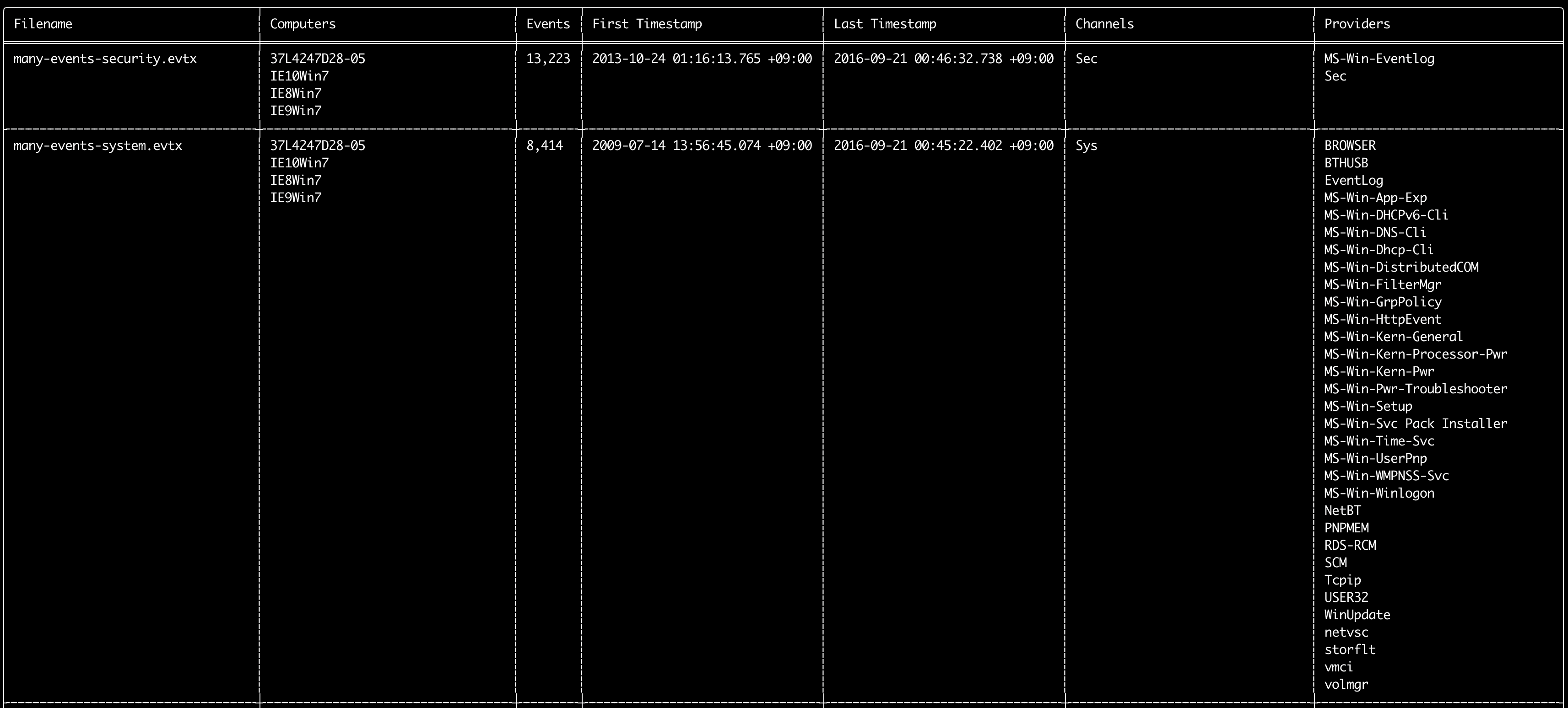
Puede usar el comando log-metrics para imprimir los siguientes metadatos dentro de los registros de eventos:
* Filename
* Computer names
* Number of events
* First timestamp
* Last timestamp
* Channels
* Providers
Este comando no usa ninguna regla de detección, por lo que escaneará todos los eventos.
Usage:
  hayabusa.exe log-metrics <INPUT> [OPTIONS]

Input:
  -d, --directory <DIR>  Directorio con múltiples archivos .evtx
  -f, --file <FILE>      Ruta a un único archivo .evtx
  -l, --live-analysis    Analizar la carpeta local C:\Windows\System32\winevt\Logs

General Options:
  -C, --clobber                        Sobrescribir los archivos al guardar
  -h, --help                           Mostrar el menú de ayuda
  -J, --json-input                     Escanear registros en formato JSON en lugar de .evtx (.json o .jsonl)
  -Q, --quiet-errors                   Modo de errores silencioso: no guardar los registros de errores
  -x, --recover-records                Extraer registros evtx del slack space (default: disabled)
  -c, --rules-config <DIR>             Especificar un directorio de configuración de reglas personalizado (default: ./rules/config)
      --target-file-ext <FILE-EXT...>  Especificar extensiones de archivo evtx adicionales (ex: evtx_data)
      --threads <NUMBER>               Número de hilos (default: optimal number for performance)
  -V, --validate-checksums             Habilitar la validación de sumas de verificación (checksums)

Filtering:
      --exclude-computer <COMPUTER...>  No escanear los nombres de equipo especificados (ex: ComputerA) (ex: ComputerA,ComputerB)
      --exclude-channel <CHANNEL...>    No escanear los canales especificados (ex: System,Security)
      --exclude-filename <FILE...>      No escanear los archivos evtx especificados (ex: Security.evtx,System.evtx)
      --include-computer <COMPUTER...>  Escanear solo los nombres de equipo especificados (ex: ComputerA) (ex: ComputerA,ComputerB)
      --include-channel <CHANNEL...>    Incluir solo los canales especificados (ex: System,Security)
      --include-filename <FILE...>      Incluir solo los archivos evtx especificados (ex: Security.evtx,System.evtx)
      --time-offset <OFFSET>            Escanear eventos recientes según un desplazamiento (offset) (ex: 1y, 3M, 30d, 24h, 30m)

Output:
  -b, --disable-abbreviations  Deshabilitar las abreviaturas
  -M, --multiline              Separar la información de los campos de eventos con saltos de línea para la salida CSV
  -o, --output <FILE>          Guardar las métricas en formato CSV (ex: metrics.csv)
  -S, --tab-separator          Separar la información de los campos de eventos con tabulaciones

Display Settings:
  -K, --no-color  Deshabilitar la salida en color
  -q, --quiet     Modo silencioso: no mostrar el banner de inicio
  -v, --verbose   Mostrar información detallada

Time Format:
      --european-time     Mostrar la marca de tiempo en formato de hora europeo (ex: 22-02-2022 22:00:00.123 +02:00)
  -O, --iso-8601          Mostrar la marca de tiempo en el formato ISO-8601 original (ex: 2022-02-22T10:10:10.1234567Z) (siempre en UTC)
      --rfc-2822          Mostrar la marca de tiempo en formato RFC 2822 (ex: Fri, 22 Feb 2022 22:00:00 -0600)
      --rfc-3339          Mostrar la marca de tiempo en formato RFC 3339 (ex: 2022-02-22 22:00:00.123456-06:00)
  -U, --utc               Mostrar la hora en formato UTC (default: local time)
      --us-military-time  Mostrar la marca de tiempo en formato de hora militar de EE. UU. (ex: 02-22-2022 22:00:00.123 -06:00)
      --us-time           Mostrar la marca de tiempo en formato de hora de EE. UU. (ex: 02-22-2022 10:00:00.123 PM -06:00)
Ejemplos del comando log-metrics
- Imprimir métricas del archivo de registro desde un solo archivo:
hayabusa.exe log-metrics -f Security.evtx - Imprimir métricas de los archivos de registro desde un directorio:
hayabusa.exe log-metrics -d ../logs - Guardar los resultados en un archivo CSV:
hayabusa.exe log-metrics -d ../logs -o log-metrics.csv
Captura de pantalla de log-metrics
Comando logon-summary
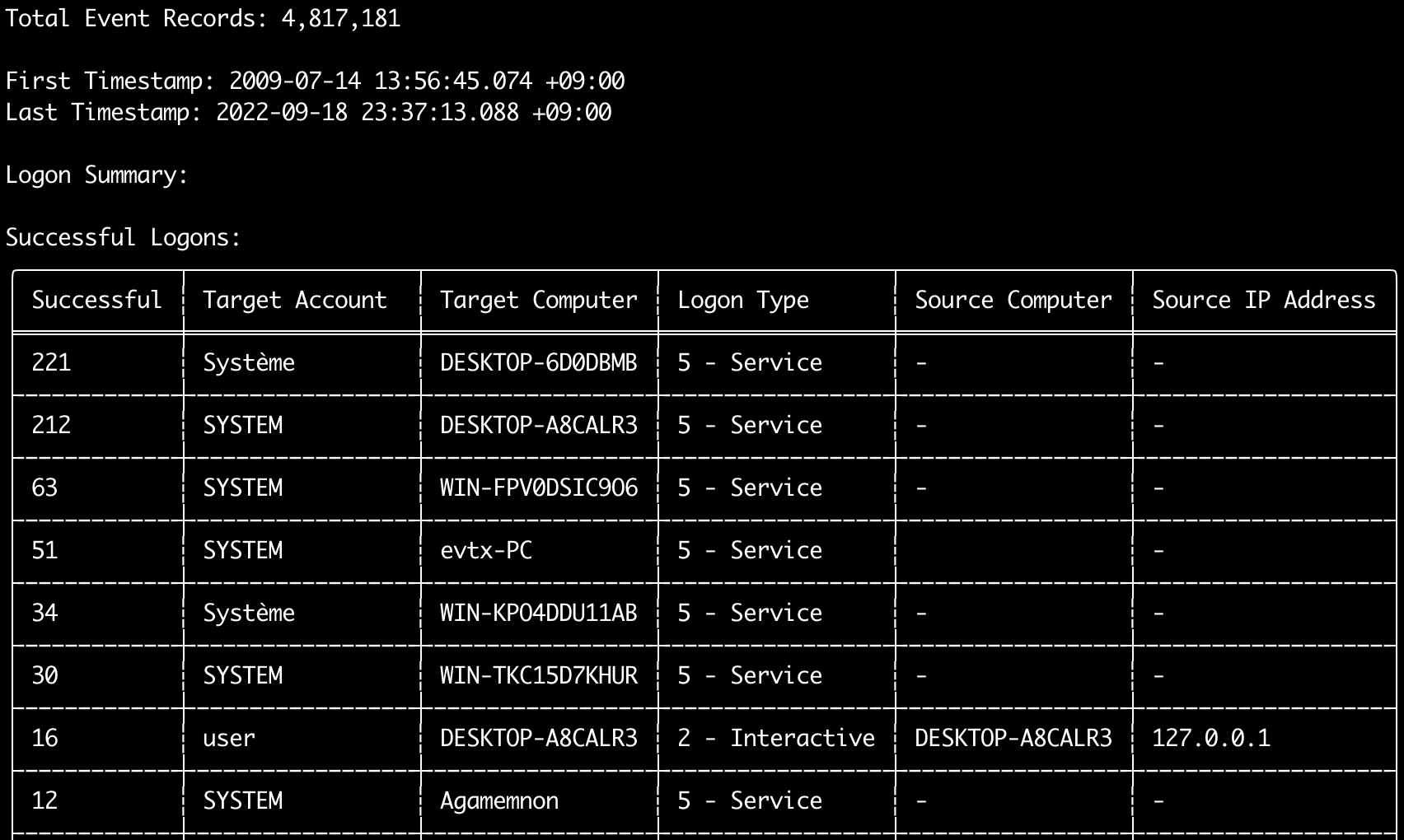
Puede usar el comando logon-summary para mostrar un resumen de la información de inicio de sesión (nombres de usuario de inicio de sesión y recuento de inicios de sesión exitosos y fallidos).
Puede mostrar la información de inicio de sesión de un archivo evtx con -f o de varios archivos evtx con la opción -d.
Los inicios de sesión exitosos se toman de los siguientes eventos:
* Security 4624 (Successful Logon)
* RDS-LSM 21 (Remote Desktop Service Local Session Manager Logon)
* RDS-GTW 302 (Remote Desktop Service Gateway Logon)
Los inicios de sesión fallidos se toman de los eventos Security 4625.
Usage:
  hayabusa.exe logon-summary <INPUT> [OPTIONS]

Input:
  -d, --directory <DIR>  Directorio con múltiples archivos .evtx
  -f, --file <FILE>      Ruta a un único archivo .evtx
  -l, --live-analysis    Analizar la carpeta local C:\Windows\System32\winevt\Logs

General Options:
  -C, --clobber                        Sobrescribir los archivos al guardar
  -h, --help                           Mostrar el menú de ayuda
  -J, --json-input                     Escanear registros en formato JSON en lugar de .evtx (.json o .jsonl)
  -Q, --quiet-errors                   Modo de errores silencioso: no guardar los registros de errores
  -x, --recover-records                Extraer registros evtx del slack space (default: disabled)
  -c, --rules-config <DIR>             Especificar un directorio de configuración de reglas personalizado (default: ./rules/config)
      --target-file-ext <FILE-EXT...>  Especificar extensiones de archivo evtx adicionales (ex: evtx_data)
      --threads <NUMBER>               Número de hilos (default: optimal number for performance)
  -V, --validate-checksums             Habilitar la validación de sumas de verificación (checksums)

Filtering:
      --exclude-computer <COMPUTER...>  No escanear los nombres de equipo especificados (ex: ComputerA) (ex: ComputerA,ComputerB)
      --include-computer <COMPUTER...>  Escanear solo los nombres de equipo especificados (ex: ComputerA) (ex: ComputerA,ComputerB)
      --time-offset <OFFSET>            Escanear eventos recientes según un desplazamiento (offset) (ex: 1y, 3M, 30d, 24h, 30m)
      --timeline-end <DATE>             Hora de fin de los registros de eventos a cargar (ex: "2022-02-22 23:59:59 +09:00")
      --timeline-start <DATE>           Hora de inicio de los registros de eventos a cargar (ex: "2020-02-22 00:00:00 +09:00")

Output:
  -G, --geo-ip <MAXMIND-DB-DIR>   Añadir información GeoIP (ASN, ciudad, país) a las direcciones IP de origen
  -X, --remove-duplicate-records  Eliminar registros de eventos duplicados (default: disabled)
  -o, --output <FILENAME-PREFIX>  Guardar el resumen de inicios de sesión en dos archivos CSV (ex: -o logon-summary)

Display Settings:
  -K, --no-color  Deshabilitar la salida en color
  -q, --quiet     Modo silencioso: no mostrar el banner de inicio
  -v, --verbose   Mostrar información detallada

Time Format:
      --european-time     Mostrar la marca de tiempo en formato de hora europeo (ex: 22-02-2022 22:00:00.123 +02:00)
  -O, --iso-8601          Mostrar la marca de tiempo en el formato ISO-8601 original (ex: 2022-02-22T10:10:10.1234567Z) (siempre en UTC)
      --rfc-2822          Mostrar la marca de tiempo en formato RFC 2822 (ex: Fri, 22 Feb 2022 22:00:00 -0600)
      --rfc-3339          Mostrar la marca de tiempo en formato RFC 3339 (ex: 2022-02-22 22:00:00.123456-06:00)
  -U, --utc               Mostrar la hora en formato UTC (default: local time)
      --us-military-time  Mostrar la marca de tiempo en formato de hora militar de EE. UU. (ex: 02-22-2022 22:00:00.123 -06:00)
      --us-time           Mostrar la marca de tiempo en formato de hora de EE. UU. (ex: 02-22-2022 10:00:00.123 PM -06:00)
Enriquecimiento GeoIP de logon-summary
Si -G, --geo-ip apunta a un directorio que contiene las bases de datos de MaxMind GeoLite2-ASN.mmdb, GeoLite2-Country.mmdb y GeoLite2-City.mmdb, se consulta la dirección IP de origen de cada fila y se añaden las columnas Source ASN, Source Country y Source City a ambos archivos CSV.
En la tabla del terminal solo cabe una de ellas, por lo que se muestra Source Country (si está vacía, se recurre a la columna ASN, que es donde aparecen los marcadores Local/Private de las direcciones no enrutables).
Ejemplos del comando logon-summary
- Imprimir el resumen de inicios de sesión:
hayabusa.exe logon-summary -f Security.evtx - Guardar los resultados del resumen de inicios de sesión:
hayabusa.exe logon-summary -d ../logs -o logon-summary.csv - Añadir información GeoIP a las direcciones IP de origen:
hayabusa.exe logon-summary -d ../logs -G /usr/local/share/GeoIP -o logon-summary.csv
Capturas de pantalla de logon-summary

Comando pivot-keywords-list
Puede usar el comando pivot-keywords-list para crear una lista de palabras clave de pivote únicas para identificar rápidamente usuarios, nombres de host, procesos, etc. anómalos, así como para correlacionar eventos.
Importante: de forma predeterminada, hayabusa devolverá resultados de todos los eventos (informativos y superiores), por lo que recomendamos encarecidamente combinar el comando pivot-keywords-list con la opción -m, --min-level.
Por ejemplo, comience creando palabras clave solo a partir de alertas critical con -m critical y luego continúe con -m high, -m medium, etc.
Lo más probable es que haya palabras clave comunes en sus resultados que coincidirán con muchos eventos normales, así que después de comprobar manualmente los resultados y crear una lista de palabras clave únicas en un solo archivo, puede crear una línea de tiempo reducida de actividad sospechosa con un comando como grep -f keywords.txt timeline.csv.
Usage:
  hayabusa.exe pivot-keywords-list <INPUT> [OPTIONS]

Input:
  -d, --directory <DIR>  Directorio con múltiples archivos .evtx
  -f, --file <FILE>      Ruta a un único archivo .evtx
  -l, --live-analysis    Analizar la carpeta local C:\Windows\System32\winevt\Logs

General Options:
  -C, --clobber                        Sobrescribir los archivos al guardar
  -h, --help                           Mostrar el menú de ayuda
  -J, --json-input                     Escanear registros en formato JSON en lugar de .evtx (.json o .jsonl)
  -w, --no-wizard                      No hacer preguntas. Escanear todos los eventos y alertas
  -Q, --quiet-errors                   Modo de errores silencioso: no guardar los registros de errores
  -x, --recover-records                Extraer registros evtx del slack space (default: disabled)
  -c, --rules-config <DIR>             Especificar un directorio de configuración de reglas personalizado (default: ./rules/config)
      --target-file-ext <FILE-EXT...>  Especificar extensiones de archivo evtx adicionales (ex: evtx_data)
      --threads <NUMBER>               Número de hilos (default: optimal number for performance)
  -V, --validate-checksums             Habilitar la validación de sumas de verificación (checksums)

Filtering:
  -E, --eid-filter                      Escanear solo los EID comunes para mayor velocidad (./rules/config/target_event_IDs.txt)
  -D, --enable-deprecated-rules         Habilitar reglas con estado deprecated
  -n, --enable-noisy-rules              Habilitar reglas marcadas como noisy (./rules/config/noisy_rules.txt)
  -u, --enable-unsupported-rules        Habilitar reglas con estado unsupported
  -e, --exact-level <LEVEL>             Cargar solo reglas con un nivel específico (informational, low, medium, high, critical)
      --exclude-computer <COMPUTER...>  No escanear los nombres de equipo especificados (ex: ComputerA) (ex: ComputerA,ComputerB)
      --exclude-eid <EID...>            No escanear EID específicos para mayor velocidad (ex: 1) (ex: 1,4688)
      --exclude-status <STATUS...>      No cargar reglas según su estado (ex: experimental) (ex: stable,test)
      --exclude-tag <TAG...>            No cargar reglas con etiquetas específicas (ex: sysmon)
      --include-computer <COMPUTER...>  Escanear solo los nombres de equipo especificados (ex: ComputerA) (ex: ComputerA,ComputerB)
      --include-eid <EID...>            Escanear solo los EID especificados para mayor velocidad (ex: 1) (ex: 1,4688)
      --include-status <STATUS...>      Cargar solo reglas con un estado específico (ex: experimental) (ex: stable,test)
      --include-tag <TAG...>            Cargar solo reglas con etiquetas específicas (ex: attack.execution,attack.discovery)
  -m, --min-level <LEVEL>               Nivel mínimo de las reglas a cargar (default: informational)
      --time-offset <OFFSET>            Escanear eventos recientes según un desplazamiento (offset) (ex: 1y, 3M, 30d, 24h, 30m)
      --timeline-end <DATE>             Hora de fin de los registros de eventos a cargar (ex: "2022-02-22 23:59:59 +09:00")
      --timeline-start <DATE>           Hora de inicio de los registros de eventos a cargar (ex: "2020-02-22 00:00:00 +09:00")

Output:
  -o, --output <FILENAME-PREFIX>  Guardar las palabras clave de pivote en archivos separados (ex: PivotKeywords)

Display Settings:
  -K, --no-color  Deshabilitar la salida en color
  -q, --quiet     Modo silencioso: no mostrar el banner de inicio
  -v, --verbose   Mostrar información detallada
Ejemplos del comando pivot-keywords-list
- Mostrar las palabras clave de pivote en pantalla:
hayabusa.exe pivot-keywords-list -d ../logs -m critical - Crear una lista de palabras clave de pivote a partir de alertas críticas y guardar los resultados. (Los resultados se guardarán en
keywords-Ip Addresses.txt,keywords-Users.txt, etc.):
Archivo de configuración de pivot-keywords-list
Puede personalizar qué palabras clave desea buscar editando ./rules/config/pivot_keywords.txt.
Esta página es la configuración predeterminada.
El formato es KeywordName.FieldName. Por ejemplo, al crear la lista de Users, hayabusa enumerará todos los valores en los campos SubjectUserName, TargetUserName y User.
Comando search
El comando search le permitirá realizar búsquedas por palabra clave en todos los eventos.
(No solo en los resultados de detección de Hayabusa.)
Esto es útil para determinar si hay alguna evidencia en eventos que no son detectados por Hayabusa.
Usage:
  hayabusa.exe search <INPUT> <--keywords "<KEYWORDS>" OR --regex "<REGEX>"> [OPTIONS]

Display Settings:
  -K, --no-color  Deshabilitar la salida en color
  -q, --quiet     Modo silencioso: no mostrar el banner de inicio
  -v, --verbose   Mostrar información detallada

General Options:
  -C, --clobber                        Sobrescribir los archivos al guardar
  -h, --help                           Mostrar el menú de ayuda
  -Q, --quiet-errors                   Modo de errores silencioso: no guardar los registros de errores
  -x, --recover-records                Extraer registros evtx del slack space (default: disabled)
  -c, --rules-config <DIR>             Especificar un directorio de configuración de reglas personalizado (default: ./rules/config)
      --target-file-ext <FILE-EXT...>  Especificar extensiones de archivo evtx adicionales (ex: evtx_data)
      --threads <NUMBER>               Número de hilos (default: optimal number for performance)
  -s, --sort                           Ordenar los resultados antes de guardar el archivo (advertencia: ¡esto usa mucha más memoria!)
  -V, --validate-checksums             Habilitar la validación de sumas de verificación (checksums)

Input:
  -d, --directory <DIR>  Directorio con múltiples archivos .evtx
  -f, --file <FILE>      Ruta a un único archivo .evtx
  -l, --live-analysis    Analizar la carpeta local C:\Windows\System32\winevt\Logs

Filtering:
  -a, --and-logic              Buscar palabras clave con lógica AND (default: OR)
  -F, --filter <FILTER...>     Filtrar por campo(s) específico(s)
  -i, --ignore-case            Búsqueda de palabras clave sin distinción entre mayúsculas y minúsculas
  -k, --keyword <KEYWORD...>   Buscar por palabra(s) clave
  -r, --regex <REGEX>          Buscar mediante una expresión regular
      --time-offset <OFFSET>   Escanear eventos recientes según un desplazamiento (offset) (ex: 1y, 3M, 30d, 24h, 30m)
      --timeline-end <DATE>    Hora de fin de los registros de eventos a cargar (ex: "2022-02-22 23:59:59 +09:00")
      --timeline-start <DATE>  Hora de inicio de los registros de eventos a cargar (ex: "2020-02-22 00:00:00 +09:00")

Output:
  -b, --disable-abbreviations  Deshabilitar las abreviaturas
  -J, --json-output            Guardar los resultados de la búsqueda en formato JSON (ex: -J -o results.json)
  -L, --jsonl-output           Guardar los resultados de la búsqueda en formato JSONL (ex: -L -o results.jsonl)
  -M, --multiline              Separar la información de los campos de eventos con saltos de línea para la salida CSV
  -o, --output <FILE>          Guardar los resultados de la búsqueda en formato CSV (ex: search.csv)
  -S, --tab-separator          Separar la información de los campos de eventos con tabulaciones

Time Format:
      --european-time     Mostrar la marca de tiempo en formato de hora europeo (ex: 22-02-2022 22:00:00.123 +02:00)
  -O, --iso-8601          Mostrar la marca de tiempo en el formato ISO-8601 original (ex: 2022-02-22T10:10:10.1234567Z) (siempre en UTC)
      --rfc-2822          Mostrar la marca de tiempo en formato RFC 2822 (ex: Fri, 22 Feb 2022 22:00:00 -0600)
      --rfc-3339          Mostrar la marca de tiempo en formato RFC 3339 (ex: 2022-02-22 22:00:00.123456-06:00)
  -U, --utc               Mostrar la hora en formato UTC (default: local time)
      --us-military-time  Mostrar la marca de tiempo en formato de hora militar de EE. UU. (ex: 02-22-2022 22:00:00.123 -06:00)
      --us-time           Mostrar la marca de tiempo en formato de hora de EE. UU. (ex: 02-22-2022 10:00:00.123 PM -06:00)
Ejemplos del comando search
- Buscar la palabra clave
mimikatzen el directorio../hayabusa-sample-evtx:
Nota: La palabra clave coincidirá si se encuentra
mimikatzen cualquier parte de los datos. No es una coincidencia exacta.
- Buscar las palabras clave
mimikatzokalien el directorio../hayabusa-sample-evtx:
- Buscar la palabra clave
mimikatzen el directorio../hayabusa-sample-evtxe ignorar mayúsculas y minúsculas:
- Buscar direcciones IP usando expresiones regulares en el directorio
../hayabusa-sample-evtx:
- Buscar en el directorio
../hayabusa-sample-evtxy mostrar todos los eventos donde el campoWorkstationNameeskali:
Nota:
.*es la expresión regular para coincidir con cada evento.
Archivos de configuración del comando search
./rules/config/channel_abbreviations.txt: Asignaciones de nombres de canales y sus abreviaturas.