Analysis Commands
computer-metrics command
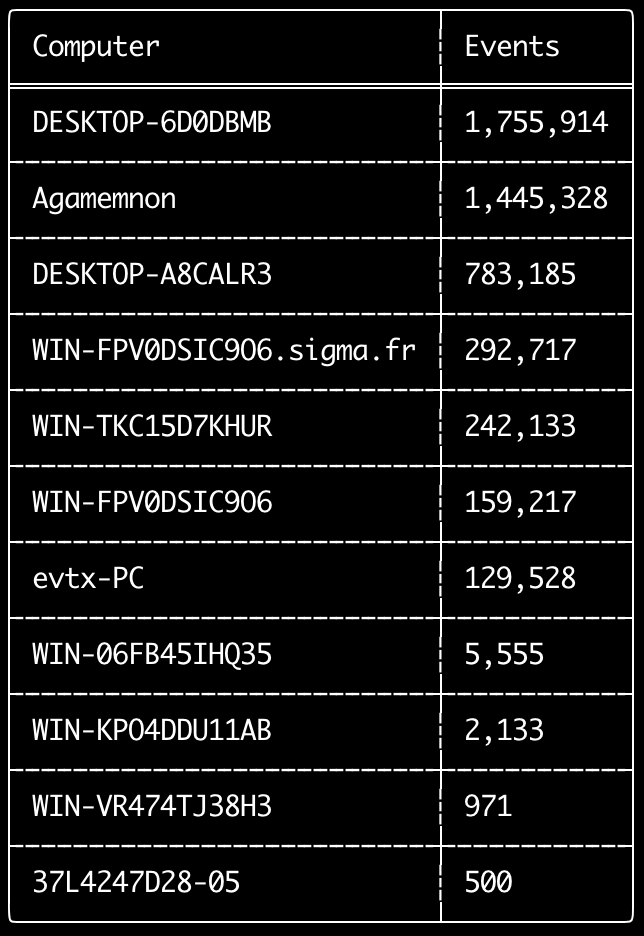
You can use the computer-metrics command to check how many events there are according to each computer defined in the <System><Computer> field.
Be aware that you cannot completely rely on the Computer field for separating events by their original computer.
Windows 11 will sometimes use completely different Computer names when saving to event logs.
Also, Windows 10 will sometimes record the Computer name in all lowercase.
This command does not use any detection rules so will analyze all events.
This is a good command to run to quickly see which computers have the most logs.
With this information, you can then use the --include-computer or --exclude-computer options when creating your timelines to make your timeline generation more efficient by creating multiple timelines according to computer or exclude events from certain computers.
Usage:
  hayabusa.exe computer-metrics <INPUT> [OPTIONS]

Input:
  -d, --directory <DIR>  Directory of multiple .evtx files
  -f, --file <FILE>      File path to one .evtx file
  -l, --live-analysis    Analyze the local C:\Windows\System32\winevt\Logs folder

General Options:
  -C, --clobber                        Overwrite files when saving
  -h, --help                           Show the help menu
  -J, --json-input                     Scan JSON formatted logs instead of .evtx (.json or .jsonl)
  -Q, --quiet-errors                   Quiet errors mode: do not save error logs
  -x, --recover-records                Carve evtx records from slack space (default: disabled)
  -c, --rules-config <DIR>             Specify custom rule config directory (default: ./rules/config)
      --target-file-ext <FILE-EXT...>  Specify additional evtx file extensions (ex: evtx_data)
  -V, --validate-checksums             Enable checksum validation

Filtering:
      --time-offset <OFFSET>  Scan recent events based on an offset (ex: 1y, 3M, 30d, 24h, 30m)

Output:
  -o, --output <FILE>  Save the results in CSV format (ex: computer-metrics.csv)

Display Settings:
  -K, --no-color  Disable color output
  -q, --quiet     Quiet mode: do not display the launch banner
  -v, --verbose   Output verbose information
computer-metrics command examples
- Print computer name metrics from a directory:
hayabusa.exe computer-metrics -d ../logs - Save results to a CSV file:
hayabusa.exe computer-metrics -d ../logs -o computer-metrics.csv
computer-metrics screenshot
eid-metrics command
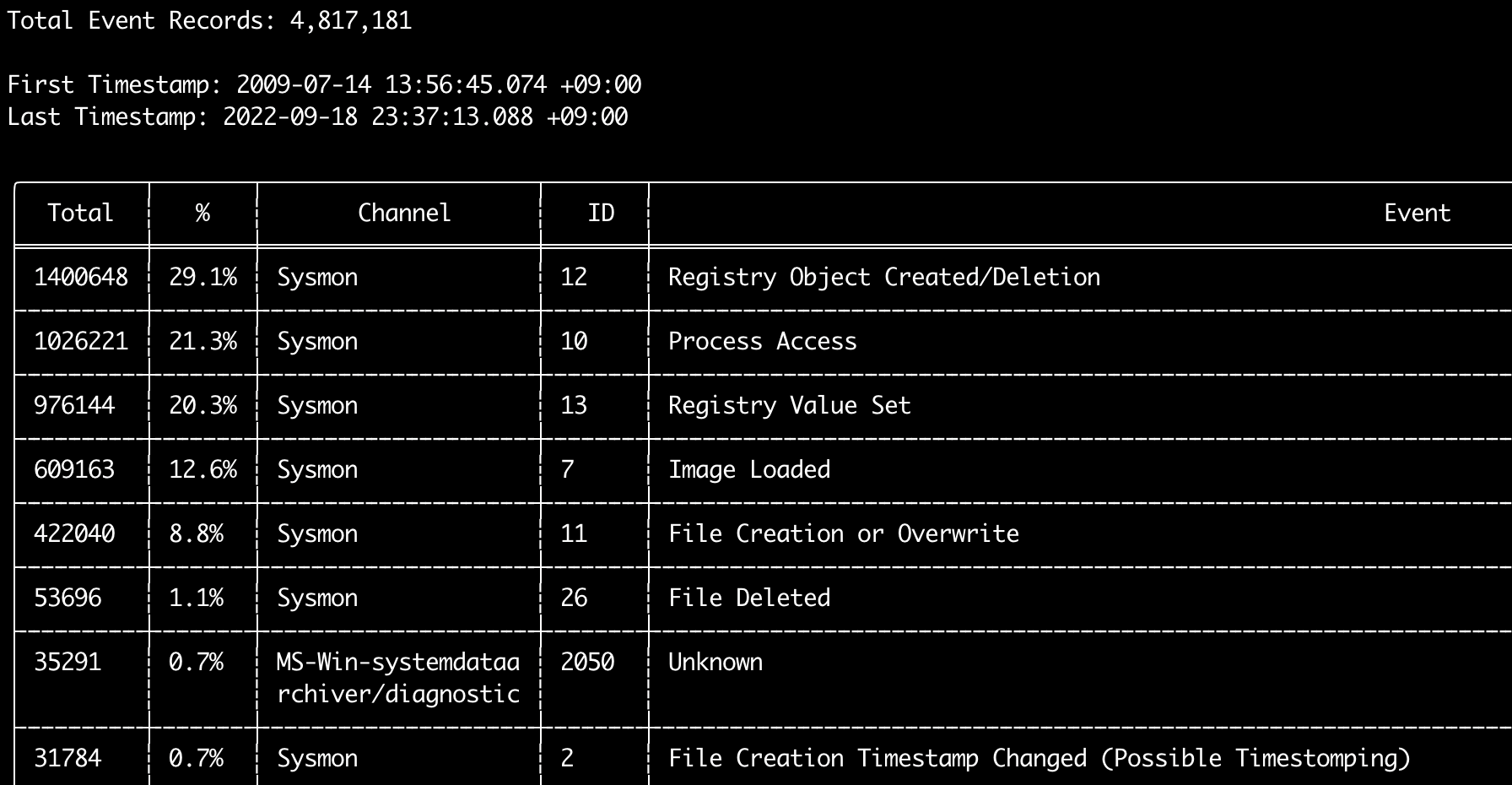
You can use the eid-metrics command to print out the total number and percentage of event IDs (<System><EventID> field) seperated by channels.
This command does not use any detection rules so will scan all events.
Usage:
  hayabusa.exe eid-metrics <INPUT> [OPTIONS]

Input:
  -d, --directory <DIR>  Directory of multiple .evtx files
  -f, --file <FILE>      File path to one .evtx file
  -l, --live-analysis    Analyze the local C:\Windows\System32\winevt\Logs folder

General Options:
  -C, --clobber                        Overwrite files when saving
  -h, --help                           Show the help menu
  -J, --json-input                     Scan JSON formatted logs instead of .evtx (.json or .jsonl)
  -Q, --quiet-errors                   Quiet errors mode: do not save error logs
  -x, --recover-records                Carve evtx records from slack space (default: disabled)
  -c, --rules-config <DIR>             Specify custom rule config directory (default: ./rules/config)
      --target-file-ext <FILE-EXT...>  Specify additional evtx file extensions (ex: evtx_data)
      --threads <NUMBER>               Number of threads (default: optimal number for performance)
  -V, --validate-checksums             Enable checksum validation

Filtering:
      --exclude-computer <COMPUTER...>  Do not scan specified computer names (ex: ComputerA) (ex: ComputerA,ComputerB)
      --include-computer <COMPUTER...>  Scan only specified computer names (ex: ComputerA) (ex: ComputerA,ComputerB)
      --time-offset <OFFSET>            Scan recent events based on an offset (ex: 1y, 3M, 30d, 24h, 30m)

Output:
  -X, --remove-duplicate-records  Remove duplicate event records (default: disabled)
  -o, --output <FILE>             Save the Metrics in CSV format (ex: metrics.csv)

Display Settings:
  -K, --no-color  Disable color output
  -q, --quiet     Quiet mode: do not display the launch banner
  -v, --verbose   Output verbose information

Time Format:
      --european-time     Output timestamp in European time format (ex: 22-02-2022 22:00:00.123 +02:00)
  -O, --iso-8601          Output timestamp in original ISO-8601 format (ex: 2022-02-22T10:10:10.1234567Z) (Always UTC)
      --rfc-2822          Output timestamp in RFC 2822 format (ex: Fri, 22 Feb 2022 22:00:00 -0600)
      --rfc-3339          Output timestamp in RFC 3339 format (ex: 2022-02-22 22:00:00.123456-06:00)
  -U, --utc               Output time in UTC format (default: local time)
      --us-military-time  Output timestamp in US military time format (ex: 02-22-2022 22:00:00.123 -06:00)
      --us-time           Output timestamp in US time format (ex: 02-22-2022 10:00:00.123 PM -06:00)
eid-metrics command examples
- Print Event ID metrics from a single file:
hayabusa.exe eid-metrics -f Security.evtx - Print Event ID metrics from a directory:
hayabusa.exe eid-metrics -d ../logs - Save results to a CSV file:
hayabusa.exe eid-metrics -f Security.evtx -o eid-metrics.csv
eid-metrics command config file
The channel, event IDs and titles of the events are defined in rules/config/channel_eid_info.txt.
Example:
Channel,EventID,EventTitle
Microsoft-Windows-Sysmon/Operational,1,Process Creation.
Microsoft-Windows-Sysmon/Operational,2,File Creation Timestamp Changed. (Possible Timestomping)
Microsoft-Windows-Sysmon/Operational,3,Network Connection.
Microsoft-Windows-Sysmon/Operational,4,Sysmon Service State Changed.
eid-metrics screenshot
expand-list command
Extract expand placeholders from the rules folder.
This is useful when creating config files to use any rule that uses the expand field modifier.
To use expand rules, you just need to create a .txt file with the name of the expand field modifier under the ./config/expand/ directory, and put in all of the values you want to check inside the file.
For example, if the rule detection logic is:
detection:
    selection:
        EventID: 5145
        RelativeTargetName|contains: '\winreg'
    filter_main:
        IpAddress|expand: '%Admins_Workstations%'
    condition: selection and not filter_main
you would create the text file ./config/expand/Admins_Workstations.txt and put in values like:
This would essentially check the same logic as:
If the config file does not exist, Hayabusa will still load the expand rule but ignore it.
Usage:
  hayabusa.exe expand-list [OPTIONS]

General Options:
  -h, --help              Show the help menu
  -r, --rules <DIR/FILE>  Specify rule directory (default: ./rules)

Display Settings:
  -K, --no-color  Disable color output
  -q, --quiet     Quiet mode: do not display the launch banner
expand-list command examples
- Extract out
expandfield modifiers from the defaultrulesdirectory:hayabusa.exe expand-list - Extract out
expandfield modifiers from thesigmadirectory:hayabusa.exe expand-list -r ../sigma
expand-list results
5 unique expand placeholders found:
Admins_Workstations
DC-MACHINE-NAME
Workstations
internal_domains
domain_controller_hostnames
extract-base64 command
This command will extract base64 strings from the following events, decode them and tell what kind of encoding is being used. * Security 4688 CommandLine * Sysmon 1 CommandLine, ParentCommandLine * System 7045 ImagePath * PowerShell Operational 4104 * PowerShell Operational 4103
Usage:
  hayabusa.exe extract-base64 <INPUT> [OPTIONS]

Input:
  -d, --directory <DIR>  Directory of multiple .evtx files
  -f, --file <FILE>      File path to one .evtx file
  -l, --live-analysis    Analyze the local C:\Windows\System32\winevt\Logs folder

General Options:
  -C, --clobber                        Overwrite files when saving
  -h, --help                           Show the help menu
  -J, --json-input                     Scan JSON formatted logs instead of .evtx (.json or .jsonl)
  -Q, --quiet-errors                   Quiet errors mode: do not save error logs
  -x, --recover-records                Carve evtx records from slack space (default: disabled)
  -c, --rules-config <DIR>             Specify custom rule config directory (default: ./rules/config)
      --target-file-ext <FILE-EXT...>  Specify additional evtx file extensions (ex: evtx_data)
      --threads <NUMBER>               Number of threads (default: optimal number for performance)
  -V, --validate-checksums             Enable checksum validation

Filtering:
      --exclude-computer <COMPUTER...>  Do not scan specified computer names (ex: ComputerA) (ex: ComputerA,ComputerB)
      --include-computer <COMPUTER...>  Scan only specified computer names (ex: ComputerA) (ex: ComputerA,ComputerB)
      --time-offset <OFFSET>            Scan recent events based on an offset (ex: 1y, 3M, 30d, 24h, 30m)

Output:
  -o, --output <FILE>  Save results to a CSV file

Display Settings:
  -K, --no-color  Disable color output
  -q, --quiet     Quiet mode: do not display the launch banner
  -v, --verbose   Output verbose information

Time Format:
      --european-time     Output timestamp in European time format (ex: 22-02-2022 22:00:00.123 +02:00)
  -O, --iso-8601          Output timestamp in original ISO-8601 format (ex: 2022-02-22T10:10:10.1234567Z) (Always UTC)
      --rfc-2822          Output timestamp in RFC 2822 format (ex: Fri, 22 Feb 2022 22:00:00 -0600)
      --rfc-3339          Output timestamp in RFC 3339 format (ex: 2022-02-22 22:00:00.123456-06:00)
  -U, --utc               Output time in UTC format (default: local time)
      --us-military-time  Output timestamp in US military time format (ex: 02-22-2022 22:00:00.123 -06:00)
      --us-time           Output timestamp in US time format (ex: 02-22-2022 10:00:00.123 PM -06:00)
extract-base64 command examples
- Scan a directory and output to the terminal:
hayabusa.exe extract-base64 -d ../hayabusa-sample-evtx - Scan a directory and output to a CSV file:
hayabusa.exe extract-base64 -d ../hayabusa-sample-evtx -o base64-extracted.csv
extract-base64 results
When outputting to the terminal, because space is limited, only the following fields are displayed: * Timestamp * Computer * Base64 String * Decoded String (if not binary)
When saving to a CSV file, the following fields are saved:
* Timestamp
* Computer
* Base64 String
* Decoded String (if not binary)
* Original Field
* Length
* Binary (Y/N)
* Double Encoding (when Y, it usually is malicious)
* Encoding Type
* File Type
* Event
* Record ID
* File Name
log-metrics command
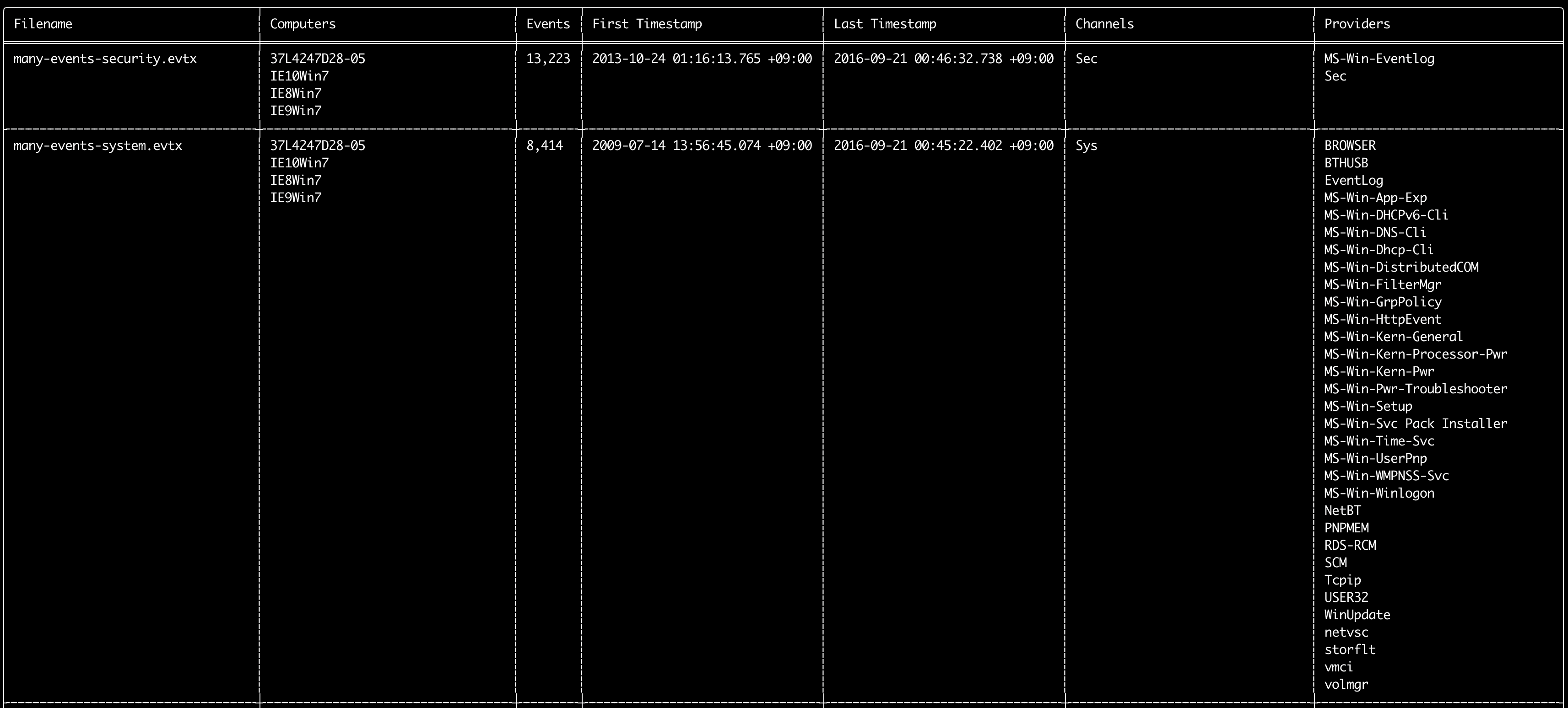
You can use the log-metrics command to print out the following metadata inside event logs:
* Filename
* Computer names
* Number of events
* First timestamp
* Last timestamp
* Channels
* Providers
This command does not use any detection rules so will scan all events.
Usage:
  hayabusa.exe log-metrics <INPUT> [OPTIONS]

Input:
  -d, --directory <DIR>  Directory of multiple .evtx files
  -f, --file <FILE>      File path to one .evtx file
  -l, --live-analysis    Analyze the local C:\Windows\System32\winevt\Logs folder

General Options:
  -C, --clobber                        Overwrite files when saving
  -h, --help                           Show the help menu
  -J, --json-input                     Scan JSON formatted logs instead of .evtx (.json or .jsonl)
  -Q, --quiet-errors                   Quiet errors mode: do not save error logs
  -x, --recover-records                Carve evtx records from slack space (default: disabled)
  -c, --rules-config <DIR>             Specify custom rule config directory (default: ./rules/config)
      --target-file-ext <FILE-EXT...>  Specify additional evtx file extensions (ex: evtx_data)
      --threads <NUMBER>               Number of threads (default: optimal number for performance)
  -V, --validate-checksums             Enable checksum validation

Filtering:
      --exclude-computer <COMPUTER...>  Do not scan specified computer names (ex: ComputerA) (ex: ComputerA,ComputerB)
      --exclude-channel <CHANNEL...>    Do not scan specified channels (ex: System,Security)
      --exclude-filename <FILE...>      Do not scan specified evtx files (ex: Security.evtx,System.evtx)
      --include-computer <COMPUTER...>  Scan only specified computer names (ex: ComputerA) (ex: ComputerA,ComputerB)
      --include-channel <CHANNEL...>    Only include specified channels (ex: System,Security)
      --include-filename <FILE...>      Only include specified evtx files (ex: Security.evtx,System.evtx)
      --time-offset <OFFSET>            Scan recent events based on an offset (ex: 1y, 3M, 30d, 24h, 30m)

Output:
  -b, --disable-abbreviations  Disable abbreviations
  -M, --multiline              Separate event field information by newline characters for CSV output
  -o, --output <FILE>          Save the Metrics in CSV format (ex: metrics.csv)
  -S, --tab-separator          Separate event field information by tabs

Display Settings:
  -K, --no-color  Disable color output
  -q, --quiet     Quiet mode: do not display the launch banner
  -v, --verbose   Output verbose information

Time Format:
      --european-time     Output timestamp in European time format (ex: 22-02-2022 22:00:00.123 +02:00)
  -O, --iso-8601          Output timestamp in original ISO-8601 format (ex: 2022-02-22T10:10:10.1234567Z) (Always UTC)
      --rfc-2822          Output timestamp in RFC 2822 format (ex: Fri, 22 Feb 2022 22:00:00 -0600)
      --rfc-3339          Output timestamp in RFC 3339 format (ex: 2022-02-22 22:00:00.123456-06:00)
  -U, --utc               Output time in UTC format (default: local time)
      --us-military-time  Output timestamp in US military time format (ex: 02-22-2022 22:00:00.123 -06:00)
      --us-time           Output timestamp in US time format (ex: 02-22-2022 10:00:00.123 PM -06:00)
log-metrics command examples
- Print log file metadata from a single file:
hayabusa.exe log-metrics -f Security.evtx - Print log file metadata from a directory:
hayabusa.exe log-metrics -d ../logs - Save results to a CSV file:
hayabusa.exe log-metrics -d ../logs -o log-metrics.csv
log-metrics screenshot
logon-summary command
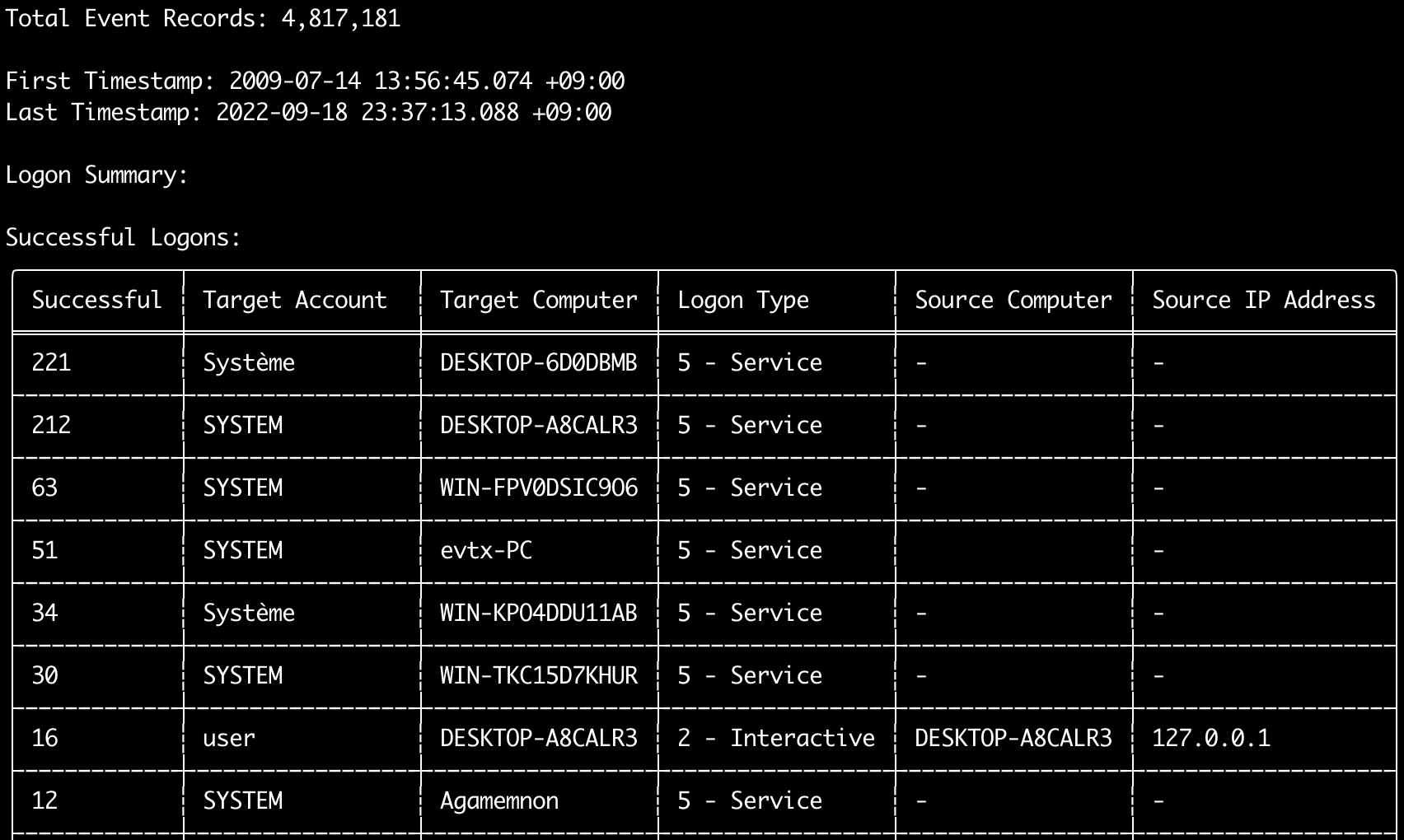
You can use the logon-summary command to output logon information summary (logon usernames and successful and failed logon count).
You can display the logon information for one evtx file with -f or multiple evtx files with the -d option.
Successful logons are taken from the following events:
* Security 4624 (Successful Logon)
* RDS-LSM 21 (Remote Desktop Service Local Session Manager Logon)
* RDS-GTW 302 (Remote Desktop Service Gateway Logon)
Failed logons are taken from Security 4625 events.
Usage:
  hayabusa.exe logon-summary <INPUT> [OPTIONS]

Input:
  -d, --directory <DIR>  Directory of multiple .evtx files
  -f, --file <FILE>      File path to one .evtx file
  -l, --live-analysis    Analyze the local C:\Windows\System32\winevt\Logs folder

General Options:
  -C, --clobber                        Overwrite files when saving
  -h, --help                           Show the help menu
  -J, --json-input                     Scan JSON formatted logs instead of .evtx (.json or .jsonl)
  -Q, --quiet-errors                   Quiet errors mode: do not save error logs
  -x, --recover-records                Carve evtx records from slack space (default: disabled)
  -c, --rules-config <DIR>             Specify custom rule config directory (default: ./rules/config)
      --target-file-ext <FILE-EXT...>  Specify additional evtx file extensions (ex: evtx_data)
      --threads <NUMBER>               Number of threads (default: optimal number for performance)
  -V, --validate-checksums             Enable checksum validation

Filtering:
      --exclude-computer <COMPUTER...>  Do not scan specified computer names (ex: ComputerA) (ex: ComputerA,ComputerB)
      --include-computer <COMPUTER...>  Scan only specified computer names (ex: ComputerA) (ex: ComputerA,ComputerB)
      --time-offset <OFFSET>            Scan recent events based on an offset (ex: 1y, 3M, 30d, 24h, 30m)
      --timeline-end <DATE>             End time of the event logs to load (ex: "2022-02-22 23:59:59 +09:00")
      --timeline-start <DATE>           Start time of the event logs to load (ex: "2020-02-22 00:00:00 +09:00")

Output:
  -G, --geo-ip <MAXMIND-DB-DIR>   Add GeoIP (ASN, city, country) info to source IP addresses
  -X, --remove-duplicate-records  Remove duplicate event records (default: disabled)
  -o, --output <FILENAME-PREFIX>  Save the logon summary to two CSV files (ex: -o logon-summary)

Display Settings:
  -K, --no-color  Disable color output
  -q, --quiet     Quiet mode: do not display the launch banner
  -v, --verbose   Output verbose information

Time Format:
      --european-time     Output timestamp in European time format (ex: 22-02-2022 22:00:00.123 +02:00)
  -O, --iso-8601          Output timestamp in original ISO-8601 format (ex: 2022-02-22T10:10:10.1234567Z) (Always UTC)
      --rfc-2822          Output timestamp in RFC 2822 format (ex: Fri, 22 Feb 2022 22:00:00 -0600)
      --rfc-3339          Output timestamp in RFC 3339 format (ex: 2022-02-22 22:00:00.123456-06:00)
  -U, --utc               Output time in UTC format (default: local time)
      --us-military-time  Output timestamp in US military time format (ex: 02-22-2022 22:00:00.123 -06:00)
      --us-time           Output timestamp in US time format (ex: 02-22-2022 10:00:00.123 PM -06:00)
logon-summary GeoIP enrichment
With -G, --geo-ip pointing at a directory that contains the MaxMind GeoLite2-ASN.mmdb, GeoLite2-Country.mmdb and GeoLite2-City.mmdb databases, the source IP address of each row is looked up and Source ASN, Source Country and Source City columns are added to both CSV files.
The terminal table only has room for one of them, so it shows Source Country (falling back to the ASN, which is where the Local/Private placeholders for non-routable addresses appear).
logon-summary command examples
- Print logon summary:
hayabusa.exe logon-summary -f Security.evtx - Save logon summary results:
hayabusa.exe logon-summary -d ../logs -o logon-summary.csv - Add GeoIP info to the source IP addresses:
hayabusa.exe logon-summary -d ../logs -G /usr/local/share/GeoIP -o logon-summary.csv
logon-summary screenshots

pivot-keywords-list command
You can use the pivot-keywords-list command to create a list of unique pivot keywords to quickly identify abnormal users, hostnames, processes, etc... as well as correlate events.
Important: by default, hayabusa will return results from all events (informational and higher) so we highly recommend combining the pivot-keywords-list command with the -m, --min-level option.
For example, start off with only creating keywords from critical alerts with -m critical and then continue with -m high, -m medium, etc...
There will most likely be common keywords in your results that will match on many normal events, so after manually checking the results and creating a list of unique keywords in a single file, you can then create a narrowed down timeline of suspicious activity with a command like grep -f keywords.txt timeline.csv.
Usage:
  hayabusa.exe pivot-keywords-list <INPUT> [OPTIONS]

Input:
  -d, --directory <DIR>  Directory of multiple .evtx files
  -f, --file <FILE>      File path to one .evtx file
  -l, --live-analysis    Analyze the local C:\Windows\System32\winevt\Logs folder

General Options:
  -C, --clobber                        Overwrite files when saving
  -h, --help                           Show the help menu
  -J, --json-input                     Scan JSON formatted logs instead of .evtx (.json or .jsonl)
  -w, --no-wizard                      Do not ask questions. Scan for all events and alerts
  -Q, --quiet-errors                   Quiet errors mode: do not save error logs
  -x, --recover-records                Carve evtx records from slack space (default: disabled)
  -c, --rules-config <DIR>             Specify custom rule config directory (default: ./rules/config)
      --target-file-ext <FILE-EXT...>  Specify additional evtx file extensions (ex: evtx_data)
      --threads <NUMBER>               Number of threads (default: optimal number for performance)
  -V, --validate-checksums             Enable checksum validation

Filtering:
  -E, --eid-filter                      Scan only common EIDs for faster speed (./rules/config/target_event_IDs.txt)
  -D, --enable-deprecated-rules         Enable rules with a status of deprecated
  -n, --enable-noisy-rules              Enable rules set to noisy (./rules/config/noisy_rules.txt)
  -u, --enable-unsupported-rules        Enable rules with a status of unsupported
  -e, --exact-level <LEVEL>             Only load rules with a specific level (informational, low, medium, high, critical)
      --exclude-computer <COMPUTER...>  Do not scan specified computer names (ex: ComputerA) (ex: ComputerA,ComputerB)
      --exclude-eid <EID...>            Do not scan specific EIDs for faster speed (ex: 1) (ex: 1,4688)
      --exclude-status <STATUS...>      Do not load rules according to status (ex: experimental) (ex: stable,test)
      --exclude-tag <TAG...>            Do not load rules with specific tags (ex: sysmon)
      --include-computer <COMPUTER...>  Scan only specified computer names (ex: ComputerA) (ex: ComputerA,ComputerB)
      --include-eid <EID...>            Scan only specified EIDs for faster speed (ex: 1) (ex: 1,4688)
      --include-status <STATUS...>      Only load rules with specific status (ex: experimental) (ex: stable,test)
      --include-tag <TAG...>            Only load rules with specific tags (ex: attack.execution,attack.discovery)
  -m, --min-level <LEVEL>               Minimum level for rules to load (default: informational)
      --time-offset <OFFSET>            Scan recent events based on an offset (ex: 1y, 3M, 30d, 24h, 30m)
      --timeline-end <DATE>             End time of the event logs to load (ex: "2022-02-22 23:59:59 +09:00")
      --timeline-start <DATE>           Start time of the event logs to load (ex: "2020-02-22 00:00:00 +09:00")

Output:
  -o, --output <FILENAME-PREFIX>  Save pivot words to separate files (ex: PivotKeywords)

Display Settings:
  -K, --no-color  Disable color output
  -q, --quiet     Quiet mode: do not display the launch banner
  -v, --verbose   Output verbose information
pivot-keywords-list command examples
- Output pivot keywords to screen:
hayabusa.exe pivot-keywords-list -d ../logs -m critical - Create a list of pivot keywords from critical alerts and save the results. (Results will be saved to
keywords-Ip Addresses.txt,keywords-Users.txt, etc...):
pivot-keywords-list config file
You can customize what keywords you want to search for by editing ./rules/config/pivot_keywords.txt.
This page is the default setting.
The format is KeywordName.FieldName. For example, when creating the list of Users, hayabusa will list up all the values in the SubjectUserName, TargetUserName and User fields.
search command
The search command will let you keyword search on all events.
(Not just Hayabusa detection results.)
This is useful to determine if there is any evidence in events that are not detected by Hayabusa.
Usage:
  hayabusa.exe search <INPUT> <--keywords "<KEYWORDS>" OR --regex "<REGEX>"> [OPTIONS]

Display Settings:
  -K, --no-color  Disable color output
  -q, --quiet     Quiet mode: do not display the launch banner
  -v, --verbose   Output verbose information

General Options:
  -C, --clobber                        Overwrite files when saving
  -h, --help                           Show the help menu
  -Q, --quiet-errors                   Quiet errors mode: do not save error logs
  -x, --recover-records                Carve evtx records from slack space (default: disabled)
  -c, --rules-config <DIR>             Specify custom rule config directory (default: ./rules/config)
      --target-file-ext <FILE-EXT...>  Specify additional evtx file extensions (ex: evtx_data)
      --threads <NUMBER>               Number of threads (default: optimal number for performance)
  -s, --sort                           Sort results before saving the file (warning: this uses much more memory!)
  -V, --validate-checksums             Enable checksum validation

Input:
  -d, --directory <DIR>  Directory of multiple .evtx files
  -f, --file <FILE>      File path to one .evtx file
  -l, --live-analysis    Analyze the local C:\Windows\System32\winevt\Logs folder

Filtering:
  -a, --and-logic              Search keywords with AND logic (default: OR)
  -F, --filter <FILTER...>     Filter by specific field(s)
  -i, --ignore-case            Case-insensitive keyword search
  -k, --keyword <KEYWORD...>   Search by keyword(s)
  -r, --regex <REGEX>          Search by regular expression
      --time-offset <OFFSET>   Scan recent events based on an offset (ex: 1y, 3M, 30d, 24h, 30m)
      --timeline-end <DATE>    End time of the event logs to load (ex: "2022-02-22 23:59:59 +09:00")
      --timeline-start <DATE>  Start time of the event logs to load (ex: "2020-02-22 00:00:00 +09:00")

Output:
  -b, --disable-abbreviations  Disable abbreviations
  -J, --json-output            Save the search results in JSON format (ex: -J -o results.json)
  -L, --jsonl-output           Save the search results in JSONL format (ex: -L -o results.jsonl)
  -M, --multiline              Separate event field information by newline characters for CSV output
  -o, --output <FILE>          Save the search results in CSV format (ex: search.csv)
  -S, --tab-separator          Separate event field information by tabs

Time Format:
      --european-time     Output timestamp in European time format (ex: 22-02-2022 22:00:00.123 +02:00)
  -O, --iso-8601          Output timestamp in original ISO-8601 format (ex: 2022-02-22T10:10:10.1234567Z) (Always UTC)
      --rfc-2822          Output timestamp in RFC 2822 format (ex: Fri, 22 Feb 2022 22:00:00 -0600)
      --rfc-3339          Output timestamp in RFC 3339 format (ex: 2022-02-22 22:00:00.123456-06:00)
  -U, --utc               Output time in UTC format (default: local time)
      --us-military-time  Output timestamp in US military time format (ex: 02-22-2022 22:00:00.123 -06:00)
      --us-time           Output timestamp in US time format (ex: 02-22-2022 10:00:00.123 PM -06:00)
search command examples
- Search the
../hayabusa-sample-evtxdirectory for the keywordmimikatz:
Note: The keyword will match if
mimikatzis found anywhere in the data. It is not an exact match.
- Search the
../hayabusa-sample-evtxdirectory for the keywordsmimikatzorkali:
- Search the
../hayabusa-sample-evtxdirectory for the keywordmimikatzand ignore case:
- Search the
../hayabusa-sample-evtxdirectory for IP addresses using regular expressions:
- Search the
../hayabusa-sample-evtxdirectory and show all events where theWorkstationNamefield iskali:
Note:
.*is the regular expression to match on every event.
search command config files
./rules/config/channel_abbreviations.txt: Mappings of channel names and their abbreviations.