Analiz Komutları
computer-metrics komutu
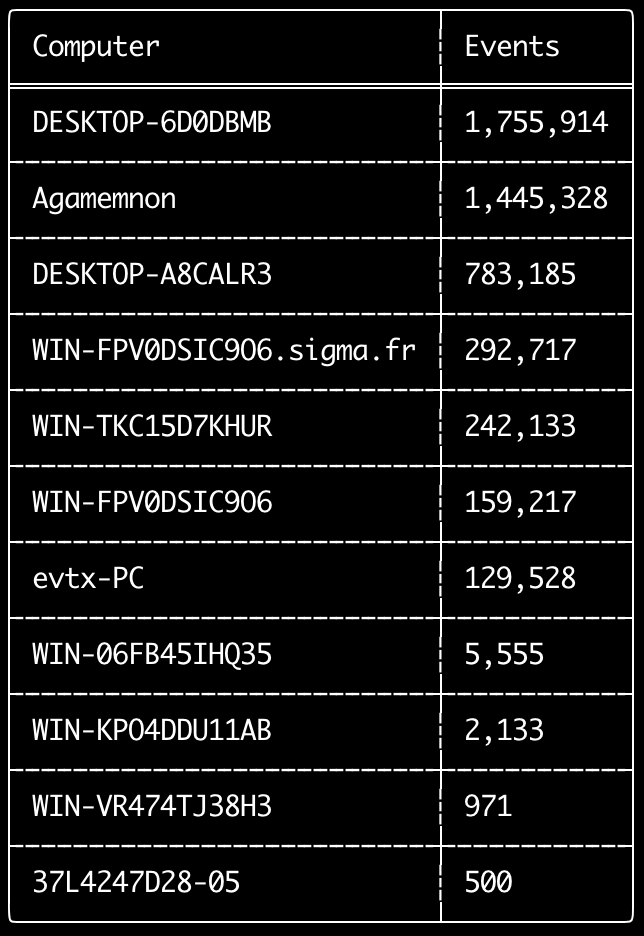
computer-metrics komutunu kullanarak, <System><Computer> alanında tanımlanan her bilgisayara göre kaç olay olduğunu kontrol edebilirsiniz.
Olayları orijinal bilgisayarlarına göre ayırmak için Computer alanına tamamen güvenemeyeceğinizi unutmayın.
Windows 11 bazen olay günlüklerine kaydederken tamamen farklı Computer adları kullanır.
Ayrıca, Windows 10 bazen Computer adını tamamen küçük harfle kaydeder.
Bu komut herhangi bir tespit kuralı kullanmaz, bu nedenle tüm olayları analiz eder.
Hangi bilgisayarların en fazla günlüğe sahip olduğunu hızlıca görmek için çalıştırılması iyi bir komuttur.
Bu bilgilerle, zaman çizelgelerinizi oluştururken --include-computer veya --exclude-computer seçeneklerini kullanarak, bilgisayara göre birden fazla zaman çizelgesi oluşturarak veya belirli bilgisayarlardan gelen olayları hariç tutarak zaman çizelgesi oluşturmanızı daha verimli hale getirebilirsiniz.
Usage:
  hayabusa.exe computer-metrics <INPUT> [OPTIONS]

Input:
  -d, --directory <DIR>  Birden fazla .evtx dosyasının bulunduğu dizin
  -f, --file <FILE>      Tek bir .evtx dosyasının dosya yolu
  -l, --live-analysis    Yerel C:\Windows\System32\winevt\Logs klasörünü analiz et

General Options:
  -C, --clobber                        Kaydederken dosyaların üzerine yaz
  -h, --help                           Yardım menüsünü göster
  -J, --json-input                     .evtx yerine JSON biçimli günlükleri tara (.json veya .jsonl)
  -Q, --quiet-errors                   Sessiz hata modu: hata günlüklerini kaydetme
  -x, --recover-records                Slack alanından evtx kayıtlarını kurtar (default: disabled)
  -c, --rules-config <DIR>             Özel kural yapılandırma dizinini belirt (default: ./rules/config)
      --target-file-ext <FILE-EXT...>  Ek evtx dosya uzantılarını belirt (ex: evtx_data)
  -V, --validate-checksums             Sağlama toplamı doğrulamasını etkinleştir

Filtering:
      --time-offset <OFFSET>  Son olayları bir ofsete göre tara (ex: 1y, 3M, 30d, 24h, 30m)

Output:
  -o, --output <FILE>  Sonuçları CSV biçiminde kaydet (ex: computer-metrics.csv)

Display Settings:
  -K, --no-color  Renkli çıktıyı devre dışı bırak
  -q, --quiet     Sessiz mod: başlangıç afişini gösterme
  -v, --verbose   Ayrıntılı bilgi çıktısı ver
computer-metrics komut örnekleri
- Bir dizinden bilgisayar adı ölçümlerini yazdırın:
hayabusa.exe computer-metrics -d ../logs - Sonuçları bir CSV dosyasına kaydedin:
hayabusa.exe computer-metrics -d ../logs -o computer-metrics.csv
computer-metrics ekran görüntüsü
eid-metrics komutu
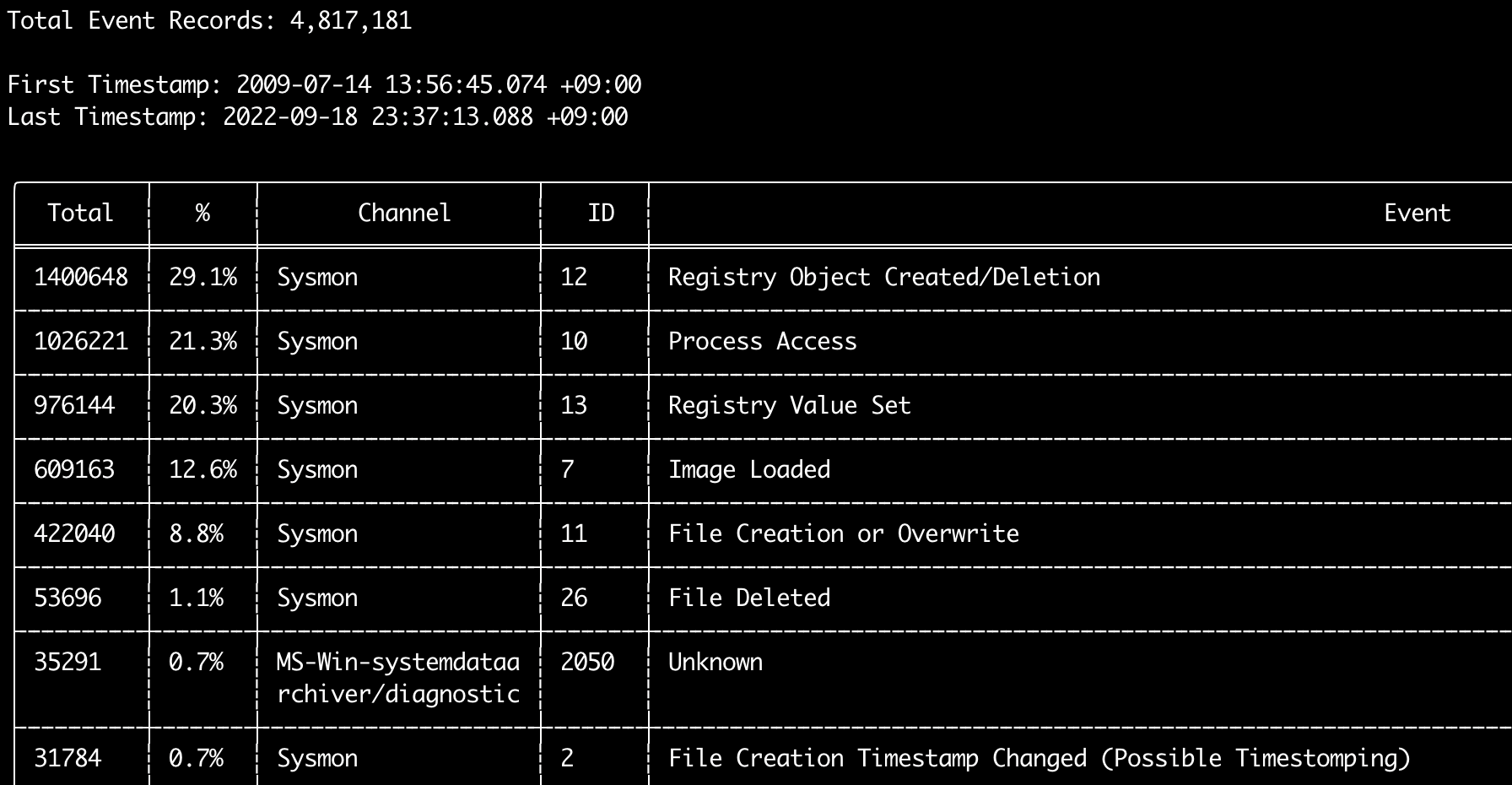
eid-metrics komutunu kullanarak, kanallara göre ayrılmış olay kimliklerinin (<System><EventID> alanı) toplam sayısını ve yüzdesini yazdırabilirsiniz.
Bu komut herhangi bir tespit kuralı kullanmaz, bu nedenle tüm olayları tarar.
Usage:
  hayabusa.exe eid-metrics <INPUT> [OPTIONS]

Input:
  -d, --directory <DIR>  Birden fazla .evtx dosyasının bulunduğu dizin
  -f, --file <FILE>      Tek bir .evtx dosyasının dosya yolu
  -l, --live-analysis    Yerel C:\Windows\System32\winevt\Logs klasörünü analiz et

General Options:
  -C, --clobber                        Kaydederken dosyaların üzerine yaz
  -h, --help                           Yardım menüsünü göster
  -J, --json-input                     .evtx yerine JSON biçimli günlükleri tara (.json veya .jsonl)
  -Q, --quiet-errors                   Sessiz hata modu: hata günlüklerini kaydetme
  -x, --recover-records                Slack alanından evtx kayıtlarını kurtar (default: disabled)
  -c, --rules-config <DIR>             Özel kural yapılandırma dizinini belirt (default: ./rules/config)
      --target-file-ext <FILE-EXT...>  Ek evtx dosya uzantılarını belirt (ex: evtx_data)
      --threads <NUMBER>               İş parçacığı sayısı (default: optimal number for performance)
  -V, --validate-checksums             Sağlama toplamı doğrulamasını etkinleştir

Filtering:
      --exclude-computer <COMPUTER...>  Belirtilen bilgisayar adlarını tarama (ex: ComputerA) (ex: ComputerA,ComputerB)
      --include-computer <COMPUTER...>  Yalnızca belirtilen bilgisayar adlarını tara (ex: ComputerA) (ex: ComputerA,ComputerB)
      --time-offset <OFFSET>            Son olayları bir ofsete göre tara (ex: 1y, 3M, 30d, 24h, 30m)

Output:
  -X, --remove-duplicate-records  Yinelenen olay kayıtlarını kaldır (default: disabled)
  -o, --output <FILE>             Ölçümleri CSV biçiminde kaydet (ex: metrics.csv)

Display Settings:
  -K, --no-color  Renkli çıktıyı devre dışı bırak
  -q, --quiet     Sessiz mod: başlangıç afişini gösterme
  -v, --verbose   Ayrıntılı bilgi çıktısı ver

Time Format:
      --european-time     Zaman damgasını Avrupa saat biçiminde çıktı ver (ex: 22-02-2022 22:00:00.123 +02:00)
  -O, --iso-8601          Zaman damgasını orijinal ISO-8601 biçiminde çıktı ver (ex: 2022-02-22T10:10:10.1234567Z) (Her zaman UTC)
      --rfc-2822          Zaman damgasını RFC 2822 biçiminde çıktı ver (ex: Fri, 22 Feb 2022 22:00:00 -0600)
      --rfc-3339          Zaman damgasını RFC 3339 biçiminde çıktı ver (ex: 2022-02-22 22:00:00.123456-06:00)
  -U, --utc               Zamanı UTC biçiminde çıktı ver (default: local time)
      --us-military-time  Zaman damgasını ABD askeri saat biçiminde çıktı ver (ex: 02-22-2022 22:00:00.123 -06:00)
      --us-time           Zaman damgasını ABD saat biçiminde çıktı ver (ex: 02-22-2022 10:00:00.123 PM -06:00)
eid-metrics komut örnekleri
- Tek bir dosyadan Olay Kimliği ölçümlerini yazdırın:
hayabusa.exe eid-metrics -f Security.evtx - Bir dizinden Olay Kimliği ölçümlerini yazdırın:
hayabusa.exe eid-metrics -d ../logs - Sonuçları bir CSV dosyasına kaydedin:
hayabusa.exe eid-metrics -f Security.evtx -o eid-metrics.csv
eid-metrics komut yapılandırma dosyası
Olayların kanalı, olay kimlikleri ve başlıkları rules/config/channel_eid_info.txt dosyasında tanımlanır.
Örnek:
Channel,EventID,EventTitle
Microsoft-Windows-Sysmon/Operational,1,Process Creation.
Microsoft-Windows-Sysmon/Operational,2,File Creation Timestamp Changed. (Possible Timestomping)
Microsoft-Windows-Sysmon/Operational,3,Network Connection.
Microsoft-Windows-Sysmon/Operational,4,Sysmon Service State Changed.
eid-metrics ekran görüntüsü
expand-list komutu
Kurallar klasöründen expand yer tutucularını çıkarır.
Bu, expand alan değiştiricisini kullanan herhangi bir kuralı kullanmak için yapılandırma dosyaları oluştururken kullanışlıdır.
expand kurallarını kullanmak için, yalnızca ./config/expand/ dizini altında expand alan değiştiricisinin adıyla bir .txt dosyası oluşturmanız ve kontrol etmek istediğiniz tüm değerleri dosyanın içine koymanız gerekir.
Örneğin, kural detection mantığı şöyleyse:
detection:
    selection:
        EventID: 5145
        RelativeTargetName|contains: '\winreg'
    filter_main:
        IpAddress|expand: '%Admins_Workstations%'
    condition: selection and not filter_main
./config/expand/Admins_Workstations.txt metin dosyasını oluşturur ve şu gibi değerleri eklersiniz:
Bu, esasen aşağıdaki ile aynı mantığı kontrol eder:
Yapılandırma dosyası mevcut değilse, Hayabusa yine de expand kuralını yükler ancak yok sayar.
Usage:
  hayabusa.exe expand-list [OPTIONS]

General Options:
  -h, --help              Yardım menüsünü göster
  -r, --rules <DIR/FILE>  Kural dizinini belirt (default: ./rules)

Display Settings:
  -K, --no-color  Renkli çıktıyı devre dışı bırak
  -q, --quiet     Sessiz mod: başlangıç afişini gösterme
expand-list komut örnekleri
- Varsayılan
rulesdizinindenexpandalan değiştiricilerini çıkarın:hayabusa.exe expand-list sigmadizinindenexpandalan değiştiricilerini çıkarın:hayabusa.exe expand-list -r ../sigma
expand-list sonuçları
5 unique expand placeholders found:
Admins_Workstations
DC-MACHINE-NAME
Workstations
internal_domains
domain_controller_hostnames
extract-base64 komutu
Bu komut, aşağıdaki olaylardan base64 dizelerini çıkaracak, bunların kodunu çözecek ve ne tür bir kodlamanın kullanıldığını söyleyecektir. * Security 4688 CommandLine * Sysmon 1 CommandLine, ParentCommandLine * System 7045 ImagePath * PowerShell Operational 4104 * PowerShell Operational 4103
Usage:
  hayabusa.exe extract-base64 <INPUT> [OPTIONS]

Input:
  -d, --directory <DIR>  Birden fazla .evtx dosyasının bulunduğu dizin
  -f, --file <FILE>      Tek bir .evtx dosyasının dosya yolu
  -l, --live-analysis    Yerel C:\Windows\System32\winevt\Logs klasörünü analiz et

General Options:
  -C, --clobber                        Kaydederken dosyaların üzerine yaz
  -h, --help                           Yardım menüsünü göster
  -J, --json-input                     .evtx yerine JSON biçimli günlükleri tara (.json veya .jsonl)
  -Q, --quiet-errors                   Sessiz hata modu: hata günlüklerini kaydetme
  -x, --recover-records                Slack alanından evtx kayıtlarını kurtar (default: disabled)
  -c, --rules-config <DIR>             Özel kural yapılandırma dizinini belirt (default: ./rules/config)
      --target-file-ext <FILE-EXT...>  Ek evtx dosya uzantılarını belirt (ex: evtx_data)
      --threads <NUMBER>               İş parçacığı sayısı (default: optimal number for performance)
  -V, --validate-checksums             Sağlama toplamı doğrulamasını etkinleştir

Filtering:
      --exclude-computer <COMPUTER...>  Belirtilen bilgisayar adlarını tarama (ex: ComputerA) (ex: ComputerA,ComputerB)
      --include-computer <COMPUTER...>  Yalnızca belirtilen bilgisayar adlarını tara (ex: ComputerA) (ex: ComputerA,ComputerB)
      --time-offset <OFFSET>            Son olayları bir ofsete göre tara (ex: 1y, 3M, 30d, 24h, 30m)

Output:
  -o, --output <FILE>  Sonuçları bir CSV dosyasına kaydet

Display Settings:
  -K, --no-color  Renkli çıktıyı devre dışı bırak
  -q, --quiet     Sessiz mod: başlangıç afişini gösterme
  -v, --verbose   Ayrıntılı bilgi çıktısı ver

Time Format:
      --european-time     Zaman damgasını Avrupa saat biçiminde çıktı ver (ex: 22-02-2022 22:00:00.123 +02:00)
  -O, --iso-8601          Zaman damgasını orijinal ISO-8601 biçiminde çıktı ver (ex: 2022-02-22T10:10:10.1234567Z) (Her zaman UTC)
      --rfc-2822          Zaman damgasını RFC 2822 biçiminde çıktı ver (ex: Fri, 22 Feb 2022 22:00:00 -0600)
      --rfc-3339          Zaman damgasını RFC 3339 biçiminde çıktı ver (ex: 2022-02-22 22:00:00.123456-06:00)
  -U, --utc               Zamanı UTC biçiminde çıktı ver (default: local time)
      --us-military-time  Zaman damgasını ABD askeri saat biçiminde çıktı ver (ex: 02-22-2022 22:00:00.123 -06:00)
      --us-time           Zaman damgasını ABD saat biçiminde çıktı ver (ex: 02-22-2022 10:00:00.123 PM -06:00)
extract-base64 komut örnekleri
- Bir dizini tarayın ve terminale çıktı verin:
hayabusa.exe extract-base64 -d ../hayabusa-sample-evtx - Bir dizini tarayın ve bir CSV dosyasına çıktı verin:
hayabusa.exe extract-base64 -d ../hayabusa-sample-evtx -o base64-extracted.csv
extract-base64 sonuçları
Terminale çıktı verirken, alan sınırlı olduğundan yalnızca aşağıdaki alanlar görüntülenir: * Timestamp * Computer * Base64 String * Decoded String (if not binary)
Bir CSV dosyasına kaydederken, aşağıdaki alanlar kaydedilir:
* Timestamp
* Computer
* Base64 String
* Decoded String (if not binary)
* Original Field
* Length
* Binary (Y/N)
* Double Encoding (when Y, it usually is malicious)
* Encoding Type
* File Type
* Event
* Record ID
* File Name
log-metrics komutu
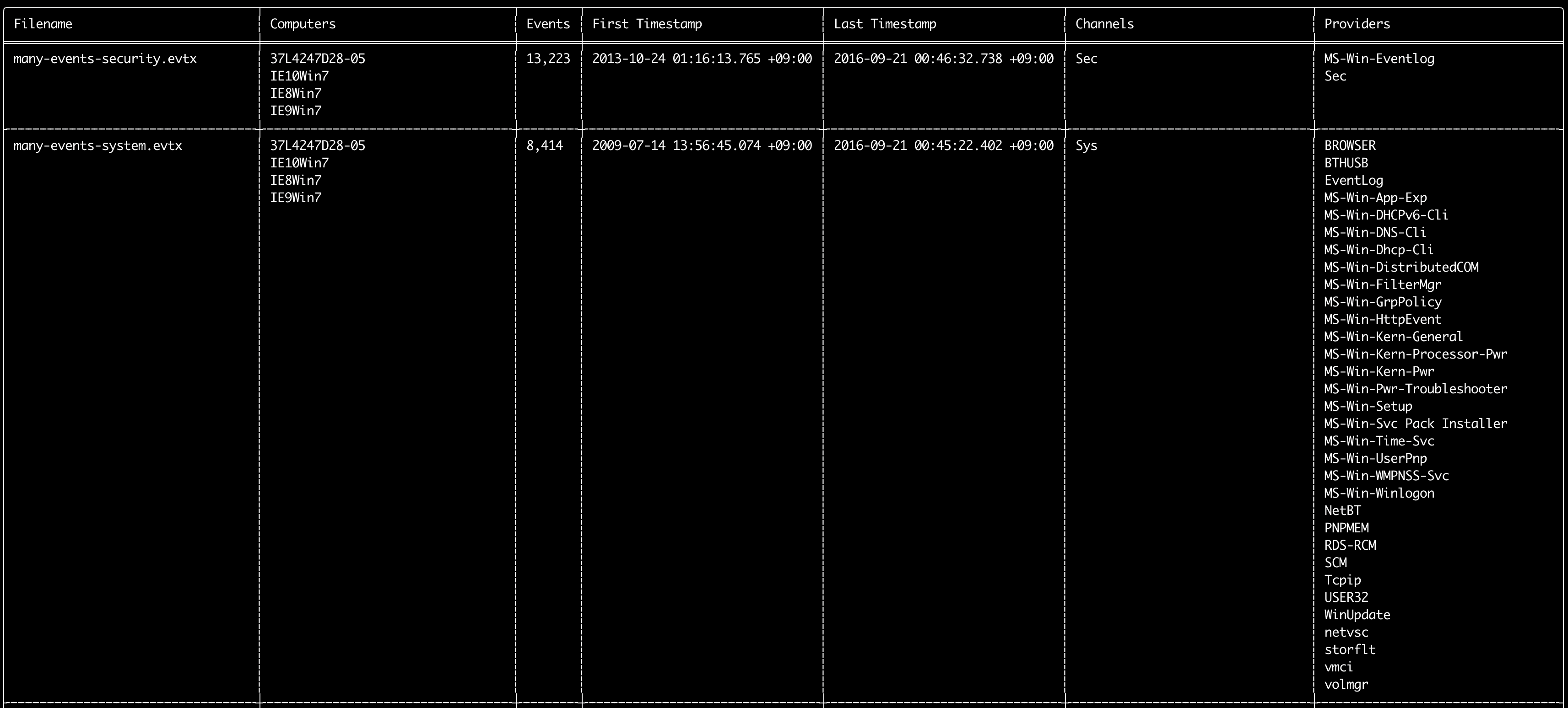
log-metrics komutunu kullanarak, olay günlüklerinin içindeki aşağıdaki meta verileri yazdırabilirsiniz:
* Dosya adı
* Bilgisayar adları
* Olay sayısı
* İlk zaman damgası
* Son zaman damgası
* Kanallar
* Sağlayıcılar
Bu komut herhangi bir tespit kuralı kullanmaz, bu nedenle tüm olayları tarar.
Usage:
  hayabusa.exe log-metrics <INPUT> [OPTIONS]

Input:
  -d, --directory <DIR>  Birden fazla .evtx dosyasının bulunduğu dizin
  -f, --file <FILE>      Tek bir .evtx dosyasının dosya yolu
  -l, --live-analysis    Yerel C:\Windows\System32\winevt\Logs klasörünü analiz et

General Options:
  -C, --clobber                        Kaydederken dosyaların üzerine yaz
  -h, --help                           Yardım menüsünü göster
  -J, --json-input                     .evtx yerine JSON biçimli günlükleri tara (.json veya .jsonl)
  -Q, --quiet-errors                   Sessiz hata modu: hata günlüklerini kaydetme
  -x, --recover-records                Slack alanından evtx kayıtlarını kurtar (default: disabled)
  -c, --rules-config <DIR>             Özel kural yapılandırma dizinini belirt (default: ./rules/config)
      --target-file-ext <FILE-EXT...>  Ek evtx dosya uzantılarını belirt (ex: evtx_data)
      --threads <NUMBER>               İş parçacığı sayısı (default: optimal number for performance)
  -V, --validate-checksums             Sağlama toplamı doğrulamasını etkinleştir

Filtering:
      --exclude-computer <COMPUTER...>  Belirtilen bilgisayar adlarını tarama (ex: ComputerA) (ex: ComputerA,ComputerB)
      --exclude-channel <CHANNEL...>    Belirtilen kanalları tarama (ex: System,Security)
      --exclude-filename <FILE...>      Belirtilen evtx dosyalarını tarama (ex: Security.evtx,System.evtx)
      --include-computer <COMPUTER...>  Yalnızca belirtilen bilgisayar adlarını tara (ex: ComputerA) (ex: ComputerA,ComputerB)
      --include-channel <CHANNEL...>    Yalnızca belirtilen kanalları dahil et (ex: System,Security)
      --include-filename <FILE...>      Yalnızca belirtilen evtx dosyalarını dahil et (ex: Security.evtx,System.evtx)
      --time-offset <OFFSET>            Son olayları bir ofsete göre tara (ex: 1y, 3M, 30d, 24h, 30m)

Output:
  -b, --disable-abbreviations  Kısaltmaları devre dışı bırak
  -M, --multiline              CSV çıktısı için olay alanı bilgilerini yeni satır karakterleriyle ayır
  -o, --output <FILE>          Ölçümleri CSV biçiminde kaydet (ex: metrics.csv)
  -S, --tab-separator          Olay alanı bilgilerini sekmelerle ayır

Display Settings:
  -K, --no-color  Renkli çıktıyı devre dışı bırak
  -q, --quiet     Sessiz mod: başlangıç afişini gösterme
  -v, --verbose   Ayrıntılı bilgi çıktısı ver

Time Format:
      --european-time     Zaman damgasını Avrupa saat biçiminde çıktı ver (ex: 22-02-2022 22:00:00.123 +02:00)
  -O, --iso-8601          Zaman damgasını orijinal ISO-8601 biçiminde çıktı ver (ex: 2022-02-22T10:10:10.1234567Z) (Her zaman UTC)
      --rfc-2822          Zaman damgasını RFC 2822 biçiminde çıktı ver (ex: Fri, 22 Feb 2022 22:00:00 -0600)
      --rfc-3339          Zaman damgasını RFC 3339 biçiminde çıktı ver (ex: 2022-02-22 22:00:00.123456-06:00)
  -U, --utc               Zamanı UTC biçiminde çıktı ver (default: local time)
      --us-military-time  Zaman damgasını ABD askeri saat biçiminde çıktı ver (ex: 02-22-2022 22:00:00.123 -06:00)
      --us-time           Zaman damgasını ABD saat biçiminde çıktı ver (ex: 02-22-2022 10:00:00.123 PM -06:00)
log-metrics komut örnekleri
- Tek bir dosyadan günlük dosyası meta verilerini yazdırın:
hayabusa.exe log-metrics -f Security.evtx - Bir dizinden günlük dosyası meta verilerini yazdırın:
hayabusa.exe log-metrics -d ../logs - Sonuçları bir CSV dosyasına kaydedin:
hayabusa.exe log-metrics -d ../logs -o log-metrics.csv
log-metrics ekran görüntüsü
logon-summary komutu
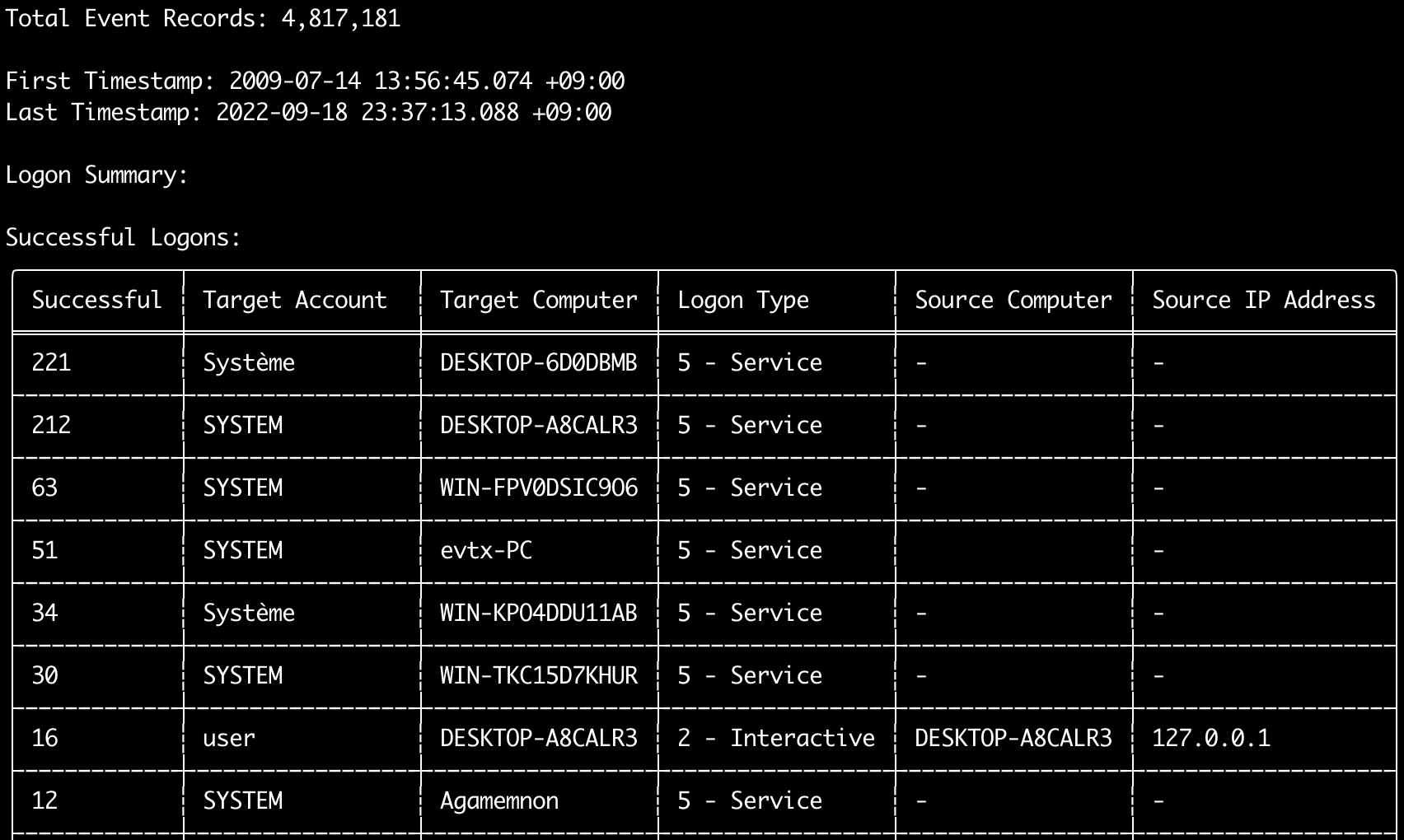
logon-summary komutunu kullanarak oturum açma bilgileri özetini (oturum açma kullanıcı adları ile başarılı ve başarısız oturum açma sayısı) çıktı verebilirsiniz.
Bir evtx dosyasının oturum açma bilgilerini -f ile veya birden fazla evtx dosyasının oturum açma bilgilerini -d seçeneğiyle görüntüleyebilirsiniz.
Başarılı oturum açmalar aşağıdaki olaylardan alınır:
* Security 4624 (Successful Logon)
* RDS-LSM 21 (Remote Desktop Service Local Session Manager Logon)
* RDS-GTW 302 (Remote Desktop Service Gateway Logon)
Başarısız oturum açmalar Security 4625 olaylarından alınır.
Usage:
  hayabusa.exe logon-summary <INPUT> [OPTIONS]

Input:
  -d, --directory <DIR>  Birden fazla .evtx dosyasının bulunduğu dizin
  -f, --file <FILE>      Tek bir .evtx dosyasının dosya yolu
  -l, --live-analysis    Yerel C:\Windows\System32\winevt\Logs klasörünü analiz et

General Options:
  -C, --clobber                        Kaydederken dosyaların üzerine yaz
  -h, --help                           Yardım menüsünü göster
  -J, --json-input                     .evtx yerine JSON biçimli günlükleri tara (.json veya .jsonl)
  -Q, --quiet-errors                   Sessiz hata modu: hata günlüklerini kaydetme
  -x, --recover-records                Slack alanından evtx kayıtlarını kurtar (default: disabled)
  -c, --rules-config <DIR>             Özel kural yapılandırma dizinini belirt (default: ./rules/config)
      --target-file-ext <FILE-EXT...>  Ek evtx dosya uzantılarını belirt (ex: evtx_data)
      --threads <NUMBER>               İş parçacığı sayısı (default: optimal number for performance)
  -V, --validate-checksums             Sağlama toplamı doğrulamasını etkinleştir

Filtering:
      --exclude-computer <COMPUTER...>  Belirtilen bilgisayar adlarını tarama (ex: ComputerA) (ex: ComputerA,ComputerB)
      --include-computer <COMPUTER...>  Yalnızca belirtilen bilgisayar adlarını tara (ex: ComputerA) (ex: ComputerA,ComputerB)
      --time-offset <OFFSET>            Son olayları bir ofsete göre tara (ex: 1y, 3M, 30d, 24h, 30m)
      --timeline-end <DATE>             Yüklenecek olay günlüklerinin bitiş zamanı (ex: "2022-02-22 23:59:59 +09:00")
      --timeline-start <DATE>           Yüklenecek olay günlüklerinin başlangıç zamanı (ex: "2020-02-22 00:00:00 +09:00")

Output:
  -G, --geo-ip <MAXMIND-DB-DIR>   Kaynak IP adreslerine GeoIP (ASN, şehir, ülke) bilgisi ekle
  -X, --remove-duplicate-records  Yinelenen olay kayıtlarını kaldır (default: disabled)
  -o, --output <FILENAME-PREFIX>  Oturum açma özetini iki CSV dosyasına kaydet (ex: -o logon-summary)

Display Settings:
  -K, --no-color  Renkli çıktıyı devre dışı bırak
  -q, --quiet     Sessiz mod: başlangıç afişini gösterme
  -v, --verbose   Ayrıntılı bilgi çıktısı ver

Time Format:
      --european-time     Zaman damgasını Avrupa saat biçiminde çıktı ver (ex: 22-02-2022 22:00:00.123 +02:00)
  -O, --iso-8601          Zaman damgasını orijinal ISO-8601 biçiminde çıktı ver (ex: 2022-02-22T10:10:10.1234567Z) (Her zaman UTC)
      --rfc-2822          Zaman damgasını RFC 2822 biçiminde çıktı ver (ex: Fri, 22 Feb 2022 22:00:00 -0600)
      --rfc-3339          Zaman damgasını RFC 3339 biçiminde çıktı ver (ex: 2022-02-22 22:00:00.123456-06:00)
  -U, --utc               Zamanı UTC biçiminde çıktı ver (default: local time)
      --us-military-time  Zaman damgasını ABD askeri saat biçiminde çıktı ver (ex: 02-22-2022 22:00:00.123 -06:00)
      --us-time           Zaman damgasını ABD saat biçiminde çıktı ver (ex: 02-22-2022 10:00:00.123 PM -06:00)
logon-summary GeoIP zenginleştirmesi
-G, --geo-ip seçeneği MaxMind'in GeoLite2-ASN.mmdb, GeoLite2-Country.mmdb ve GeoLite2-City.mmdb veritabanlarını içeren bir dizini gösterdiğinde, her satırın kaynak IP adresi sorgulanır ve her iki CSV dosyasına Source ASN, Source Country ve Source City sütunları eklenir.
Terminal tablosunda bunlardan yalnızca birine yer vardır; bu nedenle Source Country gösterilir (boş olduğunda ASN sütununa geri dönülür, çünkü yönlendirilemeyen adreslerin Local/Private değerleri orada yer alır).
logon-summary komut örnekleri
- Oturum açma özetini yazdırın:
hayabusa.exe logon-summary -f Security.evtx - Oturum açma özeti sonuçlarını kaydedin:
hayabusa.exe logon-summary -d ../logs -o logon-summary.csv - Kaynak IP adreslerine GeoIP bilgisi ekleyin:
hayabusa.exe logon-summary -d ../logs -G /usr/local/share/GeoIP -o logon-summary.csv
logon-summary ekran görüntüleri

pivot-keywords-list komutu
pivot-keywords-list komutunu kullanarak, anormal kullanıcıları, ana bilgisayar adlarını, işlemleri vb. hızlıca tanımlamak ve ayrıca olayları ilişkilendirmek için benzersiz pivot anahtar kelimelerinden oluşan bir liste oluşturabilirsiniz.
Önemli: varsayılan olarak, hayabusa tüm olaylardan (bilgilendirici ve üzeri) sonuç döndürür, bu nedenle pivot-keywords-list komutunu -m, --min-level seçeneğiyle birleştirmenizi şiddetle öneririz.
Örneğin, -m critical ile yalnızca critical uyarılardan anahtar kelimeler oluşturarak başlayın ve ardından -m high, -m medium vb. ile devam edin.
Sonuçlarınızda büyük olasılıkla birçok normal olayla eşleşecek ortak anahtar kelimeler olacaktır, bu nedenle sonuçları manuel olarak kontrol edip benzersiz anahtar kelimelerden oluşan bir listeyi tek bir dosyada oluşturduktan sonra, grep -f keywords.txt timeline.csv gibi bir komutla şüpheli etkinliğin daraltılmış bir zaman çizelgesini oluşturabilirsiniz.
Usage:
  hayabusa.exe pivot-keywords-list <INPUT> [OPTIONS]

Input:
  -d, --directory <DIR>  Birden fazla .evtx dosyasının bulunduğu dizin
  -f, --file <FILE>      Tek bir .evtx dosyasının dosya yolu
  -l, --live-analysis    Yerel C:\Windows\System32\winevt\Logs klasörünü analiz et

General Options:
  -C, --clobber                        Kaydederken dosyaların üzerine yaz
  -h, --help                           Yardım menüsünü göster
  -J, --json-input                     .evtx yerine JSON biçimli günlükleri tara (.json veya .jsonl)
  -w, --no-wizard                      Soru sorma. Tüm olayları ve uyarıları tara
  -Q, --quiet-errors                   Sessiz hata modu: hata günlüklerini kaydetme
  -x, --recover-records                Slack alanından evtx kayıtlarını kurtar (default: disabled)
  -c, --rules-config <DIR>             Özel kural yapılandırma dizinini belirt (default: ./rules/config)
      --target-file-ext <FILE-EXT...>  Ek evtx dosya uzantılarını belirt (ex: evtx_data)
      --threads <NUMBER>               İş parçacığı sayısı (default: optimal number for performance)
  -V, --validate-checksums             Sağlama toplamı doğrulamasını etkinleştir

Filtering:
  -E, --eid-filter                      Daha yüksek hız için yalnızca yaygın EID'leri tara (./rules/config/target_event_IDs.txt)
  -D, --enable-deprecated-rules         Durumu deprecated olan kuralları etkinleştir
  -n, --enable-noisy-rules              noisy olarak ayarlanmış kuralları etkinleştir (./rules/config/noisy_rules.txt)
  -u, --enable-unsupported-rules        Durumu unsupported olan kuralları etkinleştir
  -e, --exact-level <LEVEL>             Yalnızca belirli bir seviyedeki kuralları yükle (informational, low, medium, high, critical)
      --exclude-computer <COMPUTER...>  Belirtilen bilgisayar adlarını tarama (ex: ComputerA) (ex: ComputerA,ComputerB)
      --exclude-eid <EID...>            Daha yüksek hız için belirli EID'leri tarama (ex: 1) (ex: 1,4688)
      --exclude-status <STATUS...>      Duruma göre kuralları yükleme (ex: experimental) (ex: stable,test)
      --exclude-tag <TAG...>            Belirli etiketlere sahip kuralları yükleme (ex: sysmon)
      --include-computer <COMPUTER...>  Yalnızca belirtilen bilgisayar adlarını tara (ex: ComputerA) (ex: ComputerA,ComputerB)
      --include-eid <EID...>            Daha yüksek hız için yalnızca belirtilen EID'leri tara (ex: 1) (ex: 1,4688)
      --include-status <STATUS...>      Yalnızca belirli duruma sahip kuralları yükle (ex: experimental) (ex: stable,test)
      --include-tag <TAG...>            Yalnızca belirli etiketlere sahip kuralları yükle (ex: attack.execution,attack.discovery)
  -m, --min-level <LEVEL>               Yüklenecek kurallar için minimum seviye (default: informational)
      --time-offset <OFFSET>            Son olayları bir ofsete göre tara (ex: 1y, 3M, 30d, 24h, 30m)
      --timeline-end <DATE>             Yüklenecek olay günlüklerinin bitiş zamanı (ex: "2022-02-22 23:59:59 +09:00")
      --timeline-start <DATE>           Yüklenecek olay günlüklerinin başlangıç zamanı (ex: "2020-02-22 00:00:00 +09:00")

Output:
  -o, --output <FILENAME-PREFIX>  Pivot kelimelerini ayrı dosyalara kaydet (ex: PivotKeywords)

Display Settings:
  -K, --no-color  Renkli çıktıyı devre dışı bırak
  -q, --quiet     Sessiz mod: başlangıç afişini gösterme
  -v, --verbose   Ayrıntılı bilgi çıktısı ver
pivot-keywords-list komut örnekleri
- Pivot anahtar kelimelerini ekrana çıktı verin:
hayabusa.exe pivot-keywords-list -d ../logs -m critical - Kritik uyarılardan pivot anahtar kelimelerinden oluşan bir liste oluşturun ve sonuçları kaydedin. (Sonuçlar
keywords-Ip Addresses.txt,keywords-Users.txtvb. dosyalara kaydedilecektir):
pivot-keywords-list yapılandırma dosyası
./rules/config/pivot_keywords.txt dosyasını düzenleyerek hangi anahtar kelimeleri aramak istediğinizi özelleştirebilirsiniz.
Bu sayfa varsayılan ayardır.
Biçim KeywordName.FieldName şeklindedir. Örneğin, Users listesi oluşturulurken, hayabusa SubjectUserName, TargetUserName ve User alanlarındaki tüm değerleri listeleyecektir.
search komutu
search komutu, tüm olaylarda anahtar kelime araması yapmanızı sağlar.
(Yalnızca Hayabusa tespit sonuçları değil.)
Bu, Hayabusa tarafından tespit edilmeyen olaylarda herhangi bir kanıt olup olmadığını belirlemek için kullanışlıdır.
Usage:
  hayabusa.exe search <INPUT> <--keywords "<KEYWORDS>" OR --regex "<REGEX>"> [OPTIONS]

Display Settings:
  -K, --no-color  Renkli çıktıyı devre dışı bırak
  -q, --quiet     Sessiz mod: başlangıç afişini gösterme
  -v, --verbose   Ayrıntılı bilgi çıktısı ver

General Options:
  -C, --clobber                        Kaydederken dosyaların üzerine yaz
  -h, --help                           Yardım menüsünü göster
  -Q, --quiet-errors                   Sessiz hata modu: hata günlüklerini kaydetme
  -x, --recover-records                Slack alanından evtx kayıtlarını kurtar (default: disabled)
  -c, --rules-config <DIR>             Özel kural yapılandırma dizinini belirt (default: ./rules/config)
      --target-file-ext <FILE-EXT...>  Ek evtx dosya uzantılarını belirt (ex: evtx_data)
      --threads <NUMBER>               İş parçacığı sayısı (default: optimal number for performance)
  -s, --sort                           Dosyayı kaydetmeden önce sonuçları sırala (uyarı: bu çok daha fazla bellek kullanır!)
  -V, --validate-checksums             Sağlama toplamı doğrulamasını etkinleştir

Input:
  -d, --directory <DIR>  Birden fazla .evtx dosyasının bulunduğu dizin
  -f, --file <FILE>      Tek bir .evtx dosyasının dosya yolu
  -l, --live-analysis    Yerel C:\Windows\System32\winevt\Logs klasörünü analiz et

Filtering:
  -a, --and-logic              Anahtar kelimeleri AND mantığıyla ara (default: OR)
  -F, --filter <FILTER...>     Belirli alan(lar)a göre filtrele
  -i, --ignore-case            Büyük/küçük harfe duyarsız anahtar kelime araması
  -k, --keyword <KEYWORD...>   Anahtar kelime(ler)e göre ara
  -r, --regex <REGEX>          Düzenli ifadeyle ara
      --time-offset <OFFSET>   Son olayları bir ofsete göre tara (ex: 1y, 3M, 30d, 24h, 30m)
      --timeline-end <DATE>    Yüklenecek olay günlüklerinin bitiş zamanı (ex: "2022-02-22 23:59:59 +09:00")
      --timeline-start <DATE>  Yüklenecek olay günlüklerinin başlangıç zamanı (ex: "2020-02-22 00:00:00 +09:00")

Output:
  -b, --disable-abbreviations  Kısaltmaları devre dışı bırak
  -J, --json-output            Arama sonuçlarını JSON biçiminde kaydet (ex: -J -o results.json)
  -L, --jsonl-output           Arama sonuçlarını JSONL biçiminde kaydet (ex: -L -o results.jsonl)
  -M, --multiline              CSV çıktısı için olay alanı bilgilerini yeni satır karakterleriyle ayır
  -o, --output <FILE>          Arama sonuçlarını CSV biçiminde kaydet (ex: search.csv)
  -S, --tab-separator          Olay alanı bilgilerini sekmelerle ayır

Time Format:
      --european-time     Zaman damgasını Avrupa saat biçiminde çıktı ver (ex: 22-02-2022 22:00:00.123 +02:00)
  -O, --iso-8601          Zaman damgasını orijinal ISO-8601 biçiminde çıktı ver (ex: 2022-02-22T10:10:10.1234567Z) (Her zaman UTC)
      --rfc-2822          Zaman damgasını RFC 2822 biçiminde çıktı ver (ex: Fri, 22 Feb 2022 22:00:00 -0600)
      --rfc-3339          Zaman damgasını RFC 3339 biçiminde çıktı ver (ex: 2022-02-22 22:00:00.123456-06:00)
  -U, --utc               Zamanı UTC biçiminde çıktı ver (default: local time)
      --us-military-time  Zaman damgasını ABD askeri saat biçiminde çıktı ver (ex: 02-22-2022 22:00:00.123 -06:00)
      --us-time           Zaman damgasını ABD saat biçiminde çıktı ver (ex: 02-22-2022 10:00:00.123 PM -06:00)
search komut örnekleri
../hayabusa-sample-evtxdizinindemimikatzanahtar kelimesini arayın:
Not: Anahtar kelime,
mimikatzverilerde herhangi bir yerde bulunursa eşleşecektir. Tam eşleşme değildir.
../hayabusa-sample-evtxdizinindemimikatzveyakalianahtar kelimelerini arayın:
../hayabusa-sample-evtxdizinindemimikatzanahtar kelimesini büyük/küçük harfe duyarsız olarak arayın:
../hayabusa-sample-evtxdizininde düzenli ifadeler kullanarak IP adreslerini arayın:
../hayabusa-sample-evtxdizinini arayın veWorkstationNamealanınınkaliolduğu tüm olayları gösterin:
Not:
.*, her olayla eşleşmek için kullanılan düzenli ifadedir.
search komut yapılandırma dosyaları
./rules/config/channel_abbreviations.txt: Kanal adlarının ve kısaltmalarının eşleştirmeleri.