Команди аналізу
Команда computer-metrics
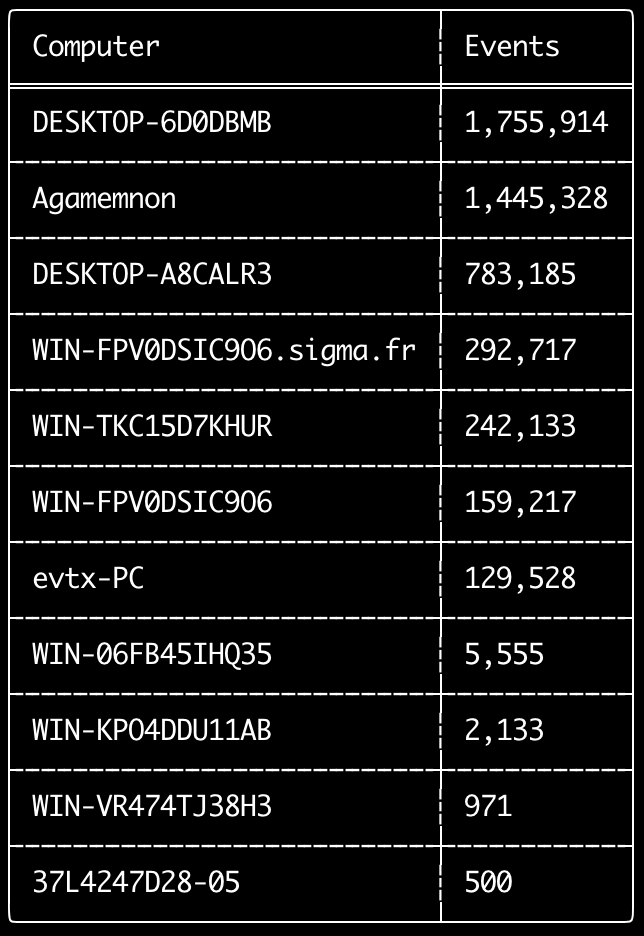
Ви можете використовувати команду computer-metrics, щоб перевірити, скільки подій припадає на кожен комп'ютер, визначений у полі <System><Computer>.
Майте на увазі, що не можна повністю покладатися на поле Computer для розділення подій за їхнім початковим комп'ютером.
Windows 11 іноді використовує зовсім інші імена Computer під час збереження в журналах подій.
Крім того, Windows 10 іноді записує ім'я Computer повністю малими літерами.
Ця команда не використовує жодних правил виявлення, тому аналізуватиме всі події.
Це гарна команда для швидкого перегляду того, які комп'ютери мають найбільше журналів.
З цією інформацією ви потім можете використовувати опції --include-computer або --exclude-computer під час створення своїх часових шкал, щоб зробити генерацію часових шкал ефективнішою, створюючи декілька часових шкал відповідно до комп'ютера або виключаючи події з певних комп'ютерів.
Usage:
  hayabusa.exe computer-metrics <INPUT> [OPTIONS]

Input:
  -d, --directory <DIR>  Каталог з кількома файлами .evtx
  -f, --file <FILE>      Шлях до одного файлу .evtx
  -l, --live-analysis    Аналізувати локальну папку C:\Windows\System32\winevt\Logs

General Options:
  -C, --clobber                        Перезаписувати файли під час збереження
  -h, --help                           Показати меню довідки
  -J, --json-input                     Сканувати журнали у форматі JSON замість .evtx (.json або .jsonl)
  -Q, --quiet-errors                   Режим тихих помилок: не зберігати журнали помилок
  -x, --recover-records                Вирізати записи evtx зі slack-простору (default: disabled)
  -c, --rules-config <DIR>             Вказати власний каталог конфігурації правил (default: ./rules/config)
      --target-file-ext <FILE-EXT...>  Вказати додаткові розширення файлів evtx (ex: evtx_data)
  -V, --validate-checksums             Увімкнути перевірку контрольних сум

Filtering:
      --time-offset <OFFSET>  Сканувати останні події на основі зміщення (ex: 1y, 3M, 30d, 24h, 30m)

Output:
  -o, --output <FILE>  Зберегти результати у форматі CSV (ex: computer-metrics.csv)

Display Settings:
  -K, --no-color  Вимкнути кольоровий вивід
  -q, --quiet     Тихий режим: не відображати банер запуску
  -v, --verbose   Виводити докладну інформацію
Приклади команди computer-metrics
- Вивести метрики імен комп'ютерів з каталогу:
hayabusa.exe computer-metrics -d ../logs - Зберегти результати у файл CSV:
hayabusa.exe computer-metrics -d ../logs -o computer-metrics.csv
Знімок екрана computer-metrics
Команда eid-metrics
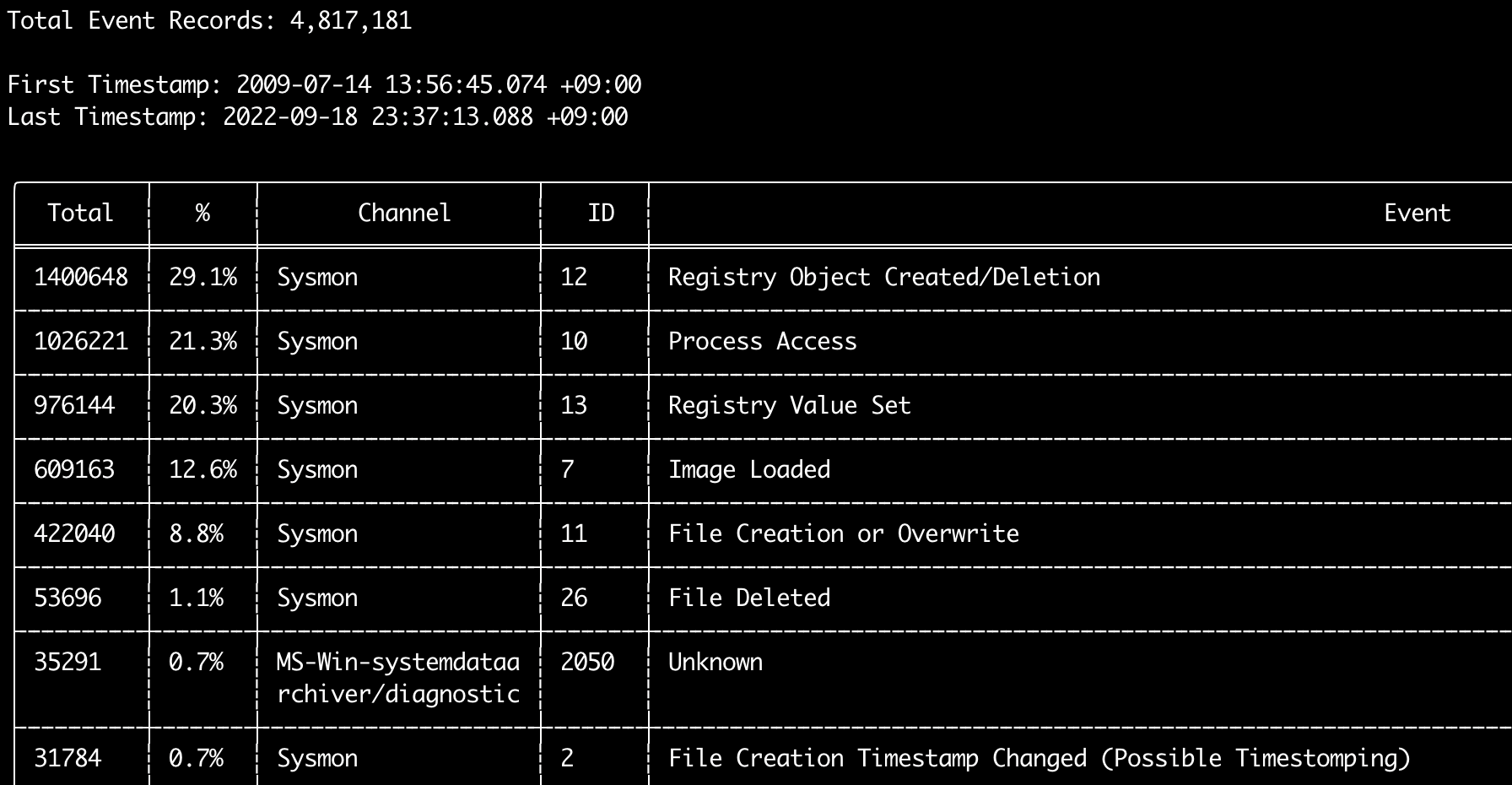
Ви можете використовувати команду eid-metrics, щоб вивести загальну кількість та відсоток ідентифікаторів подій (поле <System><EventID>), розділених за каналами.
Ця команда не використовує жодних правил виявлення, тому скануватиме всі події.
Usage:
  hayabusa.exe eid-metrics <INPUT> [OPTIONS]

Input:
  -d, --directory <DIR>  Каталог з кількома файлами .evtx
  -f, --file <FILE>      Шлях до одного файлу .evtx
  -l, --live-analysis    Аналізувати локальну папку C:\Windows\System32\winevt\Logs

General Options:
  -C, --clobber                        Перезаписувати файли під час збереження
  -h, --help                           Показати меню довідки
  -J, --json-input                     Сканувати журнали у форматі JSON замість .evtx (.json або .jsonl)
  -Q, --quiet-errors                   Режим тихих помилок: не зберігати журнали помилок
  -x, --recover-records                Вирізати записи evtx зі slack-простору (default: disabled)
  -c, --rules-config <DIR>             Вказати власний каталог конфігурації правил (default: ./rules/config)
      --target-file-ext <FILE-EXT...>  Вказати додаткові розширення файлів evtx (ex: evtx_data)
      --threads <NUMBER>               Кількість потоків (default: optimal number for performance)
  -V, --validate-checksums             Увімкнути перевірку контрольних сум

Filtering:
      --exclude-computer <COMPUTER...>  Не сканувати вказані імена комп'ютерів (ex: ComputerA) (ex: ComputerA,ComputerB)
      --include-computer <COMPUTER...>  Сканувати лише вказані імена комп'ютерів (ex: ComputerA) (ex: ComputerA,ComputerB)
      --time-offset <OFFSET>            Сканувати останні події на основі зміщення (ex: 1y, 3M, 30d, 24h, 30m)

Output:
  -X, --remove-duplicate-records  Видаляти дублікати записів подій (default: disabled)
  -o, --output <FILE>             Зберегти метрики у форматі CSV (ex: metrics.csv)

Display Settings:
  -K, --no-color  Вимкнути кольоровий вивід
  -q, --quiet     Тихий режим: не відображати банер запуску
  -v, --verbose   Виводити докладну інформацію

Time Format:
      --european-time     Виводити позначку часу в європейському форматі (ex: 22-02-2022 22:00:00.123 +02:00)
  -O, --iso-8601          Виводити позначку часу в оригінальному форматі ISO-8601 (ex: 2022-02-22T10:10:10.1234567Z) (Always UTC)
      --rfc-2822          Виводити позначку часу у форматі RFC 2822 (ex: Fri, 22 Feb 2022 22:00:00 -0600)
      --rfc-3339          Виводити позначку часу у форматі RFC 3339 (ex: 2022-02-22 22:00:00.123456-06:00)
  -U, --utc               Виводити час у форматі UTC (default: local time)
      --us-military-time  Виводити позначку часу у військовому форматі США (ex: 02-22-2022 22:00:00.123 -06:00)
      --us-time           Виводити позначку часу у форматі США (ex: 02-22-2022 10:00:00.123 PM -06:00)
Приклади команди eid-metrics
- Вивести метрики Event ID з одного файлу:
hayabusa.exe eid-metrics -f Security.evtx - Вивести метрики Event ID з каталогу:
hayabusa.exe eid-metrics -d ../logs - Зберегти результати у файл CSV:
hayabusa.exe eid-metrics -f Security.evtx -o eid-metrics.csv
Файл конфігурації команди eid-metrics
Канал, ідентифікатори подій та заголовки подій визначені у rules/config/channel_eid_info.txt.
Приклад:
Channel,EventID,EventTitle
Microsoft-Windows-Sysmon/Operational,1,Process Creation.
Microsoft-Windows-Sysmon/Operational,2,File Creation Timestamp Changed. (Possible Timestomping)
Microsoft-Windows-Sysmon/Operational,3,Network Connection.
Microsoft-Windows-Sysmon/Operational,4,Sysmon Service State Changed.
Знімок екрана eid-metrics
Команда expand-list
Витягти заповнювачі expand з папки правил.
Це корисно під час створення конфігураційних файлів для використання будь-якого правила, що використовує модифікатор поля expand.
Щоб використовувати правила expand, вам просто потрібно створити файл .txt з ім'ям модифікатора поля expand у каталозі ./config/expand/ і помістити в файл усі значення, які ви хочете перевірити.
Наприклад, якщо логіка detection правила така:
detection:
    selection:
        EventID: 5145
        RelativeTargetName|contains: '\winreg'
    filter_main:
        IpAddress|expand: '%Admins_Workstations%'
    condition: selection and not filter_main
ви створили б текстовий файл ./config/expand/Admins_Workstations.txt і помістили б у нього значення на кшталт:
Це по суті перевіряло б ту саму логіку, що й:
Якщо конфігураційний файл не існує, Hayabusa все одно завантажить правило expand, але проігнорує його.
Usage:
  hayabusa.exe expand-list [OPTIONS]

General Options:
  -h, --help              Показати меню довідки
  -r, --rules <DIR/FILE>  Вказати каталог правил (default: ./rules)

Display Settings:
  -K, --no-color  Вимкнути кольоровий вивід
  -q, --quiet     Тихий режим: не відображати банер запуску
Приклади команди expand-list
- Витягти модифікатори поля
expandзі стандартного каталогуrules:hayabusa.exe expand-list - Витягти модифікатори поля
expandз каталогуsigma:hayabusa.exe expand-list -r ../sigma
Результати expand-list
5 unique expand placeholders found:
Admins_Workstations
DC-MACHINE-NAME
Workstations
internal_domains
domain_controller_hostnames
Команда extract-base64
Ця команда витягуватиме рядки base64 з наступних подій, декодуватиме їх та повідомлятиме, який тип кодування використовується. * Security 4688 CommandLine * Sysmon 1 CommandLine, ParentCommandLine * System 7045 ImagePath * PowerShell Operational 4104 * PowerShell Operational 4103
Usage:
  hayabusa.exe extract-base64 <INPUT> [OPTIONS]

Input:
  -d, --directory <DIR>  Каталог з кількома файлами .evtx
  -f, --file <FILE>      Шлях до одного файлу .evtx
  -l, --live-analysis    Аналізувати локальну папку C:\Windows\System32\winevt\Logs

General Options:
  -C, --clobber                        Перезаписувати файли під час збереження
  -h, --help                           Показати меню довідки
  -J, --json-input                     Сканувати журнали у форматі JSON замість .evtx (.json або .jsonl)
  -Q, --quiet-errors                   Режим тихих помилок: не зберігати журнали помилок
  -x, --recover-records                Вирізати записи evtx зі slack-простору (default: disabled)
  -c, --rules-config <DIR>             Вказати власний каталог конфігурації правил (default: ./rules/config)
      --target-file-ext <FILE-EXT...>  Вказати додаткові розширення файлів evtx (ex: evtx_data)
      --threads <NUMBER>               Кількість потоків (default: optimal number for performance)
  -V, --validate-checksums             Увімкнути перевірку контрольних сум

Filtering:
      --exclude-computer <COMPUTER...>  Не сканувати вказані імена комп'ютерів (ex: ComputerA) (ex: ComputerA,ComputerB)
      --include-computer <COMPUTER...>  Сканувати лише вказані імена комп'ютерів (ex: ComputerA) (ex: ComputerA,ComputerB)
      --time-offset <OFFSET>            Сканувати останні події на основі зміщення (ex: 1y, 3M, 30d, 24h, 30m)

Output:
  -o, --output <FILE>  Зберегти результати у файл CSV

Display Settings:
  -K, --no-color  Вимкнути кольоровий вивід
  -q, --quiet     Тихий режим: не відображати банер запуску
  -v, --verbose   Виводити докладну інформацію

Time Format:
      --european-time     Виводити позначку часу в європейському форматі (ex: 22-02-2022 22:00:00.123 +02:00)
  -O, --iso-8601          Виводити позначку часу в оригінальному форматі ISO-8601 (ex: 2022-02-22T10:10:10.1234567Z) (Always UTC)
      --rfc-2822          Виводити позначку часу у форматі RFC 2822 (ex: Fri, 22 Feb 2022 22:00:00 -0600)
      --rfc-3339          Виводити позначку часу у форматі RFC 3339 (ex: 2022-02-22 22:00:00.123456-06:00)
  -U, --utc               Виводити час у форматі UTC (default: local time)
      --us-military-time  Виводити позначку часу у військовому форматі США (ex: 02-22-2022 22:00:00.123 -06:00)
      --us-time           Виводити позначку часу у форматі США (ex: 02-22-2022 10:00:00.123 PM -06:00)
Приклади команди extract-base64
- Сканувати каталог і вивести в термінал:
hayabusa.exe extract-base64 -d ../hayabusa-sample-evtx - Сканувати каталог і вивести у файл CSV:
hayabusa.exe extract-base64 -d ../hayabusa-sample-evtx -o base64-extracted.csv
Результати extract-base64
Під час виведення в термінал, оскільки простір обмежений, відображаються лише наступні поля: * Timestamp * Computer * Base64 String * Decoded String (if not binary)
Під час збереження у файл CSV зберігаються наступні поля:
* Timestamp
* Computer
* Base64 String
* Decoded String (if not binary)
* Original Field
* Length
* Binary (Y/N)
* Double Encoding (when Y, it usually is malicious)
* Encoding Type
* File Type
* Event
* Record ID
* File Name
Команда log-metrics
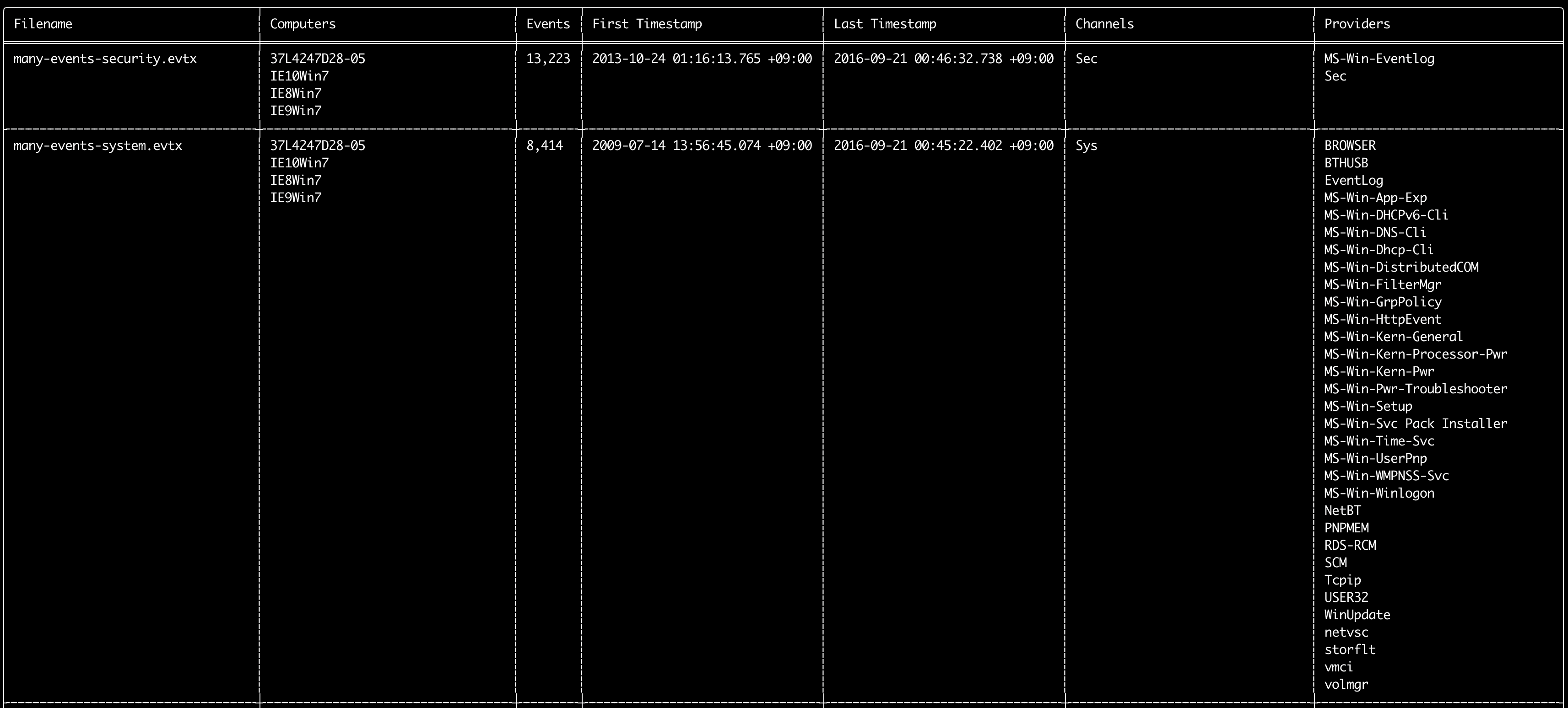
Ви можете використовувати команду log-metrics, щоб вивести наступні метадані всередині журналів подій:
* Filename
* Computer names
* Number of events
* First timestamp
* Last timestamp
* Channels
* Providers
Ця команда не використовує жодних правил виявлення, тому скануватиме всі події.
Usage:
  hayabusa.exe log-metrics <INPUT> [OPTIONS]

Input:
  -d, --directory <DIR>  Каталог з кількома файлами .evtx
  -f, --file <FILE>      Шлях до одного файлу .evtx
  -l, --live-analysis    Аналізувати локальну папку C:\Windows\System32\winevt\Logs

General Options:
  -C, --clobber                        Перезаписувати файли під час збереження
  -h, --help                           Показати меню довідки
  -J, --json-input                     Сканувати журнали у форматі JSON замість .evtx (.json або .jsonl)
  -Q, --quiet-errors                   Режим тихих помилок: не зберігати журнали помилок
  -x, --recover-records                Вирізати записи evtx зі slack-простору (default: disabled)
  -c, --rules-config <DIR>             Вказати власний каталог конфігурації правил (default: ./rules/config)
      --target-file-ext <FILE-EXT...>  Вказати додаткові розширення файлів evtx (ex: evtx_data)
      --threads <NUMBER>               Кількість потоків (default: optimal number for performance)
  -V, --validate-checksums             Увімкнути перевірку контрольних сум

Filtering:
      --exclude-computer <COMPUTER...>  Не сканувати вказані імена комп'ютерів (ex: ComputerA) (ex: ComputerA,ComputerB)
      --exclude-channel <CHANNEL...>    Не сканувати вказані канали (ex: System,Security)
      --exclude-filename <FILE...>      Не сканувати вказані файли evtx (ex: Security.evtx,System.evtx)
      --include-computer <COMPUTER...>  Сканувати лише вказані імена комп'ютерів (ex: ComputerA) (ex: ComputerA,ComputerB)
      --include-channel <CHANNEL...>    Включати лише вказані канали (ex: System,Security)
      --include-filename <FILE...>      Включати лише вказані файли evtx (ex: Security.evtx,System.evtx)
      --time-offset <OFFSET>            Сканувати останні події на основі зміщення (ex: 1y, 3M, 30d, 24h, 30m)

Output:
  -b, --disable-abbreviations  Вимкнути скорочення
  -M, --multiline              Розділяти інформацію полів подій символами нового рядка для виведення CSV
  -o, --output <FILE>          Зберегти метрики у форматі CSV (ex: metrics.csv)
  -S, --tab-separator          Розділяти інформацію полів подій табуляціями

Display Settings:
  -K, --no-color  Вимкнути кольоровий вивід
  -q, --quiet     Тихий режим: не відображати банер запуску
  -v, --verbose   Виводити докладну інформацію

Time Format:
      --european-time     Виводити позначку часу в європейському форматі (ex: 22-02-2022 22:00:00.123 +02:00)
  -O, --iso-8601          Виводити позначку часу в оригінальному форматі ISO-8601 (ex: 2022-02-22T10:10:10.1234567Z) (Always UTC)
      --rfc-2822          Виводити позначку часу у форматі RFC 2822 (ex: Fri, 22 Feb 2022 22:00:00 -0600)
      --rfc-3339          Виводити позначку часу у форматі RFC 3339 (ex: 2022-02-22 22:00:00.123456-06:00)
  -U, --utc               Виводити час у форматі UTC (default: local time)
      --us-military-time  Виводити позначку часу у військовому форматі США (ex: 02-22-2022 22:00:00.123 -06:00)
      --us-time           Виводити позначку часу у форматі США (ex: 02-22-2022 10:00:00.123 PM -06:00)
Приклади команди log-metrics
- Вивести метадані файлу журналу з одного файлу:
hayabusa.exe log-metrics -f Security.evtx - Вивести метадані файлів журналів з каталогу:
hayabusa.exe log-metrics -d ../logs - Зберегти результати у файл CSV:
hayabusa.exe log-metrics -d ../logs -o log-metrics.csv
Знімок екрана log-metrics
Команда logon-summary
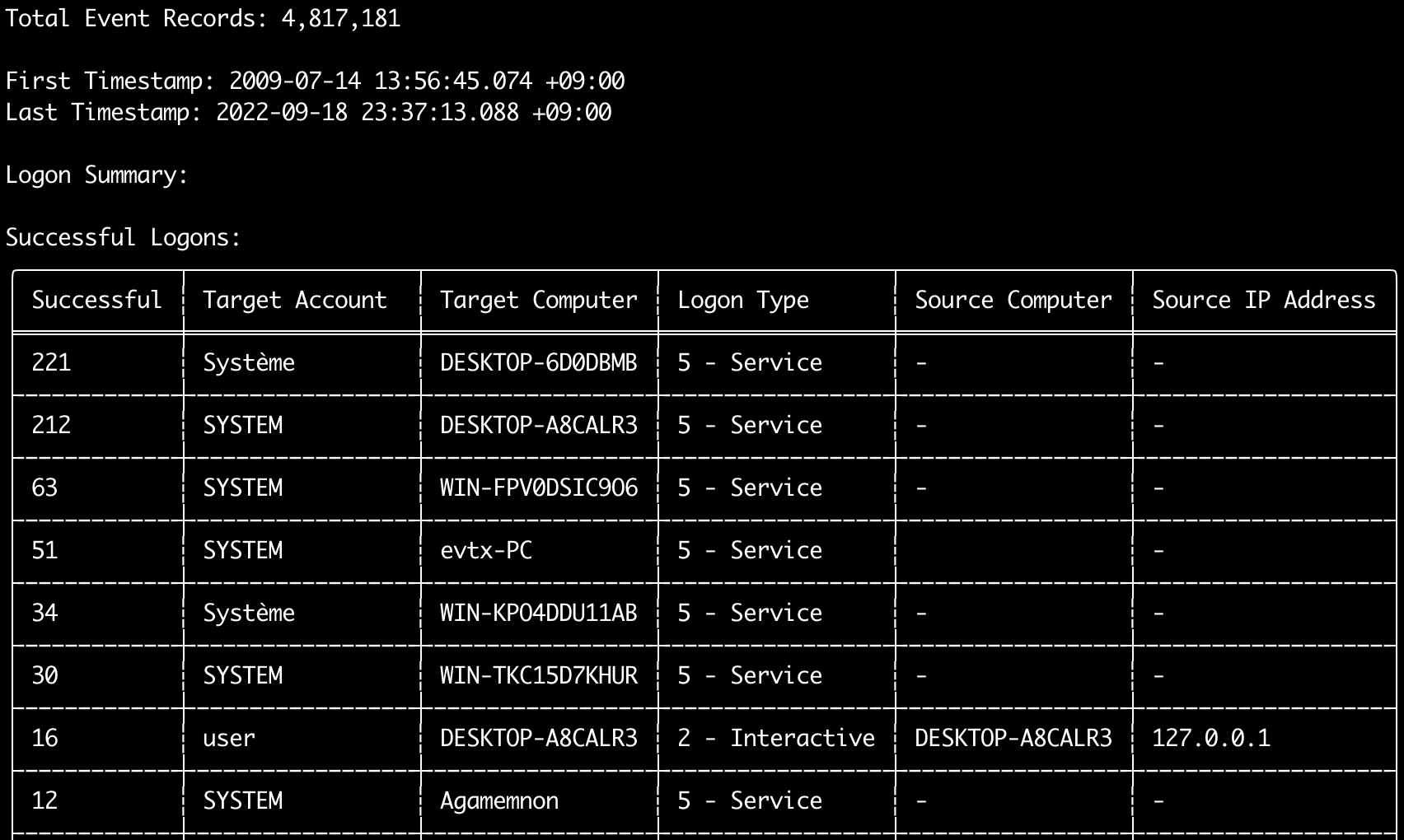
Ви можете використовувати команду logon-summary, щоб вивести зведення інформації про входи (імена користувачів, що входили в систему, а також кількість успішних і невдалих входів).
Ви можете відобразити інформацію про входи для одного файлу evtx за допомогою -f або для кількох файлів evtx за допомогою опції -d.
Успішні входи беруться з наступних подій:
* Security 4624 (Successful Logon)
* RDS-LSM 21 (Remote Desktop Service Local Session Manager Logon)
* RDS-GTW 302 (Remote Desktop Service Gateway Logon)
Невдалі входи беруться з подій Security 4625.
Usage:
  hayabusa.exe logon-summary <INPUT> [OPTIONS]

Input:
  -d, --directory <DIR>  Каталог з кількома файлами .evtx
  -f, --file <FILE>      Шлях до одного файлу .evtx
  -l, --live-analysis    Аналізувати локальну папку C:\Windows\System32\winevt\Logs

General Options:
  -C, --clobber                        Перезаписувати файли під час збереження
  -h, --help                           Показати меню довідки
  -J, --json-input                     Сканувати журнали у форматі JSON замість .evtx (.json або .jsonl)
  -Q, --quiet-errors                   Режим тихих помилок: не зберігати журнали помилок
  -x, --recover-records                Вирізати записи evtx зі slack-простору (default: disabled)
  -c, --rules-config <DIR>             Вказати власний каталог конфігурації правил (default: ./rules/config)
      --target-file-ext <FILE-EXT...>  Вказати додаткові розширення файлів evtx (ex: evtx_data)
      --threads <NUMBER>               Кількість потоків (default: optimal number for performance)
  -V, --validate-checksums             Увімкнути перевірку контрольних сум

Filtering:
      --exclude-computer <COMPUTER...>  Не сканувати вказані імена комп'ютерів (ex: ComputerA) (ex: ComputerA,ComputerB)
      --include-computer <COMPUTER...>  Сканувати лише вказані імена комп'ютерів (ex: ComputerA) (ex: ComputerA,ComputerB)
      --time-offset <OFFSET>            Сканувати останні події на основі зміщення (ex: 1y, 3M, 30d, 24h, 30m)
      --timeline-end <DATE>             Час завершення журналів подій для завантаження (ex: "2022-02-22 23:59:59 +09:00")
      --timeline-start <DATE>           Час початку журналів подій для завантаження (ex: "2020-02-22 00:00:00 +09:00")

Output:
  -G, --geo-ip <MAXMIND-DB-DIR>   Додавати інформацію GeoIP (ASN, місто, країна) до IP-адрес джерела
  -X, --remove-duplicate-records  Видаляти дублікати записів подій (default: disabled)
  -o, --output <FILENAME-PREFIX>  Зберегти зведення входів у два файли CSV (ex: -o logon-summary)

Display Settings:
  -K, --no-color  Вимкнути кольоровий вивід
  -q, --quiet     Тихий режим: не відображати банер запуску
  -v, --verbose   Виводити докладну інформацію

Time Format:
      --european-time     Виводити позначку часу в європейському форматі (ex: 22-02-2022 22:00:00.123 +02:00)
  -O, --iso-8601          Виводити позначку часу в оригінальному форматі ISO-8601 (ex: 2022-02-22T10:10:10.1234567Z) (Always UTC)
      --rfc-2822          Виводити позначку часу у форматі RFC 2822 (ex: Fri, 22 Feb 2022 22:00:00 -0600)
      --rfc-3339          Виводити позначку часу у форматі RFC 3339 (ex: 2022-02-22 22:00:00.123456-06:00)
  -U, --utc               Виводити час у форматі UTC (default: local time)
      --us-military-time  Виводити позначку часу у військовому форматі США (ex: 02-22-2022 22:00:00.123 -06:00)
      --us-time           Виводити позначку часу у форматі США (ex: 02-22-2022 10:00:00.123 PM -06:00)
Збагачення logon-summary даними GeoIP
Якщо -G, --geo-ip вказує на каталог із базами даних MaxMind GeoLite2-ASN.mmdb, GeoLite2-Country.mmdb і GeoLite2-City.mmdb, IP-адреса джерела кожного рядка шукається в базах, а до обох файлів CSV додаються стовпці Source ASN, Source Country та Source City.
У таблиці в терміналі є місце лише для одного з них, тому там показано Source Country (якщо він порожній, використовується стовпець ASN, бо саме в ньому з’являються значення Local/Private для немаршрутизованих адрес).
Приклади команди logon-summary
- Вивести зведення входів:
hayabusa.exe logon-summary -f Security.evtx - Зберегти результати зведення входів:
hayabusa.exe logon-summary -d ../logs -o logon-summary.csv - Додати інформацію GeoIP до IP-адрес джерела:
hayabusa.exe logon-summary -d ../logs -G /usr/local/share/GeoIP -o logon-summary.csv
Знімки екрана logon-summary

Команда pivot-keywords-list
Ви можете використовувати команду pivot-keywords-list, щоб створити список унікальних опорних ключових слів для швидкої ідентифікації аномальних користувачів, імен хостів, процесів тощо, а також для кореляції подій.
Важливо: за замовчуванням hayabusa повертатиме результати з усіх подій (інформаційних і вище), тому ми наполегливо рекомендуємо поєднувати команду pivot-keywords-list з опцією -m, --min-level.
Наприклад, почніть лише зі створення ключових слів зі сповіщень critical за допомогою -m critical, а потім продовжіть з -m high, -m medium тощо.
У ваших результатах, найімовірніше, будуть поширені ключові слова, що збігатимуться з багатьма звичайними подіями, тому після ручної перевірки результатів і створення списку унікальних ключових слів в одному файлі, ви потім можете створити звужену часову шкалу підозрілої активності за допомогою команди на кшталт grep -f keywords.txt timeline.csv.
Usage:
  hayabusa.exe pivot-keywords-list <INPUT> [OPTIONS]

Input:
  -d, --directory <DIR>  Каталог з кількома файлами .evtx
  -f, --file <FILE>      Шлях до одного файлу .evtx
  -l, --live-analysis    Аналізувати локальну папку C:\Windows\System32\winevt\Logs

General Options:
  -C, --clobber                        Перезаписувати файли під час збереження
  -h, --help                           Показати меню довідки
  -J, --json-input                     Сканувати журнали у форматі JSON замість .evtx (.json або .jsonl)
  -w, --no-wizard                      Не ставити запитань. Сканувати всі події та сповіщення
  -Q, --quiet-errors                   Режим тихих помилок: не зберігати журнали помилок
  -x, --recover-records                Вирізати записи evtx зі slack-простору (default: disabled)
  -c, --rules-config <DIR>             Вказати власний каталог конфігурації правил (default: ./rules/config)
      --target-file-ext <FILE-EXT...>  Вказати додаткові розширення файлів evtx (ex: evtx_data)
      --threads <NUMBER>               Кількість потоків (default: optimal number for performance)
  -V, --validate-checksums             Увімкнути перевірку контрольних сум

Filtering:
  -E, --eid-filter                      Сканувати лише поширені EID для більшої швидкості (./rules/config/target_event_IDs.txt)
  -D, --enable-deprecated-rules         Увімкнути правила зі статусом deprecated
  -n, --enable-noisy-rules              Увімкнути правила, позначені як noisy (./rules/config/noisy_rules.txt)
  -u, --enable-unsupported-rules        Увімкнути правила зі статусом unsupported
  -e, --exact-level <LEVEL>             Завантажувати лише правила з певним рівнем (informational, low, medium, high, critical)
      --exclude-computer <COMPUTER...>  Не сканувати вказані імена комп'ютерів (ex: ComputerA) (ex: ComputerA,ComputerB)
      --exclude-eid <EID...>            Не сканувати певні EID для більшої швидкості (ex: 1) (ex: 1,4688)
      --exclude-status <STATUS...>      Не завантажувати правила відповідно до статусу (ex: experimental) (ex: stable,test)
      --exclude-tag <TAG...>            Не завантажувати правила з певними тегами (ex: sysmon)
      --include-computer <COMPUTER...>  Сканувати лише вказані імена комп'ютерів (ex: ComputerA) (ex: ComputerA,ComputerB)
      --include-eid <EID...>            Сканувати лише вказані EID для більшої швидкості (ex: 1) (ex: 1,4688)
      --include-status <STATUS...>      Завантажувати лише правила з певним статусом (ex: experimental) (ex: stable,test)
      --include-tag <TAG...>            Завантажувати лише правила з певними тегами (ex: attack.execution,attack.discovery)
  -m, --min-level <LEVEL>               Мінімальний рівень правил для завантаження (default: informational)
      --time-offset <OFFSET>            Сканувати останні події на основі зміщення (ex: 1y, 3M, 30d, 24h, 30m)
      --timeline-end <DATE>             Час завершення журналів подій для завантаження (ex: "2022-02-22 23:59:59 +09:00")
      --timeline-start <DATE>           Час початку журналів подій для завантаження (ex: "2020-02-22 00:00:00 +09:00")

Output:
  -o, --output <FILENAME-PREFIX>  Зберегти опорні слова в окремі файли (ex: PivotKeywords)

Display Settings:
  -K, --no-color  Вимкнути кольоровий вивід
  -q, --quiet     Тихий режим: не відображати банер запуску
  -v, --verbose   Виводити докладну інформацію
Приклади команди pivot-keywords-list
- Вивести опорні ключові слова на екран:
hayabusa.exe pivot-keywords-list -d ../logs -m critical - Створити список опорних ключових слів зі сповіщень рівня critical і зберегти результати. (Результати будуть збережені в
keywords-Ip Addresses.txt,keywords-Users.txtтощо):
Файл конфігурації pivot-keywords-list
Ви можете налаштувати, які ключові слова ви хочете шукати, відредагувавши ./rules/config/pivot_keywords.txt.
Ця сторінка є стандартним налаштуванням.
Формат: KeywordName.FieldName. Наприклад, під час створення списку Users hayabusa перелічить усі значення в полях SubjectUserName, TargetUserName і User.
Команда search
Команда search дозволить вам виконувати пошук за ключовими словами в усіх подіях.
(Не лише в результатах виявлення Hayabusa.)
Це корисно для визначення того, чи є якісь докази в подіях, які не виявляються Hayabusa.
Usage:
  hayabusa.exe search <INPUT> <--keywords "<KEYWORDS>" OR --regex "<REGEX>"> [OPTIONS]

Display Settings:
  -K, --no-color  Вимкнути кольоровий вивід
  -q, --quiet     Тихий режим: не відображати банер запуску
  -v, --verbose   Виводити докладну інформацію

General Options:
  -C, --clobber                        Перезаписувати файли під час збереження
  -h, --help                           Показати меню довідки
  -Q, --quiet-errors                   Режим тихих помилок: не зберігати журнали помилок
  -x, --recover-records                Вирізати записи evtx зі slack-простору (default: disabled)
  -c, --rules-config <DIR>             Вказати власний каталог конфігурації правил (default: ./rules/config)
      --target-file-ext <FILE-EXT...>  Вказати додаткові розширення файлів evtx (ex: evtx_data)
      --threads <NUMBER>               Кількість потоків (default: optimal number for performance)
  -s, --sort                           Сортувати результати перед збереженням файлу (попередження: це використовує набагато більше пам'яті!)
  -V, --validate-checksums             Увімкнути перевірку контрольних сум

Input:
  -d, --directory <DIR>  Каталог з кількома файлами .evtx
  -f, --file <FILE>      Шлях до одного файлу .evtx
  -l, --live-analysis    Аналізувати локальну папку C:\Windows\System32\winevt\Logs

Filtering:
  -a, --and-logic              Шукати ключові слова за логікою AND (default: OR)
  -F, --filter <FILTER...>     Фільтрувати за певними полями
  -i, --ignore-case            Пошук ключових слів без урахування регістру
  -k, --keyword <KEYWORD...>   Пошук за ключовими словами
  -r, --regex <REGEX>          Пошук за регулярним виразом
      --time-offset <OFFSET>   Сканувати останні події на основі зміщення (ex: 1y, 3M, 30d, 24h, 30m)
      --timeline-end <DATE>    Час завершення журналів подій для завантаження (ex: "2022-02-22 23:59:59 +09:00")
      --timeline-start <DATE>  Час початку журналів подій для завантаження (ex: "2020-02-22 00:00:00 +09:00")

Output:
  -b, --disable-abbreviations  Вимкнути скорочення
  -J, --json-output            Зберегти результати пошуку у форматі JSON (ex: -J -o results.json)
  -L, --jsonl-output           Зберегти результати пошуку у форматі JSONL (ex: -L -o results.jsonl)
  -M, --multiline              Розділяти інформацію полів подій символами нового рядка для виведення CSV
  -o, --output <FILE>          Зберегти результати пошуку у форматі CSV (ex: search.csv)
  -S, --tab-separator          Розділяти інформацію полів подій табуляціями

Time Format:
      --european-time     Виводити позначку часу в європейському форматі (ex: 22-02-2022 22:00:00.123 +02:00)
  -O, --iso-8601          Виводити позначку часу в оригінальному форматі ISO-8601 (ex: 2022-02-22T10:10:10.1234567Z) (Always UTC)
      --rfc-2822          Виводити позначку часу у форматі RFC 2822 (ex: Fri, 22 Feb 2022 22:00:00 -0600)
      --rfc-3339          Виводити позначку часу у форматі RFC 3339 (ex: 2022-02-22 22:00:00.123456-06:00)
  -U, --utc               Виводити час у форматі UTC (default: local time)
      --us-military-time  Виводити позначку часу у військовому форматі США (ex: 02-22-2022 22:00:00.123 -06:00)
      --us-time           Виводити позначку часу у форматі США (ex: 02-22-2022 10:00:00.123 PM -06:00)
Приклади команди search
- Виконати пошук ключового слова
mimikatzу каталозі../hayabusa-sample-evtx:
Примітка: Ключове слово збіжиться, якщо
mimikatzзнайдено будь-де в даних. Це не точний збіг.
- Виконати пошук ключових слів
mimikatzабоkaliу каталозі../hayabusa-sample-evtx:
- Виконати пошук ключового слова
mimikatzу каталозі../hayabusa-sample-evtxбез урахування регістру:
- Виконати пошук IP-адрес у каталозі
../hayabusa-sample-evtxза допомогою регулярних виразів:
- Виконати пошук у каталозі
../hayabusa-sample-evtxі показати всі події, де полеWorkstationNameдорівнюєkali:
Примітка:
.*— це регулярний вираз для збігу з кожною подією.
Файли конфігурації команди search
./rules/config/channel_abbreviations.txt: Зіставлення імен каналів та їхніх скорочень.