分析命令
computer-metrics 命令
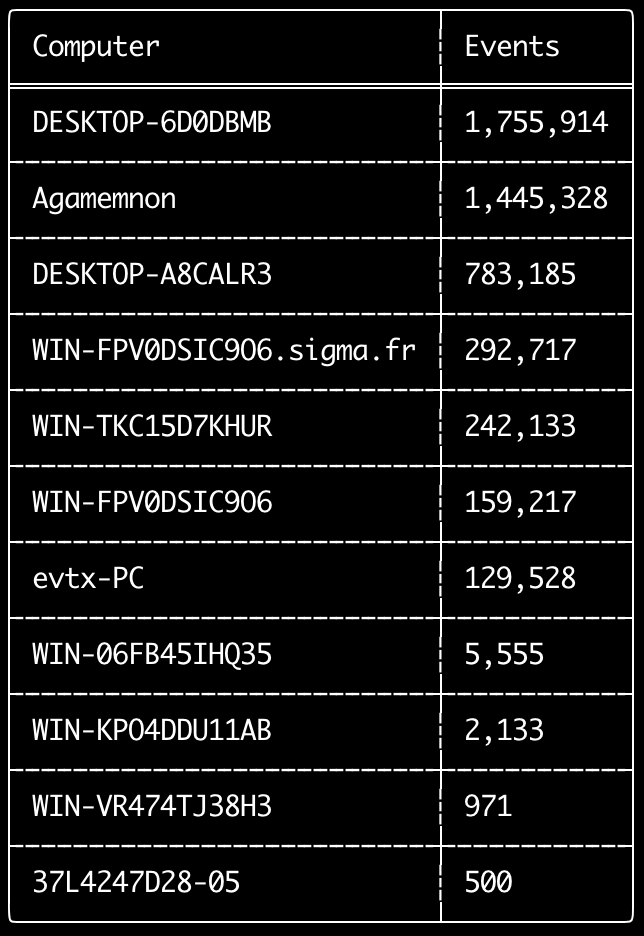
您可以使用 computer-metrics 命令來檢查根據 <System><Computer> 欄位中定義的每台電腦各有多少事件。
請注意,您無法完全依賴 Computer 欄位來依照事件的原始電腦來區分事件。
Windows 11 在儲存到事件記錄時,有時會使用完全不同的 Computer 名稱。
此外,Windows 10 有時會將 Computer 名稱全部以小寫記錄。
此命令不使用任何偵測規則,因此會分析所有事件。
這是一個適合執行的命令,可快速查看哪些電腦擁有最多記錄。
有了這些資訊後,您便可在建立時間軸時使用 --include-computer 或 --exclude-computer 選項,依照電腦建立多個時間軸或排除特定電腦的事件,使您的時間軸產生更有效率。
Usage:
  hayabusa.exe computer-metrics <INPUT> [OPTIONS]

Input:
  -d, --directory <DIR>  包含多個 .evtx 檔案的目錄
  -f, --file <FILE>      單一 .evtx 檔案的檔案路徑
  -l, --live-analysis    分析本機 C:\Windows\System32\winevt\Logs 資料夾

General Options:
  -C, --clobber                        儲存時覆寫檔案
  -h, --help                           顯示說明選單
  -J, --json-input                     掃描 JSON 格式的記錄而非 .evtx(.json 或 .jsonl)
  -Q, --quiet-errors                   安靜錯誤模式:不儲存錯誤記錄
  -x, --recover-records                從閒置空間(slack space)雕取 evtx 記錄 (default: disabled)
  -c, --rules-config <DIR>             指定自訂規則設定目錄 (default: ./rules/config)
      --target-file-ext <FILE-EXT...>  指定額外的 evtx 檔案副檔名 (ex: evtx_data)
  -V, --validate-checksums             啟用總和檢查碼驗證

Filtering:
      --time-offset <OFFSET>  根據偏移量掃描最近的事件 (ex: 1y, 3M, 30d, 24h, 30m)

Output:
  -o, --output <FILE>  以 CSV 格式儲存結果 (ex: computer-metrics.csv)

Display Settings:
  -K, --no-color  停用彩色輸出
  -q, --quiet     安靜模式:不顯示啟動橫幅
  -v, --verbose   輸出詳細資訊
computer-metrics 命令範例
- 從目錄印出電腦名稱統計資料:
hayabusa.exe computer-metrics -d ../logs - 將結果儲存為 CSV 檔案:
hayabusa.exe computer-metrics -d ../logs -o computer-metrics.csv
computer-metrics 螢幕截圖
eid-metrics 命令
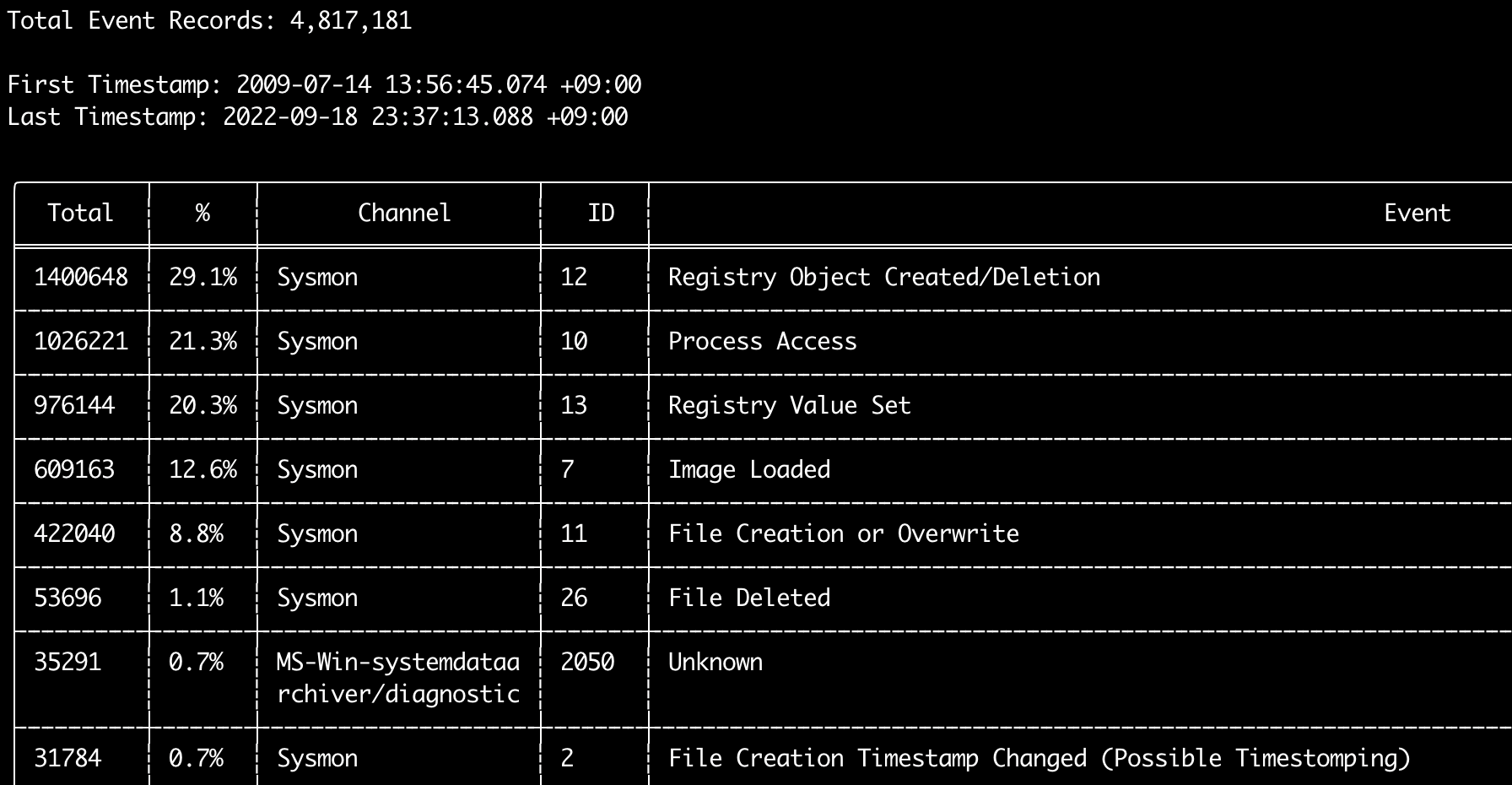
您可以使用 eid-metrics 命令印出依頻道區分的事件 ID(<System><EventID> 欄位)的總數與百分比。
此命令不使用任何偵測規則,因此會掃描所有事件。
Usage:
  hayabusa.exe eid-metrics <INPUT> [OPTIONS]

Input:
  -d, --directory <DIR>  包含多個 .evtx 檔案的目錄
  -f, --file <FILE>      單一 .evtx 檔案的檔案路徑
  -l, --live-analysis    分析本機 C:\Windows\System32\winevt\Logs 資料夾

General Options:
  -C, --clobber                        儲存時覆寫檔案
  -h, --help                           顯示說明選單
  -J, --json-input                     掃描 JSON 格式的記錄而非 .evtx(.json 或 .jsonl)
  -Q, --quiet-errors                   安靜錯誤模式:不儲存錯誤記錄
  -x, --recover-records                從閒置空間(slack space)雕取 evtx 記錄 (default: disabled)
  -c, --rules-config <DIR>             指定自訂規則設定目錄 (default: ./rules/config)
      --target-file-ext <FILE-EXT...>  指定額外的 evtx 檔案副檔名 (ex: evtx_data)
      --threads <NUMBER>               執行緒數量 (default: optimal number for performance)
  -V, --validate-checksums             啟用總和檢查碼驗證

Filtering:
      --exclude-computer <COMPUTER...>  不掃描指定的電腦名稱 (ex: ComputerA) (ex: ComputerA,ComputerB)
      --include-computer <COMPUTER...>  僅掃描指定的電腦名稱 (ex: ComputerA) (ex: ComputerA,ComputerB)
      --time-offset <OFFSET>            根據偏移量掃描最近的事件 (ex: 1y, 3M, 30d, 24h, 30m)

Output:
  -X, --remove-duplicate-records  移除重複的事件記錄 (default: disabled)
  -o, --output <FILE>             以 CSV 格式儲存統計資料 (ex: metrics.csv)

Display Settings:
  -K, --no-color  停用彩色輸出
  -q, --quiet     安靜模式:不顯示啟動橫幅
  -v, --verbose   輸出詳細資訊

Time Format:
      --european-time     以歐洲時間格式輸出時間戳記 (ex: 22-02-2022 22:00:00.123 +02:00)
  -O, --iso-8601          以原始 ISO-8601 格式輸出時間戳記 (ex: 2022-02-22T10:10:10.1234567Z) (Always UTC)
      --rfc-2822          以 RFC 2822 格式輸出時間戳記 (ex: Fri, 22 Feb 2022 22:00:00 -0600)
      --rfc-3339          以 RFC 3339 格式輸出時間戳記 (ex: 2022-02-22 22:00:00.123456-06:00)
  -U, --utc               以 UTC 格式輸出時間 (default: local time)
      --us-military-time  以美國軍用時間格式輸出時間戳記 (ex: 02-22-2022 22:00:00.123 -06:00)
      --us-time           以美國時間格式輸出時間戳記 (ex: 02-22-2022 10:00:00.123 PM -06:00)
eid-metrics 命令範例
- 從單一檔案印出事件 ID 統計資料:
hayabusa.exe eid-metrics -f Security.evtx - 從目錄印出事件 ID 統計資料:
hayabusa.exe eid-metrics -d ../logs - 將結果儲存為 CSV 檔案:
hayabusa.exe eid-metrics -f Security.evtx -o eid-metrics.csv
eid-metrics 命令設定檔
事件的頻道、事件 ID 與標題定義於 rules/config/channel_eid_info.txt。
範例:
Channel,EventID,EventTitle
Microsoft-Windows-Sysmon/Operational,1,Process Creation.
Microsoft-Windows-Sysmon/Operational,2,File Creation Timestamp Changed. (Possible Timestomping)
Microsoft-Windows-Sysmon/Operational,3,Network Connection.
Microsoft-Windows-Sysmon/Operational,4,Sysmon Service State Changed.
eid-metrics 螢幕截圖
expand-list 命令
從規則資料夾中擷取 expand 預留位置。
這在建立設定檔以使用任何採用 expand 欄位修飾符的規則時很有用。
若要使用 expand 規則,您只需在 ./config/expand/ 目錄下建立一個以 expand 欄位修飾符命名的 .txt 檔案,並將所有要檢查的值放入該檔案中。
例如,若規則的 detection 邏輯為:
detection:
    selection:
        EventID: 5145
        RelativeTargetName|contains: '\winreg'
    filter_main:
        IpAddress|expand: '%Admins_Workstations%'
    condition: selection and not filter_main
您會建立文字檔 ./config/expand/Admins_Workstations.txt 並放入如下的值:
這基本上會檢查與下列相同的邏輯:
若設定檔不存在,Hayabusa 仍會載入 expand 規則但忽略它。
Usage:
  hayabusa.exe expand-list [OPTIONS]

General Options:
  -h, --help              顯示說明選單
  -r, --rules <DIR/FILE>  指定規則目錄 (default: ./rules)

Display Settings:
  -K, --no-color  停用彩色輸出
  -q, --quiet     安靜模式:不顯示啟動橫幅
expand-list 命令範例
- 從預設的
rules目錄擷取expand欄位修飾符:hayabusa.exe expand-list - 從
sigma目錄擷取expand欄位修飾符:hayabusa.exe expand-list -r ../sigma
expand-list 結果
5 unique expand placeholders found:
Admins_Workstations
DC-MACHINE-NAME
Workstations
internal_domains
domain_controller_hostnames
extract-base64 命令
此命令會從下列事件中擷取 base64 字串、將其解碼,並指出所使用的編碼類型。 * Security 4688 CommandLine * Sysmon 1 CommandLine, ParentCommandLine * System 7045 ImagePath * PowerShell Operational 4104 * PowerShell Operational 4103
Usage:
  hayabusa.exe extract-base64 <INPUT> [OPTIONS]

Input:
  -d, --directory <DIR>  包含多個 .evtx 檔案的目錄
  -f, --file <FILE>      單一 .evtx 檔案的檔案路徑
  -l, --live-analysis    分析本機 C:\Windows\System32\winevt\Logs 資料夾

General Options:
  -C, --clobber                        儲存時覆寫檔案
  -h, --help                           顯示說明選單
  -J, --json-input                     掃描 JSON 格式的記錄而非 .evtx(.json 或 .jsonl)
  -Q, --quiet-errors                   安靜錯誤模式:不儲存錯誤記錄
  -x, --recover-records                從閒置空間(slack space)雕取 evtx 記錄 (default: disabled)
  -c, --rules-config <DIR>             指定自訂規則設定目錄 (default: ./rules/config)
      --target-file-ext <FILE-EXT...>  指定額外的 evtx 檔案副檔名 (ex: evtx_data)
      --threads <NUMBER>               執行緒數量 (default: optimal number for performance)
  -V, --validate-checksums             啟用總和檢查碼驗證

Filtering:
      --exclude-computer <COMPUTER...>  不掃描指定的電腦名稱 (ex: ComputerA) (ex: ComputerA,ComputerB)
      --include-computer <COMPUTER...>  僅掃描指定的電腦名稱 (ex: ComputerA) (ex: ComputerA,ComputerB)
      --time-offset <OFFSET>            根據偏移量掃描最近的事件 (ex: 1y, 3M, 30d, 24h, 30m)

Output:
  -o, --output <FILE>  將結果儲存至 CSV 檔案

Display Settings:
  -K, --no-color  停用彩色輸出
  -q, --quiet     安靜模式:不顯示啟動橫幅
  -v, --verbose   輸出詳細資訊

Time Format:
      --european-time     以歐洲時間格式輸出時間戳記 (ex: 22-02-2022 22:00:00.123 +02:00)
  -O, --iso-8601          以原始 ISO-8601 格式輸出時間戳記 (ex: 2022-02-22T10:10:10.1234567Z) (Always UTC)
      --rfc-2822          以 RFC 2822 格式輸出時間戳記 (ex: Fri, 22 Feb 2022 22:00:00 -0600)
      --rfc-3339          以 RFC 3339 格式輸出時間戳記 (ex: 2022-02-22 22:00:00.123456-06:00)
  -U, --utc               以 UTC 格式輸出時間 (default: local time)
      --us-military-time  以美國軍用時間格式輸出時間戳記 (ex: 02-22-2022 22:00:00.123 -06:00)
      --us-time           以美國時間格式輸出時間戳記 (ex: 02-22-2022 10:00:00.123 PM -06:00)
extract-base64 命令範例
- 掃描目錄並輸出至終端機:
hayabusa.exe extract-base64 -d ../hayabusa-sample-evtx - 掃描目錄並輸出至 CSV 檔案:
hayabusa.exe extract-base64 -d ../hayabusa-sample-evtx -o base64-extracted.csv
extract-base64 結果
輸出至終端機時,由於空間有限,只會顯示下列欄位: * Timestamp * Computer * Base64 String * Decoded String (if not binary)
儲存為 CSV 檔案時,會儲存下列欄位:
* Timestamp
* Computer
* Base64 String
* Decoded String (if not binary)
* Original Field
* Length
* Binary (Y/N)
* Double Encoding (when Y, it usually is malicious)
* Encoding Type
* File Type
* Event
* Record ID
* File Name
log-metrics 命令
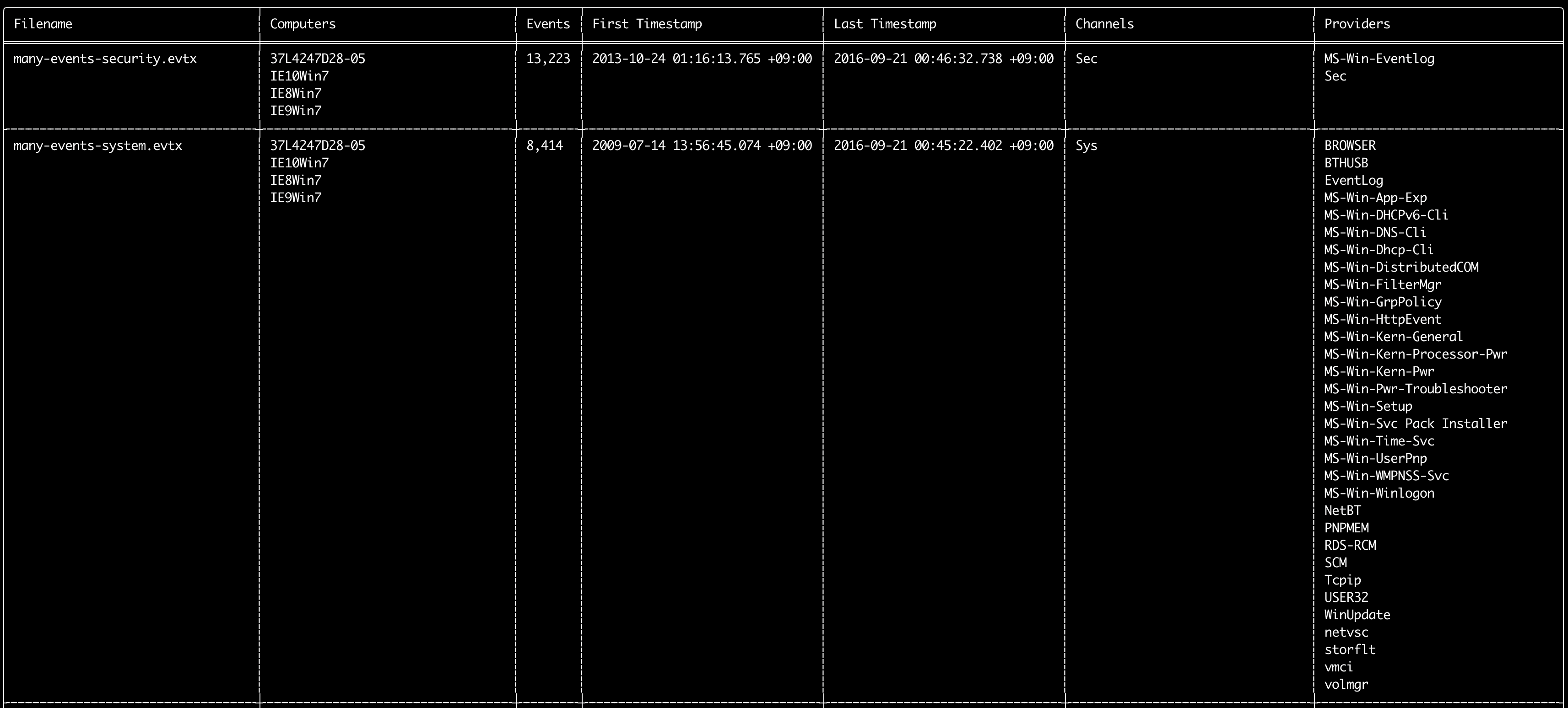
您可以使用 log-metrics 命令印出事件記錄內的下列中繼資料:
* Filename
* Computer names
* Number of events
* First timestamp
* Last timestamp
* Channels
* Providers
此命令不使用任何偵測規則,因此會掃描所有事件。
Usage:
  hayabusa.exe log-metrics <INPUT> [OPTIONS]

Input:
  -d, --directory <DIR>  包含多個 .evtx 檔案的目錄
  -f, --file <FILE>      單一 .evtx 檔案的檔案路徑
  -l, --live-analysis    分析本機 C:\Windows\System32\winevt\Logs 資料夾

General Options:
  -C, --clobber                        儲存時覆寫檔案
  -h, --help                           顯示說明選單
  -J, --json-input                     掃描 JSON 格式的記錄而非 .evtx(.json 或 .jsonl)
  -Q, --quiet-errors                   安靜錯誤模式:不儲存錯誤記錄
  -x, --recover-records                從閒置空間(slack space)雕取 evtx 記錄 (default: disabled)
  -c, --rules-config <DIR>             指定自訂規則設定目錄 (default: ./rules/config)
      --target-file-ext <FILE-EXT...>  指定額外的 evtx 檔案副檔名 (ex: evtx_data)
      --threads <NUMBER>               執行緒數量 (default: optimal number for performance)
  -V, --validate-checksums             啟用總和檢查碼驗證

Filtering:
      --exclude-computer <COMPUTER...>  不掃描指定的電腦名稱 (ex: ComputerA) (ex: ComputerA,ComputerB)
      --exclude-channel <CHANNEL...>    不掃描指定的頻道 (ex: System,Security)
      --exclude-filename <FILE...>      不掃描指定的 evtx 檔案 (ex: Security.evtx,System.evtx)
      --include-computer <COMPUTER...>  僅掃描指定的電腦名稱 (ex: ComputerA) (ex: ComputerA,ComputerB)
      --include-channel <CHANNEL...>    僅納入指定的頻道 (ex: System,Security)
      --include-filename <FILE...>      僅納入指定的 evtx 檔案 (ex: Security.evtx,System.evtx)
      --time-offset <OFFSET>            根據偏移量掃描最近的事件 (ex: 1y, 3M, 30d, 24h, 30m)

Output:
  -b, --disable-abbreviations  停用縮寫
  -M, --multiline              在 CSV 輸出中以換行字元分隔事件欄位資訊
  -o, --output <FILE>          以 CSV 格式儲存統計資料 (ex: metrics.csv)
  -S, --tab-separator          以定位字元分隔事件欄位資訊

Display Settings:
  -K, --no-color  停用彩色輸出
  -q, --quiet     安靜模式:不顯示啟動橫幅
  -v, --verbose   輸出詳細資訊

Time Format:
      --european-time     以歐洲時間格式輸出時間戳記 (ex: 22-02-2022 22:00:00.123 +02:00)
  -O, --iso-8601          以原始 ISO-8601 格式輸出時間戳記 (ex: 2022-02-22T10:10:10.1234567Z) (Always UTC)
      --rfc-2822          以 RFC 2822 格式輸出時間戳記 (ex: Fri, 22 Feb 2022 22:00:00 -0600)
      --rfc-3339          以 RFC 3339 格式輸出時間戳記 (ex: 2022-02-22 22:00:00.123456-06:00)
  -U, --utc               以 UTC 格式輸出時間 (default: local time)
      --us-military-time  以美國軍用時間格式輸出時間戳記 (ex: 02-22-2022 22:00:00.123 -06:00)
      --us-time           以美國時間格式輸出時間戳記 (ex: 02-22-2022 10:00:00.123 PM -06:00)
log-metrics 命令範例
- 從單一檔案印出記錄檔中繼資料:
hayabusa.exe log-metrics -f Security.evtx - 從目錄印出記錄檔中繼資料:
hayabusa.exe log-metrics -d ../logs - 將結果儲存為 CSV 檔案:
hayabusa.exe log-metrics -d ../logs -o log-metrics.csv
log-metrics 螢幕截圖
logon-summary 命令
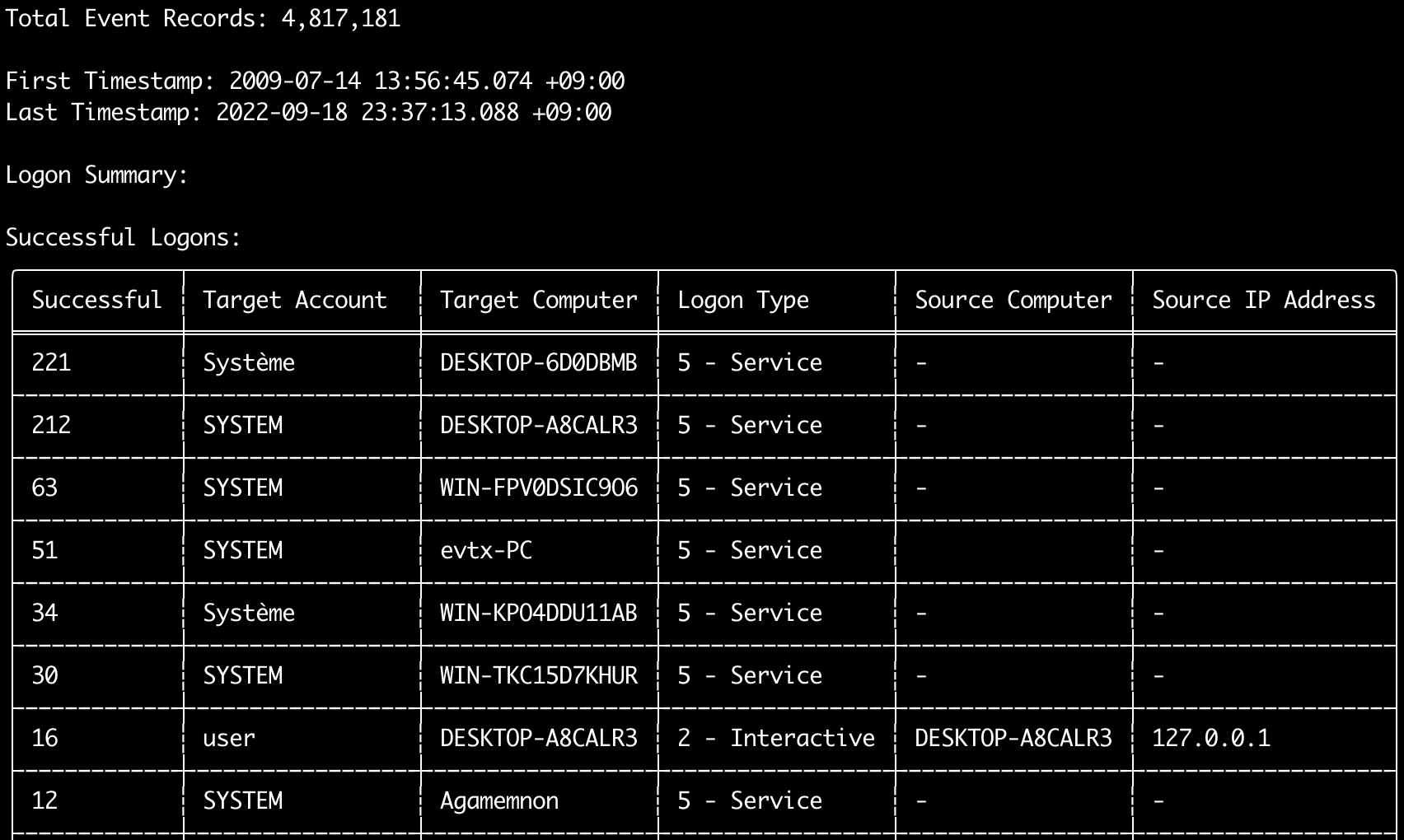
您可以使用 logon-summary 命令輸出登入資訊摘要(登入使用者名稱以及成功與失敗的登入次數)。
您可以使用 -f 顯示單一 evtx 檔案的登入資訊,或使用 -d 選項顯示多個 evtx 檔案的登入資訊。
成功的登入取自下列事件:
* Security 4624 (Successful Logon)
* RDS-LSM 21 (Remote Desktop Service Local Session Manager Logon)
* RDS-GTW 302 (Remote Desktop Service Gateway Logon)
失敗的登入取自 Security 4625 事件。
Usage:
  hayabusa.exe logon-summary <INPUT> [OPTIONS]

Input:
  -d, --directory <DIR>  包含多個 .evtx 檔案的目錄
  -f, --file <FILE>      單一 .evtx 檔案的檔案路徑
  -l, --live-analysis    分析本機 C:\Windows\System32\winevt\Logs 資料夾

General Options:
  -C, --clobber                        儲存時覆寫檔案
  -h, --help                           顯示說明選單
  -J, --json-input                     掃描 JSON 格式的記錄而非 .evtx(.json 或 .jsonl)
  -Q, --quiet-errors                   安靜錯誤模式:不儲存錯誤記錄
  -x, --recover-records                從閒置空間(slack space)雕取 evtx 記錄 (default: disabled)
  -c, --rules-config <DIR>             指定自訂規則設定目錄 (default: ./rules/config)
      --target-file-ext <FILE-EXT...>  指定額外的 evtx 檔案副檔名 (ex: evtx_data)
      --threads <NUMBER>               執行緒數量 (default: optimal number for performance)
  -V, --validate-checksums             啟用總和檢查碼驗證

Filtering:
      --exclude-computer <COMPUTER...>  不掃描指定的電腦名稱 (ex: ComputerA) (ex: ComputerA,ComputerB)
      --include-computer <COMPUTER...>  僅掃描指定的電腦名稱 (ex: ComputerA) (ex: ComputerA,ComputerB)
      --time-offset <OFFSET>            根據偏移量掃描最近的事件 (ex: 1y, 3M, 30d, 24h, 30m)
      --timeline-end <DATE>             要載入的事件記錄結束時間 (ex: "2022-02-22 23:59:59 +09:00")
      --timeline-start <DATE>           要載入的事件記錄開始時間 (ex: "2020-02-22 00:00:00 +09:00")

Output:
  -G, --geo-ip <MAXMIND-DB-DIR>   為來源 IP 位址加上 GeoIP (ASN、城市、國家) 資訊
  -X, --remove-duplicate-records  移除重複的事件記錄 (default: disabled)
  -o, --output <FILENAME-PREFIX>  將登入摘要儲存至兩個 CSV 檔案 (ex: -o logon-summary)

Display Settings:
  -K, --no-color  停用彩色輸出
  -q, --quiet     安靜模式:不顯示啟動橫幅
  -v, --verbose   輸出詳細資訊

Time Format:
      --european-time     以歐洲時間格式輸出時間戳記 (ex: 22-02-2022 22:00:00.123 +02:00)
  -O, --iso-8601          以原始 ISO-8601 格式輸出時間戳記 (ex: 2022-02-22T10:10:10.1234567Z) (Always UTC)
      --rfc-2822          以 RFC 2822 格式輸出時間戳記 (ex: Fri, 22 Feb 2022 22:00:00 -0600)
      --rfc-3339          以 RFC 3339 格式輸出時間戳記 (ex: 2022-02-22 22:00:00.123456-06:00)
  -U, --utc               以 UTC 格式輸出時間 (default: local time)
      --us-military-time  以美國軍用時間格式輸出時間戳記 (ex: 02-22-2022 22:00:00.123 -06:00)
      --us-time           以美國時間格式輸出時間戳記 (ex: 02-22-2022 10:00:00.123 PM -06:00)
logon-summary GeoIP 資訊
當 -G, --geo-ip 指向包含 MaxMind GeoLite2-ASN.mmdb、GeoLite2-Country.mmdb 與 GeoLite2-City.mmdb 資料庫的目錄時,每一列的來源 IP 位址都會被查詢,並在兩個 CSV 檔案中加入 Source ASN、Source Country 與 Source City 欄位。
終端機表格只容得下其中一欄,因此顯示 Source Country(若為空則改用 ASN 欄位,因為無法路由的位址的 Local/Private 值會出現在 ASN 欄位)。
logon-summary 命令範例
- 印出登入摘要:
hayabusa.exe logon-summary -f Security.evtx - 儲存登入摘要結果:
hayabusa.exe logon-summary -d ../logs -o logon-summary.csv - 為來源 IP 位址加上 GeoIP 資訊:
hayabusa.exe logon-summary -d ../logs -G /usr/local/share/GeoIP -o logon-summary.csv
logon-summary 螢幕截圖

pivot-keywords-list 命令
您可以使用 pivot-keywords-list 命令建立一份唯一的樞紐關鍵字清單,以快速識別異常的使用者、主機名稱、處理程序等,並關聯各事件。
重要:依預設,hayabusa 會傳回所有事件(資訊等級以上)的結果,因此我們強烈建議將 pivot-keywords-list 命令與 -m, --min-level 選項搭配使用。
例如,先以 -m critical 僅從 critical 警示建立關鍵字,然後再繼續使用 -m high、-m medium 等。
您的結果中很可能會有符合許多正常事件的常見關鍵字,因此在手動檢查結果並將唯一關鍵字整理至單一檔案後,您便可使用如 grep -f keywords.txt timeline.csv 之類的命令建立一份縮小範圍的可疑活動時間軸。
Usage:
  hayabusa.exe pivot-keywords-list <INPUT> [OPTIONS]

Input:
  -d, --directory <DIR>  包含多個 .evtx 檔案的目錄
  -f, --file <FILE>      單一 .evtx 檔案的檔案路徑
  -l, --live-analysis    分析本機 C:\Windows\System32\winevt\Logs 資料夾

General Options:
  -C, --clobber                        儲存時覆寫檔案
  -h, --help                           顯示說明選單
  -J, --json-input                     掃描 JSON 格式的記錄而非 .evtx(.json 或 .jsonl)
  -w, --no-wizard                      不詢問問題。掃描所有事件與警示
  -Q, --quiet-errors                   安靜錯誤模式:不儲存錯誤記錄
  -x, --recover-records                從閒置空間(slack space)雕取 evtx 記錄 (default: disabled)
  -c, --rules-config <DIR>             指定自訂規則設定目錄 (default: ./rules/config)
      --target-file-ext <FILE-EXT...>  指定額外的 evtx 檔案副檔名 (ex: evtx_data)
      --threads <NUMBER>               執行緒數量 (default: optimal number for performance)
  -V, --validate-checksums             啟用總和檢查碼驗證

Filtering:
  -E, --eid-filter                      僅掃描常見的 EID 以加快速度 (./rules/config/target_event_IDs.txt)
  -D, --enable-deprecated-rules         啟用狀態為 deprecated 的規則
  -n, --enable-noisy-rules              啟用設定為 noisy 的規則 (./rules/config/noisy_rules.txt)
  -u, --enable-unsupported-rules        啟用狀態為 unsupported 的規則
  -e, --exact-level <LEVEL>             僅載入具有特定等級的規則 (informational, low, medium, high, critical)
      --exclude-computer <COMPUTER...>  不掃描指定的電腦名稱 (ex: ComputerA) (ex: ComputerA,ComputerB)
      --exclude-eid <EID...>            不掃描特定的 EID 以加快速度 (ex: 1) (ex: 1,4688)
      --exclude-status <STATUS...>      不載入符合指定狀態的規則 (ex: experimental) (ex: stable,test)
      --exclude-tag <TAG...>            不載入具有特定標籤的規則 (ex: sysmon)
      --include-computer <COMPUTER...>  僅掃描指定的電腦名稱 (ex: ComputerA) (ex: ComputerA,ComputerB)
      --include-eid <EID...>            僅掃描指定的 EID 以加快速度 (ex: 1) (ex: 1,4688)
      --include-status <STATUS...>      僅載入具有指定狀態的規則 (ex: experimental) (ex: stable,test)
      --include-tag <TAG...>            僅載入具有指定標籤的規則 (ex: attack.execution,attack.discovery)
  -m, --min-level <LEVEL>               要載入規則的最低等級 (default: informational)
      --time-offset <OFFSET>            根據偏移量掃描最近的事件 (ex: 1y, 3M, 30d, 24h, 30m)
      --timeline-end <DATE>             要載入的事件記錄結束時間 (ex: "2022-02-22 23:59:59 +09:00")
      --timeline-start <DATE>           要載入的事件記錄開始時間 (ex: "2020-02-22 00:00:00 +09:00")

Output:
  -o, --output <FILENAME-PREFIX>  將樞紐關鍵字儲存至個別檔案 (ex: PivotKeywords)

Display Settings:
  -K, --no-color  停用彩色輸出
  -q, --quiet     安靜模式:不顯示啟動橫幅
  -v, --verbose   輸出詳細資訊
pivot-keywords-list 命令範例
- 將樞紐關鍵字輸出至螢幕:
hayabusa.exe pivot-keywords-list -d ../logs -m critical - 從 critical 警示建立一份樞紐關鍵字清單並儲存結果。(結果會儲存至
keywords-Ip Addresses.txt、keywords-Users.txt等):
pivot-keywords-list 設定檔
您可以透過編輯 ./rules/config/pivot_keywords.txt 來自訂要搜尋的關鍵字。
此頁面 為預設設定。
格式為 KeywordName.FieldName。例如,在建立 Users 清單時,hayabusa 會列出 SubjectUserName、TargetUserName 與 User 欄位中的所有值。
search 命令
search 命令讓您可以對所有事件進行關鍵字搜尋。
(不僅僅是 Hayabusa 偵測結果。)
這有助於判斷在 Hayabusa 未偵測到的事件中是否存在任何證據。
Usage:
  hayabusa.exe search <INPUT> <--keywords "<KEYWORDS>" OR --regex "<REGEX>"> [OPTIONS]

Display Settings:
  -K, --no-color  停用彩色輸出
  -q, --quiet     安靜模式:不顯示啟動橫幅
  -v, --verbose   輸出詳細資訊

General Options:
  -C, --clobber                        儲存時覆寫檔案
  -h, --help                           顯示說明選單
  -Q, --quiet-errors                   安靜錯誤模式:不儲存錯誤記錄
  -x, --recover-records                從閒置空間(slack space)雕取 evtx 記錄 (default: disabled)
  -c, --rules-config <DIR>             指定自訂規則設定目錄 (default: ./rules/config)
      --target-file-ext <FILE-EXT...>  指定額外的 evtx 檔案副檔名 (ex: evtx_data)
      --threads <NUMBER>               執行緒數量 (default: optimal number for performance)
  -s, --sort                           在儲存檔案前排序結果(警告:這會使用更多記憶體!)
  -V, --validate-checksums             啟用總和檢查碼驗證

Input:
  -d, --directory <DIR>  包含多個 .evtx 檔案的目錄
  -f, --file <FILE>      單一 .evtx 檔案的檔案路徑
  -l, --live-analysis    分析本機 C:\Windows\System32\winevt\Logs 資料夾

Filtering:
  -a, --and-logic              以 AND 邏輯搜尋關鍵字 (default: OR)
  -F, --filter <FILTER...>     依特定欄位篩選
  -i, --ignore-case            不區分大小寫的關鍵字搜尋
  -k, --keyword <KEYWORD...>   依關鍵字搜尋
  -r, --regex <REGEX>          依正規表示式搜尋
      --time-offset <OFFSET>   根據偏移量掃描最近的事件 (ex: 1y, 3M, 30d, 24h, 30m)
      --timeline-end <DATE>    要載入的事件記錄結束時間 (ex: "2022-02-22 23:59:59 +09:00")
      --timeline-start <DATE>  要載入的事件記錄開始時間 (ex: "2020-02-22 00:00:00 +09:00")

Output:
  -b, --disable-abbreviations  停用縮寫
  -J, --json-output            以 JSON 格式儲存搜尋結果 (ex: -J -o results.json)
  -L, --jsonl-output           以 JSONL 格式儲存搜尋結果 (ex: -L -o results.jsonl)
  -M, --multiline              在 CSV 輸出中以換行字元分隔事件欄位資訊
  -o, --output <FILE>          以 CSV 格式儲存搜尋結果 (ex: search.csv)
  -S, --tab-separator          以定位字元分隔事件欄位資訊

Time Format:
      --european-time     以歐洲時間格式輸出時間戳記 (ex: 22-02-2022 22:00:00.123 +02:00)
  -O, --iso-8601          以原始 ISO-8601 格式輸出時間戳記 (ex: 2022-02-22T10:10:10.1234567Z) (Always UTC)
      --rfc-2822          以 RFC 2822 格式輸出時間戳記 (ex: Fri, 22 Feb 2022 22:00:00 -0600)
      --rfc-3339          以 RFC 3339 格式輸出時間戳記 (ex: 2022-02-22 22:00:00.123456-06:00)
  -U, --utc               以 UTC 格式輸出時間 (default: local time)
      --us-military-time  以美國軍用時間格式輸出時間戳記 (ex: 02-22-2022 22:00:00.123 -06:00)
      --us-time           以美國時間格式輸出時間戳記 (ex: 02-22-2022 10:00:00.123 PM -06:00)
search 命令範例
- 在
../hayabusa-sample-evtx目錄中搜尋關鍵字mimikatz:
注意:只要在資料中任何位置找到
mimikatz,關鍵字就會比對成功。這並非完全比對。
- 在
../hayabusa-sample-evtx目錄中搜尋關鍵字mimikatz或kali:
- 在
../hayabusa-sample-evtx目錄中搜尋關鍵字mimikatz並忽略大小寫:
- 使用正規表示式在
../hayabusa-sample-evtx目錄中搜尋 IP 位址:
- 搜尋
../hayabusa-sample-evtx目錄並顯示所有WorkstationName欄位為kali的事件:
注意:
.*是用來比對每個事件的正規表示式。
search 命令設定檔
./rules/config/channel_abbreviations.txt:頻道名稱與其縮寫的對應。