विश्लेषण कमांड
computer-metrics कमांड
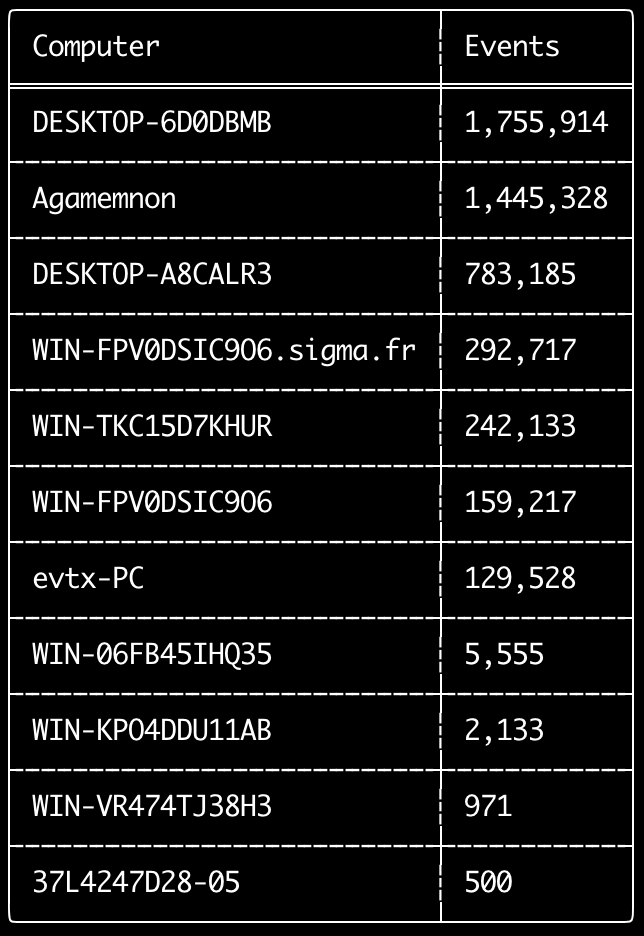
आप computer-metrics कमांड का उपयोग यह जांचने के लिए कर सकते हैं कि <System><Computer> फ़ील्ड में परिभाषित प्रत्येक कंप्यूटर के अनुसार कितने इवेंट हैं।
ध्यान रखें कि आप इवेंट्स को उनके मूल कंप्यूटर के अनुसार अलग करने के लिए Computer फ़ील्ड पर पूरी तरह भरोसा नहीं कर सकते।
Windows 11 कभी-कभी इवेंट लॉग में सहेजते समय पूरी तरह से अलग Computer नाम का उपयोग करेगा।
इसके अलावा, Windows 10 कभी-कभी Computer नाम को पूरी तरह से छोटे अक्षरों में रिकॉर्ड करेगा।
यह कमांड किसी भी डिटेक्शन नियम का उपयोग नहीं करता है इसलिए सभी इवेंट्स का विश्लेषण करेगा।
यह कमांड जल्दी से यह देखने के लिए एक अच्छा कमांड है कि किन कंप्यूटरों में सबसे अधिक लॉग हैं।
इस जानकारी के साथ, आप फिर अपनी टाइमलाइन बनाते समय --include-computer या --exclude-computer विकल्पों का उपयोग कर सकते हैं ताकि कंप्यूटर के अनुसार कई टाइमलाइन बनाकर या कुछ कंप्यूटरों के इवेंट्स को बाहर करके अपनी टाइमलाइन निर्माण को अधिक कुशल बना सकें।
Usage:
  hayabusa.exe computer-metrics <INPUT> [OPTIONS]

Input:
  -d, --directory <DIR>  एकाधिक .evtx फ़ाइलों की डायरेक्टरी
  -f, --file <FILE>      एक .evtx फ़ाइल का फ़ाइल पथ
  -l, --live-analysis    स्थानीय C:\Windows\System32\winevt\Logs फ़ोल्डर का विश्लेषण करें

General Options:
  -C, --clobber                        सहेजते समय फ़ाइलों को अधिलेखित करें
  -h, --help                           सहायता मेनू दिखाएं
  -J, --json-input                     .evtx के बजाय JSON प्रारूपित लॉग स्कैन करें (.json या .jsonl)
  -Q, --quiet-errors                   शांत त्रुटि मोड: त्रुटि लॉग न सहेजें
  -x, --recover-records                स्लैक स्पेस से evtx रिकॉर्ड कार्व करें (default: disabled)
  -c, --rules-config <DIR>             कस्टम नियम कॉन्फ़िग डायरेक्टरी निर्दिष्ट करें (default: ./rules/config)
      --target-file-ext <FILE-EXT...>  अतिरिक्त evtx फ़ाइल एक्सटेंशन निर्दिष्ट करें (ex: evtx_data)
  -V, --validate-checksums             चेकसम सत्यापन सक्षम करें

Filtering:
      --time-offset <OFFSET>  एक ऑफसेट के आधार पर हाल के इवेंट्स स्कैन करें (ex: 1y, 3M, 30d, 24h, 30m)

Output:
  -o, --output <FILE>  परिणामों को CSV प्रारूप में सहेजें (ex: computer-metrics.csv)

Display Settings:
  -K, --no-color  रंगीन आउटपुट अक्षम करें
  -q, --quiet     शांत मोड: लॉन्च बैनर प्रदर्शित न करें
  -v, --verbose   विस्तृत जानकारी आउटपुट करें
computer-metrics कमांड उदाहरण
- किसी डायरेक्टरी से कंप्यूटर नाम मेट्रिक्स प्रिंट करें:
hayabusa.exe computer-metrics -d ../logs - परिणामों को CSV फ़ाइल में सहेजें:
hayabusa.exe computer-metrics -d ../logs -o computer-metrics.csv
computer-metrics स्क्रीनशॉट
eid-metrics कमांड
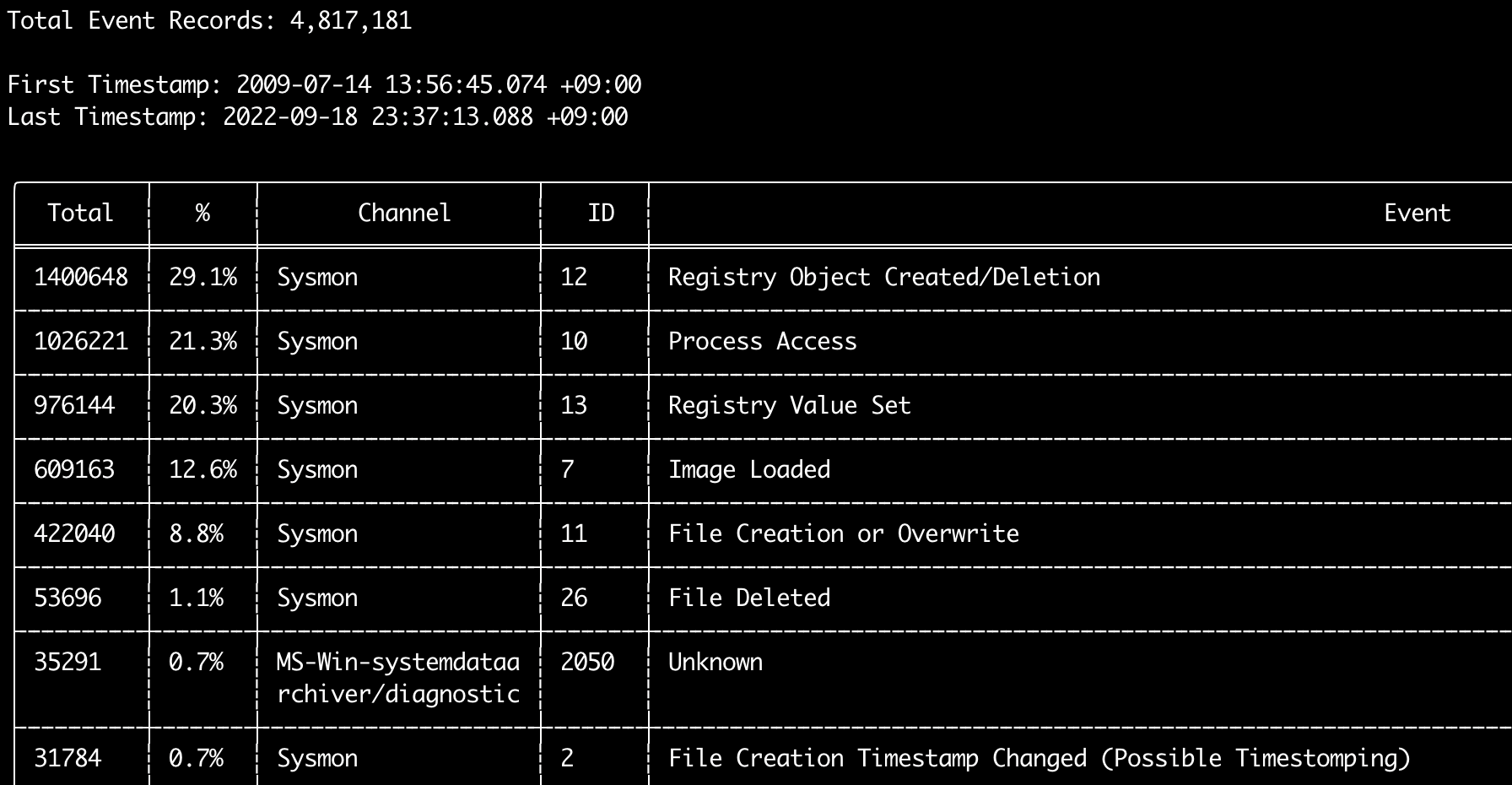
आप eid-metrics कमांड का उपयोग चैनलों द्वारा अलग किए गए इवेंट ID (<System><EventID> फ़ील्ड) की कुल संख्या और प्रतिशत प्रिंट करने के लिए कर सकते हैं।
यह कमांड किसी भी डिटेक्शन नियम का उपयोग नहीं करता है इसलिए सभी इवेंट्स को स्कैन करेगा।
Usage:
  hayabusa.exe eid-metrics <INPUT> [OPTIONS]

Input:
  -d, --directory <DIR>  एकाधिक .evtx फ़ाइलों की डायरेक्टरी
  -f, --file <FILE>      एक .evtx फ़ाइल का फ़ाइल पथ
  -l, --live-analysis    स्थानीय C:\Windows\System32\winevt\Logs फ़ोल्डर का विश्लेषण करें

General Options:
  -C, --clobber                        सहेजते समय फ़ाइलों को अधिलेखित करें
  -h, --help                           सहायता मेनू दिखाएं
  -J, --json-input                     .evtx के बजाय JSON प्रारूपित लॉग स्कैन करें (.json या .jsonl)
  -Q, --quiet-errors                   शांत त्रुटि मोड: त्रुटि लॉग न सहेजें
  -x, --recover-records                स्लैक स्पेस से evtx रिकॉर्ड कार्व करें (default: disabled)
  -c, --rules-config <DIR>             कस्टम नियम कॉन्फ़िग डायरेक्टरी निर्दिष्ट करें (default: ./rules/config)
      --target-file-ext <FILE-EXT...>  अतिरिक्त evtx फ़ाइल एक्सटेंशन निर्दिष्ट करें (ex: evtx_data)
      --threads <NUMBER>               थ्रेड्स की संख्या (default: optimal number for performance)
  -V, --validate-checksums             चेकसम सत्यापन सक्षम करें

Filtering:
      --exclude-computer <COMPUTER...>  निर्दिष्ट कंप्यूटर नामों को स्कैन न करें (ex: ComputerA) (ex: ComputerA,ComputerB)
      --include-computer <COMPUTER...>  केवल निर्दिष्ट कंप्यूटर नामों को स्कैन करें (ex: ComputerA) (ex: ComputerA,ComputerB)
      --time-offset <OFFSET>            एक ऑफसेट के आधार पर हाल के इवेंट्स स्कैन करें (ex: 1y, 3M, 30d, 24h, 30m)

Output:
  -X, --remove-duplicate-records  डुप्लिकेट इवेंट रिकॉर्ड हटाएं (default: disabled)
  -o, --output <FILE>             मेट्रिक्स को CSV प्रारूप में सहेजें (ex: metrics.csv)

Display Settings:
  -K, --no-color  रंगीन आउटपुट अक्षम करें
  -q, --quiet     शांत मोड: लॉन्च बैनर प्रदर्शित न करें
  -v, --verbose   विस्तृत जानकारी आउटपुट करें

Time Format:
      --european-time     यूरोपीय समय प्रारूप में टाइमस्टैम्प आउटपुट करें (ex: 22-02-2022 22:00:00.123 +02:00)
  -O, --iso-8601          मूल ISO-8601 प्रारूप में टाइमस्टैम्प आउटपुट करें (ex: 2022-02-22T10:10:10.1234567Z) (हमेशा UTC)
      --rfc-2822          RFC 2822 प्रारूप में टाइमस्टैम्प आउटपुट करें (ex: Fri, 22 Feb 2022 22:00:00 -0600)
      --rfc-3339          RFC 3339 प्रारूप में टाइमस्टैम्प आउटपुट करें (ex: 2022-02-22 22:00:00.123456-06:00)
  -U, --utc               UTC प्रारूप में समय आउटपुट करें (default: local time)
      --us-military-time  अमेरिकी सैन्य समय प्रारूप में टाइमस्टैम्प आउटपुट करें (ex: 02-22-2022 22:00:00.123 -06:00)
      --us-time           अमेरिकी समय प्रारूप में टाइमस्टैम्प आउटपुट करें (ex: 02-22-2022 10:00:00.123 PM -06:00)
eid-metrics कमांड उदाहरण
- किसी एकल फ़ाइल से इवेंट ID मेट्रिक्स प्रिंट करें:
hayabusa.exe eid-metrics -f Security.evtx - किसी डायरेक्टरी से इवेंट ID मेट्रिक्स प्रिंट करें:
hayabusa.exe eid-metrics -d ../logs - परिणामों को CSV फ़ाइल में सहेजें:
hayabusa.exe eid-metrics -f Security.evtx -o eid-metrics.csv
eid-metrics कमांड कॉन्फ़िग फ़ाइल
इवेंट्स के चैनल, इवेंट ID और शीर्षक rules/config/channel_eid_info.txt में परिभाषित हैं।
उदाहरण:
Channel,EventID,EventTitle
Microsoft-Windows-Sysmon/Operational,1,Process Creation.
Microsoft-Windows-Sysmon/Operational,2,File Creation Timestamp Changed. (Possible Timestomping)
Microsoft-Windows-Sysmon/Operational,3,Network Connection.
Microsoft-Windows-Sysmon/Operational,4,Sysmon Service State Changed.
eid-metrics स्क्रीनशॉट
expand-list कमांड
नियम फ़ोल्डर से expand प्लेसहोल्डर निकालें।
यह कॉन्फ़िग फ़ाइलें बनाते समय किसी भी ऐसे नियम का उपयोग करने के लिए उपयोगी है जो expand फ़ील्ड मॉडिफायर का उपयोग करता है।
expand नियमों का उपयोग करने के लिए, आपको बस ./config/expand/ डायरेक्टरी के अंतर्गत expand फ़ील्ड मॉडिफायर के नाम के साथ एक .txt फ़ाइल बनानी होगी, और उन सभी मानों को फ़ाइल के अंदर डालना होगा जिन्हें आप जांचना चाहते हैं।
उदाहरण के लिए, यदि नियम का detection लॉजिक है:
detection:
    selection:
        EventID: 5145
        RelativeTargetName|contains: '\winreg'
    filter_main:
        IpAddress|expand: '%Admins_Workstations%'
    condition: selection and not filter_main
तो आप टेक्स्ट फ़ाइल ./config/expand/Admins_Workstations.txt बनाएंगे और उसमें इस तरह के मान डालेंगे:
यह मूल रूप से वही लॉजिक जांचेगा जैसे:
यदि कॉन्फ़िग फ़ाइल मौजूद नहीं है, तो Hayabusa फिर भी expand नियम को लोड करेगा लेकिन उसे अनदेखा करेगा।
Usage:
  hayabusa.exe expand-list [OPTIONS]

General Options:
  -h, --help              सहायता मेनू दिखाएं
  -r, --rules <DIR/FILE>  नियम डायरेक्टरी निर्दिष्ट करें (default: ./rules)

Display Settings:
  -K, --no-color  रंगीन आउटपुट अक्षम करें
  -q, --quiet     शांत मोड: लॉन्च बैनर प्रदर्शित न करें
expand-list कमांड उदाहरण
- डिफ़ॉल्ट
rulesडायरेक्टरी सेexpandफ़ील्ड मॉडिफायर निकालें:hayabusa.exe expand-list sigmaडायरेक्टरी सेexpandफ़ील्ड मॉडिफायर निकालें:hayabusa.exe expand-list -r ../sigma
expand-list परिणाम
5 unique expand placeholders found:
Admins_Workstations
DC-MACHINE-NAME
Workstations
internal_domains
domain_controller_hostnames
extract-base64 कमांड
यह कमांड निम्नलिखित इवेंट्स से base64 स्ट्रिंग्स निकालेगा, उन्हें डिकोड करेगा और बताएगा कि किस प्रकार की एन्कोडिंग का उपयोग किया जा रहा है। * Security 4688 CommandLine * Sysmon 1 CommandLine, ParentCommandLine * System 7045 ImagePath * PowerShell Operational 4104 * PowerShell Operational 4103
Usage:
  hayabusa.exe extract-base64 <INPUT> [OPTIONS]

Input:
  -d, --directory <DIR>  एकाधिक .evtx फ़ाइलों की डायरेक्टरी
  -f, --file <FILE>      एक .evtx फ़ाइल का फ़ाइल पथ
  -l, --live-analysis    स्थानीय C:\Windows\System32\winevt\Logs फ़ोल्डर का विश्लेषण करें

General Options:
  -C, --clobber                        सहेजते समय फ़ाइलों को अधिलेखित करें
  -h, --help                           सहायता मेनू दिखाएं
  -J, --json-input                     .evtx के बजाय JSON प्रारूपित लॉग स्कैन करें (.json या .jsonl)
  -Q, --quiet-errors                   शांत त्रुटि मोड: त्रुटि लॉग न सहेजें
  -x, --recover-records                स्लैक स्पेस से evtx रिकॉर्ड कार्व करें (default: disabled)
  -c, --rules-config <DIR>             कस्टम नियम कॉन्फ़िग डायरेक्टरी निर्दिष्ट करें (default: ./rules/config)
      --target-file-ext <FILE-EXT...>  अतिरिक्त evtx फ़ाइल एक्सटेंशन निर्दिष्ट करें (ex: evtx_data)
      --threads <NUMBER>               थ्रेड्स की संख्या (default: optimal number for performance)
  -V, --validate-checksums             चेकसम सत्यापन सक्षम करें

Filtering:
      --exclude-computer <COMPUTER...>  निर्दिष्ट कंप्यूटर नामों को स्कैन न करें (ex: ComputerA) (ex: ComputerA,ComputerB)
      --include-computer <COMPUTER...>  केवल निर्दिष्ट कंप्यूटर नामों को स्कैन करें (ex: ComputerA) (ex: ComputerA,ComputerB)
      --time-offset <OFFSET>            एक ऑफसेट के आधार पर हाल के इवेंट्स स्कैन करें (ex: 1y, 3M, 30d, 24h, 30m)

Output:
  -o, --output <FILE>  परिणामों को CSV फ़ाइल में सहेजें

Display Settings:
  -K, --no-color  रंगीन आउटपुट अक्षम करें
  -q, --quiet     शांत मोड: लॉन्च बैनर प्रदर्शित न करें
  -v, --verbose   विस्तृत जानकारी आउटपुट करें

Time Format:
      --european-time     यूरोपीय समय प्रारूप में टाइमस्टैम्प आउटपुट करें (ex: 22-02-2022 22:00:00.123 +02:00)
  -O, --iso-8601          मूल ISO-8601 प्रारूप में टाइमस्टैम्प आउटपुट करें (ex: 2022-02-22T10:10:10.1234567Z) (हमेशा UTC)
      --rfc-2822          RFC 2822 प्रारूप में टाइमस्टैम्प आउटपुट करें (ex: Fri, 22 Feb 2022 22:00:00 -0600)
      --rfc-3339          RFC 3339 प्रारूप में टाइमस्टैम्प आउटपुट करें (ex: 2022-02-22 22:00:00.123456-06:00)
  -U, --utc               UTC प्रारूप में समय आउटपुट करें (default: local time)
      --us-military-time  अमेरिकी सैन्य समय प्रारूप में टाइमस्टैम्प आउटपुट करें (ex: 02-22-2022 22:00:00.123 -06:00)
      --us-time           अमेरिकी समय प्रारूप में टाइमस्टैम्प आउटपुट करें (ex: 02-22-2022 10:00:00.123 PM -06:00)
extract-base64 कमांड उदाहरण
- किसी डायरेक्टरी को स्कैन करें और टर्मिनल पर आउटपुट करें:
hayabusa.exe extract-base64 -d ../hayabusa-sample-evtx - किसी डायरेक्टरी को स्कैन करें और CSV फ़ाइल में आउटपुट करें:
hayabusa.exe extract-base64 -d ../hayabusa-sample-evtx -o base64-extracted.csv
extract-base64 परिणाम
टर्मिनल पर आउटपुट करते समय, क्योंकि स्थान सीमित होता है, केवल निम्नलिखित फ़ील्ड प्रदर्शित होते हैं: * Timestamp * Computer * Base64 String * Decoded String (if not binary)
CSV फ़ाइल में सहेजते समय, निम्नलिखित फ़ील्ड सहेजे जाते हैं:
* Timestamp
* Computer
* Base64 String
* Decoded String (if not binary)
* Original Field
* Length
* Binary (Y/N)
* Double Encoding (when Y, it usually is malicious)
* Encoding Type
* File Type
* Event
* Record ID
* File Name
log-metrics कमांड
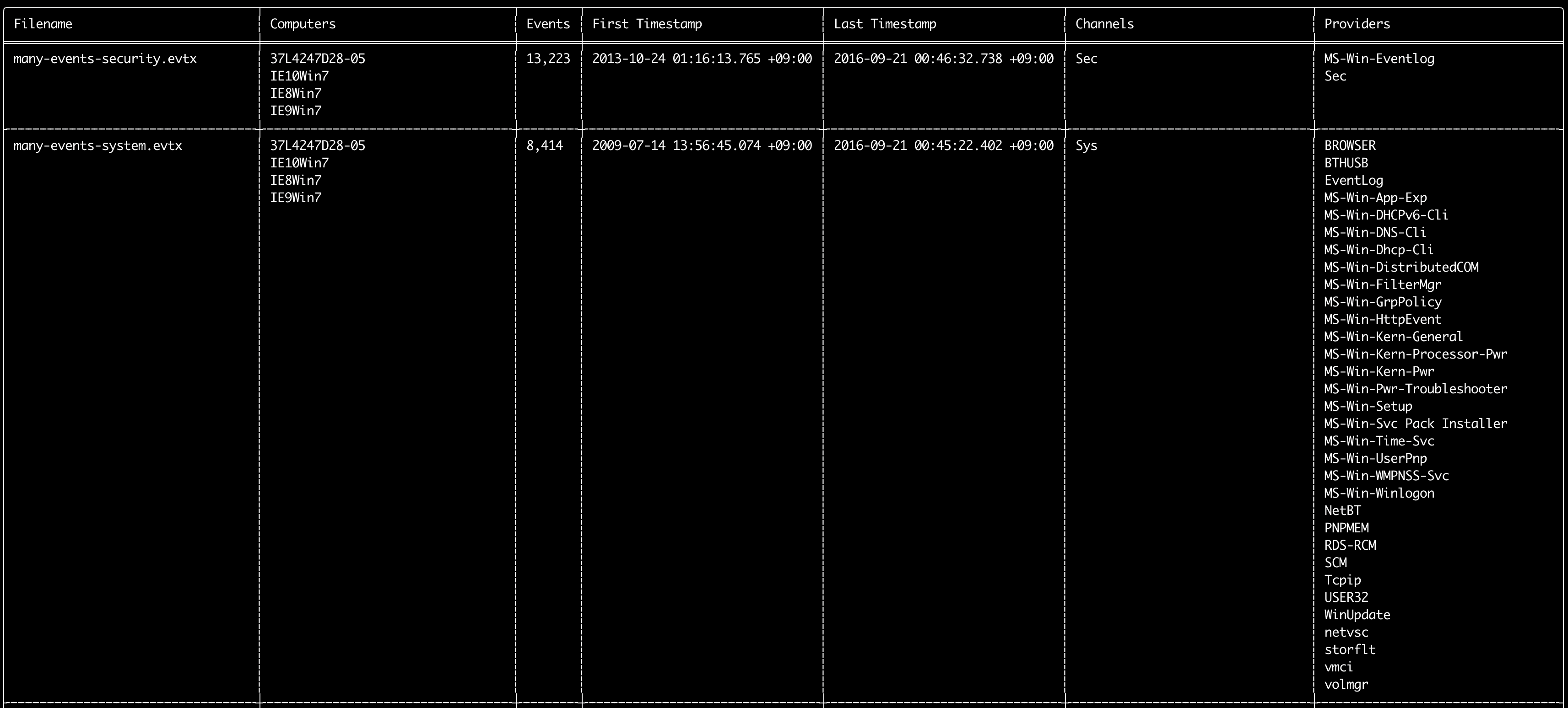
आप log-metrics कमांड का उपयोग इवेंट लॉग के अंदर निम्नलिखित मेटाडेटा प्रिंट करने के लिए कर सकते हैं:
* Filename
* Computer names
* Number of events
* First timestamp
* Last timestamp
* Channels
* Providers
यह कमांड किसी भी डिटेक्शन नियम का उपयोग नहीं करता है इसलिए सभी इवेंट्स को स्कैन करेगा।
Usage:
  hayabusa.exe log-metrics <INPUT> [OPTIONS]

Input:
  -d, --directory <DIR>  एकाधिक .evtx फ़ाइलों की डायरेक्टरी
  -f, --file <FILE>      एक .evtx फ़ाइल का फ़ाइल पथ
  -l, --live-analysis    स्थानीय C:\Windows\System32\winevt\Logs फ़ोल्डर का विश्लेषण करें

General Options:
  -C, --clobber                        सहेजते समय फ़ाइलों को अधिलेखित करें
  -h, --help                           सहायता मेनू दिखाएं
  -J, --json-input                     .evtx के बजाय JSON प्रारूपित लॉग स्कैन करें (.json या .jsonl)
  -Q, --quiet-errors                   शांत त्रुटि मोड: त्रुटि लॉग न सहेजें
  -x, --recover-records                स्लैक स्पेस से evtx रिकॉर्ड कार्व करें (default: disabled)
  -c, --rules-config <DIR>             कस्टम नियम कॉन्फ़िग डायरेक्टरी निर्दिष्ट करें (default: ./rules/config)
      --target-file-ext <FILE-EXT...>  अतिरिक्त evtx फ़ाइल एक्सटेंशन निर्दिष्ट करें (ex: evtx_data)
      --threads <NUMBER>               थ्रेड्स की संख्या (default: optimal number for performance)
  -V, --validate-checksums             चेकसम सत्यापन सक्षम करें

Filtering:
      --exclude-computer <COMPUTER...>  निर्दिष्ट कंप्यूटर नामों को स्कैन न करें (ex: ComputerA) (ex: ComputerA,ComputerB)
      --exclude-channel <CHANNEL...>    निर्दिष्ट चैनलों को स्कैन न करें (ex: System,Security)
      --exclude-filename <FILE...>      निर्दिष्ट evtx फ़ाइलों को स्कैन न करें (ex: Security.evtx,System.evtx)
      --include-computer <COMPUTER...>  केवल निर्दिष्ट कंप्यूटर नामों को स्कैन करें (ex: ComputerA) (ex: ComputerA,ComputerB)
      --include-channel <CHANNEL...>    केवल निर्दिष्ट चैनलों को शामिल करें (ex: System,Security)
      --include-filename <FILE...>      केवल निर्दिष्ट evtx फ़ाइलों को शामिल करें (ex: Security.evtx,System.evtx)
      --time-offset <OFFSET>            एक ऑफसेट के आधार पर हाल के इवेंट्स स्कैन करें (ex: 1y, 3M, 30d, 24h, 30m)

Output:
  -b, --disable-abbreviations  संक्षिप्ताक्षर अक्षम करें
  -M, --multiline              CSV आउटपुट के लिए इवेंट फ़ील्ड जानकारी को न्यूलाइन वर्णों द्वारा अलग करें
  -o, --output <FILE>          मेट्रिक्स को CSV प्रारूप में सहेजें (ex: metrics.csv)
  -S, --tab-separator          इवेंट फ़ील्ड जानकारी को टैब द्वारा अलग करें

Display Settings:
  -K, --no-color  रंगीन आउटपुट अक्षम करें
  -q, --quiet     शांत मोड: लॉन्च बैनर प्रदर्शित न करें
  -v, --verbose   विस्तृत जानकारी आउटपुट करें

Time Format:
      --european-time     यूरोपीय समय प्रारूप में टाइमस्टैम्प आउटपुट करें (ex: 22-02-2022 22:00:00.123 +02:00)
  -O, --iso-8601          मूल ISO-8601 प्रारूप में टाइमस्टैम्प आउटपुट करें (ex: 2022-02-22T10:10:10.1234567Z) (हमेशा UTC)
      --rfc-2822          RFC 2822 प्रारूप में टाइमस्टैम्प आउटपुट करें (ex: Fri, 22 Feb 2022 22:00:00 -0600)
      --rfc-3339          RFC 3339 प्रारूप में टाइमस्टैम्प आउटपुट करें (ex: 2022-02-22 22:00:00.123456-06:00)
  -U, --utc               UTC प्रारूप में समय आउटपुट करें (default: local time)
      --us-military-time  अमेरिकी सैन्य समय प्रारूप में टाइमस्टैम्प आउटपुट करें (ex: 02-22-2022 22:00:00.123 -06:00)
      --us-time           अमेरिकी समय प्रारूप में टाइमस्टैम्प आउटपुट करें (ex: 02-22-2022 10:00:00.123 PM -06:00)
log-metrics कमांड उदाहरण
- किसी एकल फ़ाइल से लॉग फ़ाइल मेट्रिक्स प्रिंट करें:
hayabusa.exe log-metrics -f Security.evtx - किसी डायरेक्टरी से लॉग फ़ाइल मेट्रिक्स प्रिंट करें:
hayabusa.exe log-metrics -d ../logs - परिणामों को CSV फ़ाइल में सहेजें:
hayabusa.exe log-metrics -d ../logs -o log-metrics.csv
log-metrics स्क्रीनशॉट
logon-summary कमांड
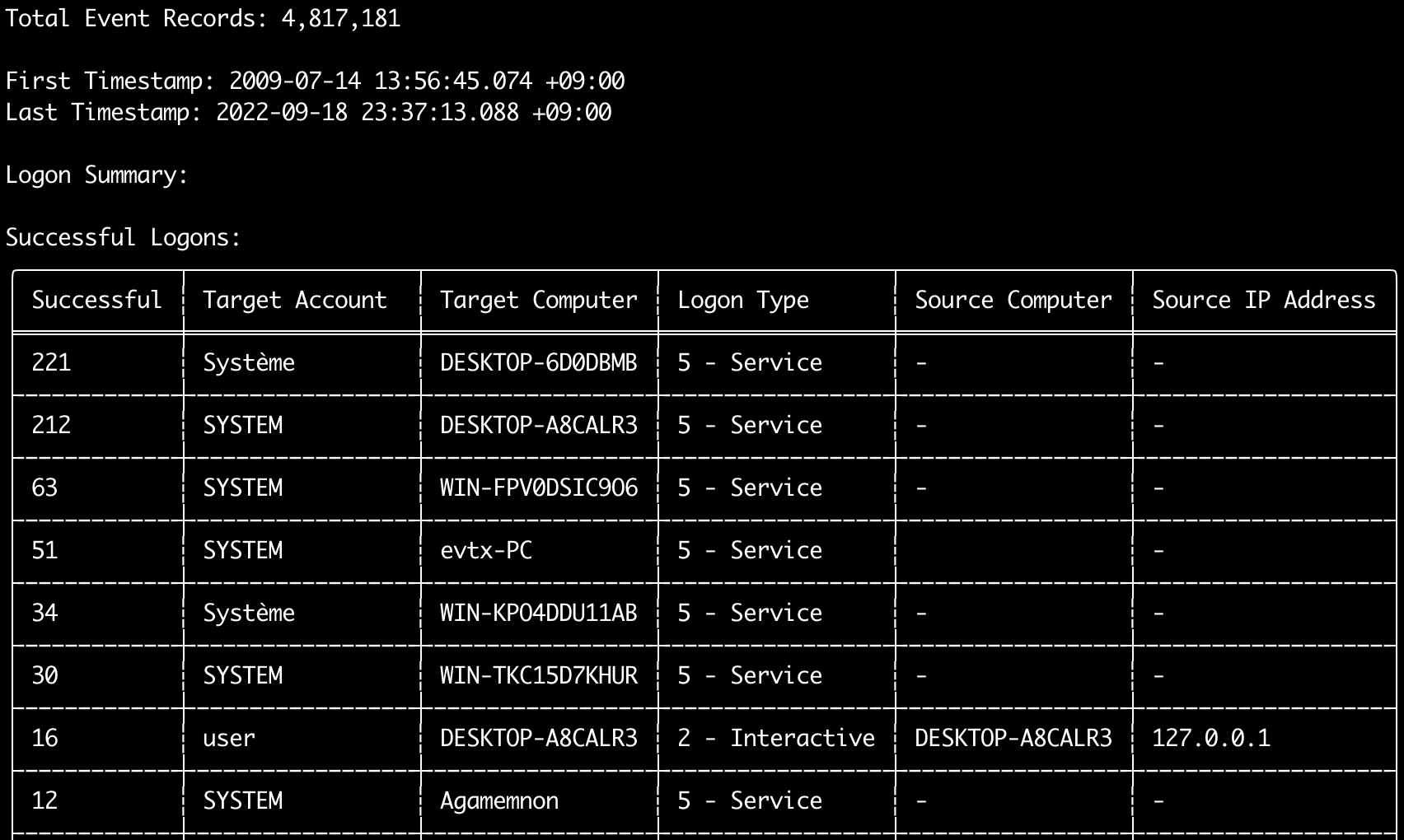
आप logon-summary कमांड का उपयोग लॉगऑन जानकारी सारांश (लॉगऑन उपयोगकर्ता नाम और सफल और असफल लॉगऑन गणना) आउटपुट करने के लिए कर सकते हैं।
आप एक evtx फ़ाइल के लिए -f के साथ या कई evtx फ़ाइलों के लिए -d विकल्प के साथ लॉगऑन जानकारी प्रदर्शित कर सकते हैं।
सफल लॉगऑन निम्नलिखित इवेंट्स से लिए जाते हैं:
* Security 4624 (Successful Logon)
* RDS-LSM 21 (Remote Desktop Service Local Session Manager Logon)
* RDS-GTW 302 (Remote Desktop Service Gateway Logon)
असफल लॉगऑन Security 4625 इवेंट्स से लिए जाते हैं।
Usage:
  hayabusa.exe logon-summary <INPUT> [OPTIONS]

Input:
  -d, --directory <DIR>  एकाधिक .evtx फ़ाइलों की डायरेक्टरी
  -f, --file <FILE>      एक .evtx फ़ाइल का फ़ाइल पथ
  -l, --live-analysis    स्थानीय C:\Windows\System32\winevt\Logs फ़ोल्डर का विश्लेषण करें

General Options:
  -C, --clobber                        सहेजते समय फ़ाइलों को अधिलेखित करें
  -h, --help                           सहायता मेनू दिखाएं
  -J, --json-input                     .evtx के बजाय JSON प्रारूपित लॉग स्कैन करें (.json या .jsonl)
  -Q, --quiet-errors                   शांत त्रुटि मोड: त्रुटि लॉग न सहेजें
  -x, --recover-records                स्लैक स्पेस से evtx रिकॉर्ड कार्व करें (default: disabled)
  -c, --rules-config <DIR>             कस्टम नियम कॉन्फ़िग डायरेक्टरी निर्दिष्ट करें (default: ./rules/config)
      --target-file-ext <FILE-EXT...>  अतिरिक्त evtx फ़ाइल एक्सटेंशन निर्दिष्ट करें (ex: evtx_data)
      --threads <NUMBER>               थ्रेड्स की संख्या (default: optimal number for performance)
  -V, --validate-checksums             चेकसम सत्यापन सक्षम करें

Filtering:
      --exclude-computer <COMPUTER...>  निर्दिष्ट कंप्यूटर नामों को स्कैन न करें (ex: ComputerA) (ex: ComputerA,ComputerB)
      --include-computer <COMPUTER...>  केवल निर्दिष्ट कंप्यूटर नामों को स्कैन करें (ex: ComputerA) (ex: ComputerA,ComputerB)
      --time-offset <OFFSET>            एक ऑफसेट के आधार पर हाल के इवेंट्स स्कैन करें (ex: 1y, 3M, 30d, 24h, 30m)
      --timeline-end <DATE>             लोड करने के लिए इवेंट लॉग का अंतिम समय (ex: "2022-02-22 23:59:59 +09:00")
      --timeline-start <DATE>           लोड करने के लिए इवेंट लॉग का प्रारंभ समय (ex: "2020-02-22 00:00:00 +09:00")

Output:
  -G, --geo-ip <MAXMIND-DB-DIR>   स्रोत IP पतों में GeoIP (ASN, शहर, देश) जानकारी जोड़ें
  -X, --remove-duplicate-records  डुप्लिकेट इवेंट रिकॉर्ड हटाएं (default: disabled)
  -o, --output <FILENAME-PREFIX>  लॉगऑन सारांश को दो CSV फ़ाइलों में सहेजें (ex: -o logon-summary)

Display Settings:
  -K, --no-color  रंगीन आउटपुट अक्षम करें
  -q, --quiet     शांत मोड: लॉन्च बैनर प्रदर्शित न करें
  -v, --verbose   विस्तृत जानकारी आउटपुट करें

Time Format:
      --european-time     यूरोपीय समय प्रारूप में टाइमस्टैम्प आउटपुट करें (ex: 22-02-2022 22:00:00.123 +02:00)
  -O, --iso-8601          मूल ISO-8601 प्रारूप में टाइमस्टैम्प आउटपुट करें (ex: 2022-02-22T10:10:10.1234567Z) (हमेशा UTC)
      --rfc-2822          RFC 2822 प्रारूप में टाइमस्टैम्प आउटपुट करें (ex: Fri, 22 Feb 2022 22:00:00 -0600)
      --rfc-3339          RFC 3339 प्रारूप में टाइमस्टैम्प आउटपुट करें (ex: 2022-02-22 22:00:00.123456-06:00)
  -U, --utc               UTC प्रारूप में समय आउटपुट करें (default: local time)
      --us-military-time  अमेरिकी सैन्य समय प्रारूप में टाइमस्टैम्प आउटपुट करें (ex: 02-22-2022 22:00:00.123 -06:00)
      --us-time           अमेरिकी समय प्रारूप में टाइमस्टैम्प आउटपुट करें (ex: 02-22-2022 10:00:00.123 PM -06:00)
logon-summary GeoIP संवर्धन
जब -G, --geo-ip को ऐसी डायरेक्टरी की ओर इंगित किया जाता है जिसमें MaxMind के GeoLite2-ASN.mmdb, GeoLite2-Country.mmdb और GeoLite2-City.mmdb डेटाबेस हों, तो प्रत्येक पंक्ति के स्रोत IP पते को खोजा जाता है और दोनों CSV फ़ाइलों में Source ASN, Source Country और Source City कॉलम जोड़े जाते हैं।
टर्मिनल तालिका में इनमें से केवल एक के लिए जगह है, इसलिए वह Source Country दिखाती है (खाली होने पर ASN कॉलम पर वापस आ जाती है, क्योंकि गैर-राउटेबल पतों के Local/Private मान वहीं आते हैं)।
logon-summary कमांड उदाहरण
- लॉगऑन सारांश प्रिंट करें:
hayabusa.exe logon-summary -f Security.evtx - लॉगऑन सारांश परिणाम सहेजें:
hayabusa.exe logon-summary -d ../logs -o logon-summary.csv - स्रोत IP पतों में GeoIP जानकारी जोड़ें:
hayabusa.exe logon-summary -d ../logs -G /usr/local/share/GeoIP -o logon-summary.csv
logon-summary स्क्रीनशॉट

pivot-keywords-list कमांड
आप pivot-keywords-list कमांड का उपयोग असामान्य उपयोगकर्ताओं, होस्टनामों, प्रक्रियाओं आदि की जल्दी से पहचान करने के साथ-साथ इवेंट्स को सहसंबंधित करने के लिए अद्वितीय पिवट कीवर्ड्स की एक सूची बनाने के लिए कर सकते हैं।
महत्वपूर्ण: डिफ़ॉल्ट रूप से, hayabusa सभी इवेंट्स (informational और उच्चतर) से परिणाम लौटाएगा इसलिए हम दृढ़ता से अनुशंसा करते हैं कि pivot-keywords-list कमांड को -m, --min-level विकल्प के साथ संयोजित करें।
उदाहरण के लिए, केवल critical अलर्ट से -m critical के साथ कीवर्ड बनाने से शुरू करें और फिर -m high, -m medium, आदि के साथ जारी रखें।
आपके परिणामों में संभवतः सामान्य कीवर्ड होंगे जो कई सामान्य इवेंट्स पर मेल खाएंगे, इसलिए परिणामों की मैन्युअल रूप से जांच करने और एक एकल फ़ाइल में अद्वितीय कीवर्ड्स की सूची बनाने के बाद, आप फिर grep -f keywords.txt timeline.csv जैसे कमांड के साथ संदिग्ध गतिविधि की एक संकीर्ण टाइमलाइन बना सकते हैं।
Usage:
  hayabusa.exe pivot-keywords-list <INPUT> [OPTIONS]

Input:
  -d, --directory <DIR>  एकाधिक .evtx फ़ाइलों की डायरेक्टरी
  -f, --file <FILE>      एक .evtx फ़ाइल का फ़ाइल पथ
  -l, --live-analysis    स्थानीय C:\Windows\System32\winevt\Logs फ़ोल्डर का विश्लेषण करें

General Options:
  -C, --clobber                        सहेजते समय फ़ाइलों को अधिलेखित करें
  -h, --help                           सहायता मेनू दिखाएं
  -J, --json-input                     .evtx के बजाय JSON प्रारूपित लॉग स्कैन करें (.json या .jsonl)
  -w, --no-wizard                      प्रश्न न पूछें। सभी इवेंट्स और अलर्ट के लिए स्कैन करें
  -Q, --quiet-errors                   शांत त्रुटि मोड: त्रुटि लॉग न सहेजें
  -x, --recover-records                स्लैक स्पेस से evtx रिकॉर्ड कार्व करें (default: disabled)
  -c, --rules-config <DIR>             कस्टम नियम कॉन्फ़िग डायरेक्टरी निर्दिष्ट करें (default: ./rules/config)
      --target-file-ext <FILE-EXT...>  अतिरिक्त evtx फ़ाइल एक्सटेंशन निर्दिष्ट करें (ex: evtx_data)
      --threads <NUMBER>               थ्रेड्स की संख्या (default: optimal number for performance)
  -V, --validate-checksums             चेकसम सत्यापन सक्षम करें

Filtering:
  -E, --eid-filter                      तेज़ गति के लिए केवल सामान्य EID स्कैन करें (./rules/config/target_event_IDs.txt)
  -D, --enable-deprecated-rules         deprecated स्थिति वाले नियम सक्षम करें
  -n, --enable-noisy-rules              noisy पर सेट किए गए नियम सक्षम करें (./rules/config/noisy_rules.txt)
  -u, --enable-unsupported-rules        unsupported स्थिति वाले नियम सक्षम करें
  -e, --exact-level <LEVEL>             केवल एक विशिष्ट स्तर वाले नियम लोड करें (informational, low, medium, high, critical)
      --exclude-computer <COMPUTER...>  निर्दिष्ट कंप्यूटर नामों को स्कैन न करें (ex: ComputerA) (ex: ComputerA,ComputerB)
      --exclude-eid <EID...>            तेज़ गति के लिए विशिष्ट EID स्कैन न करें (ex: 1) (ex: 1,4688)
      --exclude-status <STATUS...>      स्थिति के अनुसार नियम लोड न करें (ex: experimental) (ex: stable,test)
      --exclude-tag <TAG...>            विशिष्ट टैग वाले नियम लोड न करें (ex: sysmon)
      --include-computer <COMPUTER...>  केवल निर्दिष्ट कंप्यूटर नामों को स्कैन करें (ex: ComputerA) (ex: ComputerA,ComputerB)
      --include-eid <EID...>            तेज़ गति के लिए केवल निर्दिष्ट EID स्कैन करें (ex: 1) (ex: 1,4688)
      --include-status <STATUS...>      केवल विशिष्ट स्थिति वाले नियम लोड करें (ex: experimental) (ex: stable,test)
      --include-tag <TAG...>            केवल विशिष्ट टैग वाले नियम लोड करें (ex: attack.execution,attack.discovery)
  -m, --min-level <LEVEL>               लोड करने के लिए नियमों का न्यूनतम स्तर (default: informational)
      --time-offset <OFFSET>            एक ऑफसेट के आधार पर हाल के इवेंट्स स्कैन करें (ex: 1y, 3M, 30d, 24h, 30m)
      --timeline-end <DATE>             लोड करने के लिए इवेंट लॉग का अंतिम समय (ex: "2022-02-22 23:59:59 +09:00")
      --timeline-start <DATE>           लोड करने के लिए इवेंट लॉग का प्रारंभ समय (ex: "2020-02-22 00:00:00 +09:00")

Output:
  -o, --output <FILENAME-PREFIX>  पिवट शब्दों को अलग फ़ाइलों में सहेजें (ex: PivotKeywords)

Display Settings:
  -K, --no-color  रंगीन आउटपुट अक्षम करें
  -q, --quiet     शांत मोड: लॉन्च बैनर प्रदर्शित न करें
  -v, --verbose   विस्तृत जानकारी आउटपुट करें
pivot-keywords-list कमांड उदाहरण
- पिवट कीवर्ड्स को स्क्रीन पर आउटपुट करें:
hayabusa.exe pivot-keywords-list -d ../logs -m critical - critical अलर्ट से पिवट कीवर्ड्स की एक सूची बनाएं और परिणाम सहेजें। (परिणाम
keywords-Ip Addresses.txt,keywords-Users.txt, आदि में सहेजे जाएंगे):
pivot-keywords-list कॉन्फ़िग फ़ाइल
आप ./rules/config/pivot_keywords.txt को संपादित करके यह अनुकूलित कर सकते हैं कि आप किन कीवर्ड्स की खोज करना चाहते हैं।
यह पृष्ठ डिफ़ॉल्ट सेटिंग है।
प्रारूप KeywordName.FieldName है। उदाहरण के लिए, Users की सूची बनाते समय, hayabusa SubjectUserName, TargetUserName और User फ़ील्ड में सभी मानों को सूचीबद्ध करेगा।
search कमांड
search कमांड आपको सभी इवेंट्स पर कीवर्ड खोज करने देगा।
(केवल Hayabusa डिटेक्शन परिणाम ही नहीं।)
यह यह निर्धारित करने के लिए उपयोगी है कि क्या ऐसे इवेंट्स में कोई साक्ष्य है जो Hayabusa द्वारा पता नहीं लगाए जाते हैं।
Usage:
  hayabusa.exe search <INPUT> <--keywords "<KEYWORDS>" OR --regex "<REGEX>"> [OPTIONS]

Display Settings:
  -K, --no-color  रंगीन आउटपुट अक्षम करें
  -q, --quiet     शांत मोड: लॉन्च बैनर प्रदर्शित न करें
  -v, --verbose   विस्तृत जानकारी आउटपुट करें

General Options:
  -C, --clobber                        सहेजते समय फ़ाइलों को अधिलेखित करें
  -h, --help                           सहायता मेनू दिखाएं
  -Q, --quiet-errors                   शांत त्रुटि मोड: त्रुटि लॉग न सहेजें
  -x, --recover-records                स्लैक स्पेस से evtx रिकॉर्ड कार्व करें (default: disabled)
  -c, --rules-config <DIR>             कस्टम नियम कॉन्फ़िग डायरेक्टरी निर्दिष्ट करें (default: ./rules/config)
      --target-file-ext <FILE-EXT...>  अतिरिक्त evtx फ़ाइल एक्सटेंशन निर्दिष्ट करें (ex: evtx_data)
      --threads <NUMBER>               थ्रेड्स की संख्या (default: optimal number for performance)
  -s, --sort                           फ़ाइल सहेजने से पहले परिणामों को क्रमबद्ध करें (चेतावनी: यह बहुत अधिक मेमोरी का उपयोग करती है!)
  -V, --validate-checksums             चेकसम सत्यापन सक्षम करें

Input:
  -d, --directory <DIR>  एकाधिक .evtx फ़ाइलों की डायरेक्टरी
  -f, --file <FILE>      एक .evtx फ़ाइल का फ़ाइल पथ
  -l, --live-analysis    स्थानीय C:\Windows\System32\winevt\Logs फ़ोल्डर का विश्लेषण करें

Filtering:
  -a, --and-logic              AND लॉजिक के साथ कीवर्ड खोजें (default: OR)
  -F, --filter <FILTER...>     विशिष्ट फ़ील्ड द्वारा फ़िल्टर करें
  -i, --ignore-case            केस-असंवेदनशील कीवर्ड खोज
  -k, --keyword <KEYWORD...>   कीवर्ड द्वारा खोजें
  -r, --regex <REGEX>          नियमित अभिव्यक्ति द्वारा खोजें
      --time-offset <OFFSET>   एक ऑफसेट के आधार पर हाल के इवेंट्स स्कैन करें (ex: 1y, 3M, 30d, 24h, 30m)
      --timeline-end <DATE>    लोड करने के लिए इवेंट लॉग का अंतिम समय (ex: "2022-02-22 23:59:59 +09:00")
      --timeline-start <DATE>  लोड करने के लिए इवेंट लॉग का प्रारंभ समय (ex: "2020-02-22 00:00:00 +09:00")

Output:
  -b, --disable-abbreviations  संक्षिप्ताक्षर अक्षम करें
  -J, --json-output            खोज परिणामों को JSON प्रारूप में सहेजें (ex: -J -o results.json)
  -L, --jsonl-output           खोज परिणामों को JSONL प्रारूप में सहेजें (ex: -L -o results.jsonl)
  -M, --multiline              CSV आउटपुट के लिए इवेंट फ़ील्ड जानकारी को न्यूलाइन वर्णों द्वारा अलग करें
  -o, --output <FILE>          खोज परिणामों को CSV प्रारूप में सहेजें (ex: search.csv)
  -S, --tab-separator          इवेंट फ़ील्ड जानकारी को टैब द्वारा अलग करें

Time Format:
      --european-time     यूरोपीय समय प्रारूप में टाइमस्टैम्प आउटपुट करें (ex: 22-02-2022 22:00:00.123 +02:00)
  -O, --iso-8601          मूल ISO-8601 प्रारूप में टाइमस्टैम्प आउटपुट करें (ex: 2022-02-22T10:10:10.1234567Z) (हमेशा UTC)
      --rfc-2822          RFC 2822 प्रारूप में टाइमस्टैम्प आउटपुट करें (ex: Fri, 22 Feb 2022 22:00:00 -0600)
      --rfc-3339          RFC 3339 प्रारूप में टाइमस्टैम्प आउटपुट करें (ex: 2022-02-22 22:00:00.123456-06:00)
  -U, --utc               UTC प्रारूप में समय आउटपुट करें (default: local time)
      --us-military-time  अमेरिकी सैन्य समय प्रारूप में टाइमस्टैम्प आउटपुट करें (ex: 02-22-2022 22:00:00.123 -06:00)
      --us-time           अमेरिकी समय प्रारूप में टाइमस्टैम्प आउटपुट करें (ex: 02-22-2022 10:00:00.123 PM -06:00)
search कमांड उदाहरण
../hayabusa-sample-evtxडायरेक्टरी में कीवर्डmimikatzखोजें:
नोट: यदि
mimikatzडेटा में कहीं भी पाया जाता है तो कीवर्ड मेल खाएगा। यह एक सटीक मेल नहीं है।
../hayabusa-sample-evtxडायरेक्टरी में कीवर्डmimikatzयाkaliखोजें:
../hayabusa-sample-evtxडायरेक्टरी में कीवर्डmimikatzखोजें और केस को अनदेखा करें:
- नियमित अभिव्यक्तियों का उपयोग करके
../hayabusa-sample-evtxडायरेक्टरी में IP पते खोजें:
../hayabusa-sample-evtxडायरेक्टरी खोजें और वे सभी इवेंट्स दिखाएं जहांWorkstationNameफ़ील्डkaliहै:
नोट:
.*प्रत्येक इवेंट पर मेल खाने के लिए नियमित अभिव्यक्ति है।
search कमांड कॉन्फ़िग फ़ाइलें
./rules/config/channel_abbreviations.txt: चैनल नामों और उनके संक्षिप्त रूपों की मैपिंग।