Analysebefehle
Befehl computer-metrics
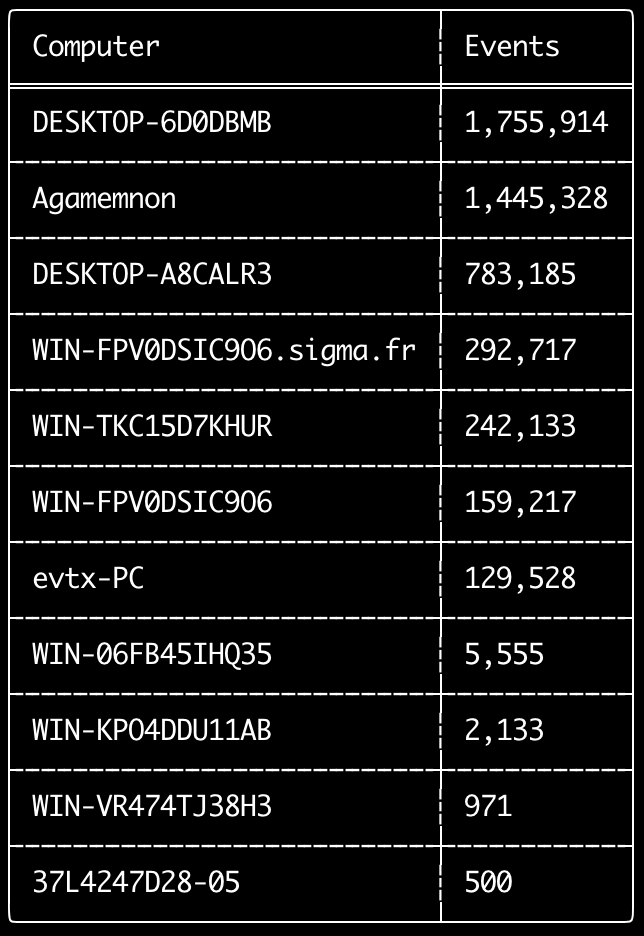
Sie können den Befehl computer-metrics verwenden, um zu überprüfen, wie viele Ereignisse es gemäß jedem im Feld <System><Computer> definierten Computer gibt.
Beachten Sie, dass Sie sich nicht vollständig auf das Feld Computer verlassen können, um Ereignisse nach ihrem ursprünglichen Computer zu trennen.
Windows 11 verwendet beim Speichern in Ereignisprotokollen manchmal völlig andere Computer-Namen.
Außerdem zeichnet Windows 10 den Computer-Namen manchmal vollständig in Kleinbuchstaben auf.
Dieser Befehl verwendet keine Erkennungsregeln und analysiert daher alle Ereignisse.
Dies ist ein guter Befehl, um schnell zu sehen, welche Computer die meisten Protokolle haben.
Mit diesen Informationen können Sie dann beim Erstellen Ihrer Zeitleisten die Optionen --include-computer oder --exclude-computer verwenden, um Ihre Zeitleistenerstellung effizienter zu gestalten, indem Sie mehrere Zeitleisten nach Computer erstellen oder Ereignisse von bestimmten Computern ausschließen.
Usage:
  hayabusa.exe computer-metrics <INPUT> [OPTIONS]

Input:
  -d, --directory <DIR>  Verzeichnis mit mehreren .evtx-Dateien
  -f, --file <FILE>      Dateipfad zu einer .evtx-Datei
  -l, --live-analysis    Analysiert den lokalen Ordner C:\Windows\System32\winevt\Logs

General Options:
  -C, --clobber                        Dateien beim Speichern überschreiben
  -h, --help                           Das Hilfemenü anzeigen
  -J, --json-input                     JSON-formatierte Protokolle anstelle von .evtx durchsuchen (.json oder .jsonl)
  -Q, --quiet-errors                   Modus für stille Fehler: keine Fehlerprotokolle speichern
  -x, --recover-records                evtx-Einträge aus dem Slack-Speicher extrahieren (default: disabled)
  -c, --rules-config <DIR>             Benutzerdefiniertes Regelkonfigurationsverzeichnis angeben (default: ./rules/config)
      --target-file-ext <FILE-EXT...>  Zusätzliche evtx-Dateierweiterungen angeben (ex: evtx_data)
  -V, --validate-checksums             Prüfsummenvalidierung aktivieren

Filtering:
      --time-offset <OFFSET>  Aktuelle Ereignisse basierend auf einem Offset durchsuchen (ex: 1y, 3M, 30d, 24h, 30m)

Output:
  -o, --output <FILE>  Die Ergebnisse im CSV-Format speichern (ex: computer-metrics.csv)

Display Settings:
  -K, --no-color  Farbausgabe deaktivieren
  -q, --quiet     Stiller Modus: das Startbanner nicht anzeigen
  -v, --verbose   Ausführliche Informationen ausgeben
Beispiele für den Befehl computer-metrics
- Computernamen-Metriken aus einem Verzeichnis ausgeben:
hayabusa.exe computer-metrics -d ../logs - Ergebnisse in einer CSV-Datei speichern:
hayabusa.exe computer-metrics -d ../logs -o computer-metrics.csv
Screenshot von computer-metrics
Befehl eid-metrics
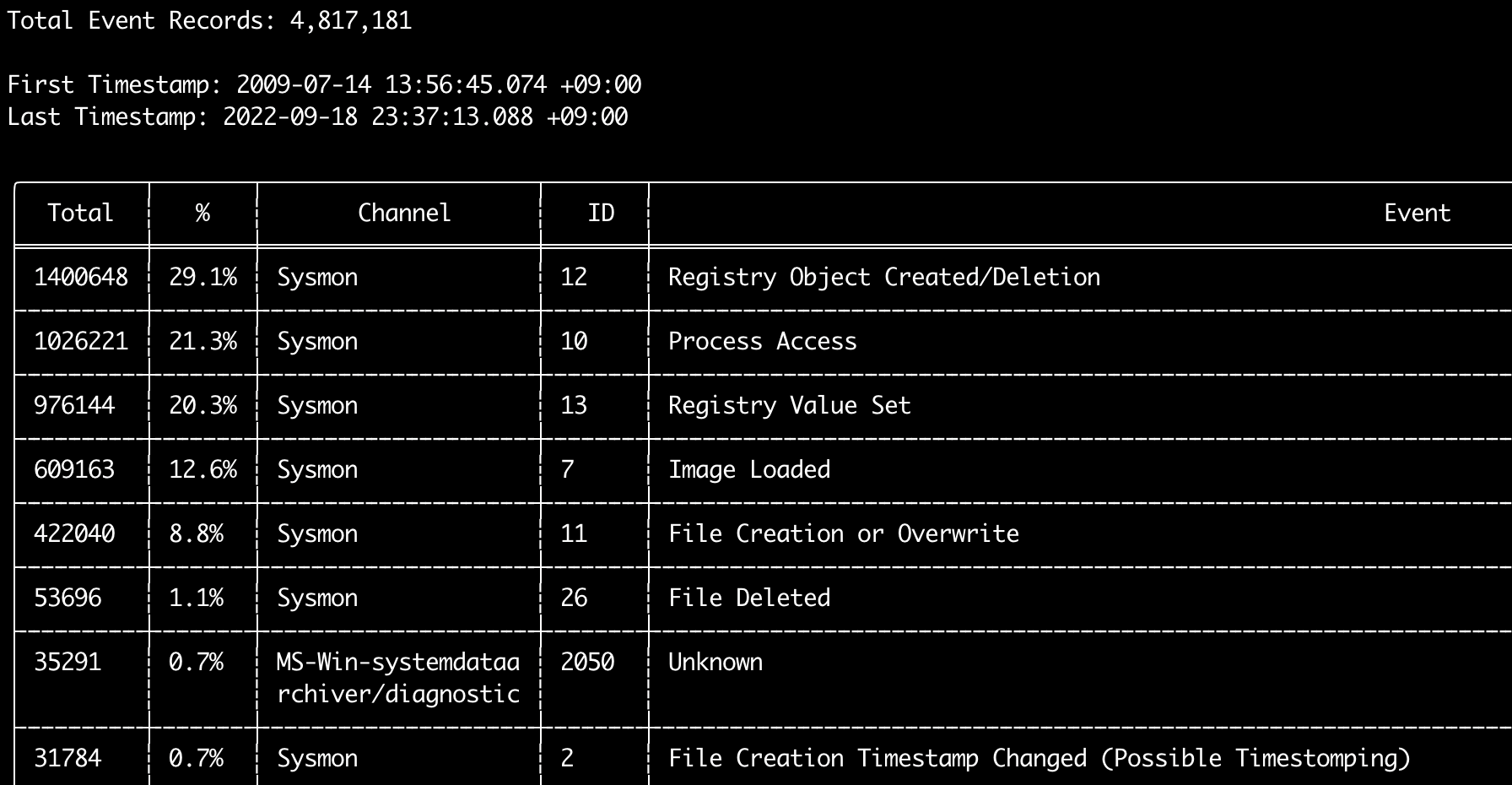
Sie können den Befehl eid-metrics verwenden, um die Gesamtzahl und den Prozentsatz der Ereignis-IDs (Feld <System><EventID>) getrennt nach Kanälen auszugeben.
Dieser Befehl verwendet keine Erkennungsregeln und durchsucht daher alle Ereignisse.
Usage:
  hayabusa.exe eid-metrics <INPUT> [OPTIONS]

Input:
  -d, --directory <DIR>  Verzeichnis mit mehreren .evtx-Dateien
  -f, --file <FILE>      Dateipfad zu einer .evtx-Datei
  -l, --live-analysis    Analysiert den lokalen Ordner C:\Windows\System32\winevt\Logs

General Options:
  -C, --clobber                        Dateien beim Speichern überschreiben
  -h, --help                           Das Hilfemenü anzeigen
  -J, --json-input                     JSON-formatierte Protokolle anstelle von .evtx durchsuchen (.json oder .jsonl)
  -Q, --quiet-errors                   Modus für stille Fehler: keine Fehlerprotokolle speichern
  -x, --recover-records                evtx-Einträge aus dem Slack-Speicher extrahieren (default: disabled)
  -c, --rules-config <DIR>             Benutzerdefiniertes Regelkonfigurationsverzeichnis angeben (default: ./rules/config)
      --target-file-ext <FILE-EXT...>  Zusätzliche evtx-Dateierweiterungen angeben (ex: evtx_data)
      --threads <NUMBER>               Anzahl der Threads (default: optimal number for performance)
  -V, --validate-checksums             Prüfsummenvalidierung aktivieren

Filtering:
      --exclude-computer <COMPUTER...>  Angegebene Computernamen nicht durchsuchen (ex: ComputerA) (ex: ComputerA,ComputerB)
      --include-computer <COMPUTER...>  Nur angegebene Computernamen durchsuchen (ex: ComputerA) (ex: ComputerA,ComputerB)
      --time-offset <OFFSET>            Aktuelle Ereignisse basierend auf einem Offset durchsuchen (ex: 1y, 3M, 30d, 24h, 30m)

Output:
  -X, --remove-duplicate-records  Doppelte Ereigniseinträge entfernen (default: disabled)
  -o, --output <FILE>             Die Metriken im CSV-Format speichern (ex: metrics.csv)

Display Settings:
  -K, --no-color  Farbausgabe deaktivieren
  -q, --quiet     Stiller Modus: das Startbanner nicht anzeigen
  -v, --verbose   Ausführliche Informationen ausgeben

Time Format:
      --european-time     Zeitstempel im europäischen Zeitformat ausgeben (ex: 22-02-2022 22:00:00.123 +02:00)
  -O, --iso-8601          Zeitstempel im ursprünglichen ISO-8601-Format ausgeben (ex: 2022-02-22T10:10:10.1234567Z) (immer UTC)
      --rfc-2822          Zeitstempel im RFC-2822-Format ausgeben (ex: Fri, 22 Feb 2022 22:00:00 -0600)
      --rfc-3339          Zeitstempel im RFC-3339-Format ausgeben (ex: 2022-02-22 22:00:00.123456-06:00)
  -U, --utc               Zeit im UTC-Format ausgeben (default: local time)
      --us-military-time  Zeitstempel im US-Militärzeitformat ausgeben (ex: 02-22-2022 22:00:00.123 -06:00)
      --us-time           Zeitstempel im US-Zeitformat ausgeben (ex: 02-22-2022 10:00:00.123 PM -06:00)
Beispiele für den Befehl eid-metrics
- Ereignis-ID-Metriken aus einer einzelnen Datei ausgeben:
hayabusa.exe eid-metrics -f Security.evtx - Ereignis-ID-Metriken aus einem Verzeichnis ausgeben:
hayabusa.exe eid-metrics -d ../logs - Ergebnisse in einer CSV-Datei speichern:
hayabusa.exe eid-metrics -f Security.evtx -o eid-metrics.csv
Konfigurationsdatei für den Befehl eid-metrics
Der Kanal, die Ereignis-IDs und die Titel der Ereignisse sind in rules/config/channel_eid_info.txt definiert.
Beispiel:
Channel,EventID,EventTitle
Microsoft-Windows-Sysmon/Operational,1,Process Creation.
Microsoft-Windows-Sysmon/Operational,2,File Creation Timestamp Changed. (Possible Timestomping)
Microsoft-Windows-Sysmon/Operational,3,Network Connection.
Microsoft-Windows-Sysmon/Operational,4,Sysmon Service State Changed.
Screenshot von eid-metrics
Befehl expand-list
Extrahiert expand-Platzhalter aus dem Regelordner.
Dies ist nützlich beim Erstellen von Konfigurationsdateien, um eine Regel zu verwenden, die den Feldmodifikator expand nutzt.
Um expand-Regeln zu verwenden, müssen Sie lediglich eine .txt-Datei mit dem Namen des expand-Feldmodifikators im Verzeichnis ./config/expand/ erstellen und alle Werte einfügen, die Sie überprüfen möchten.
Wenn beispielsweise die detection-Logik der Regel lautet:
detection:
    selection:
        EventID: 5145
        RelativeTargetName|contains: '\winreg'
    filter_main:
        IpAddress|expand: '%Admins_Workstations%'
    condition: selection and not filter_main
würden Sie die Textdatei ./config/expand/Admins_Workstations.txt erstellen und Werte wie folgt einfügen:
Dies würde im Wesentlichen dieselbe Logik überprüfen wie:
Wenn die Konfigurationsdatei nicht existiert, lädt Hayabusa die expand-Regel zwar weiterhin, ignoriert sie aber.
Usage:
  hayabusa.exe expand-list [OPTIONS]

General Options:
  -h, --help              Das Hilfemenü anzeigen
  -r, --rules <DIR/FILE>  Regelverzeichnis angeben (default: ./rules)

Display Settings:
  -K, --no-color  Farbausgabe deaktivieren
  -q, --quiet     Stiller Modus: das Startbanner nicht anzeigen
Beispiele für den Befehl expand-list
expand-Feldmodifikatoren aus dem Standardverzeichnisrulesextrahieren:hayabusa.exe expand-listexpand-Feldmodifikatoren aus dem Verzeichnissigmaextrahieren:hayabusa.exe expand-list -r ../sigma
Ergebnisse von expand-list
5 unique expand placeholders found:
Admins_Workstations
DC-MACHINE-NAME
Workstations
internal_domains
domain_controller_hostnames
Befehl extract-base64
Dieser Befehl extrahiert Base64-Zeichenfolgen aus den folgenden Ereignissen, dekodiert sie und gibt an, welche Art von Kodierung verwendet wird. * Security 4688 CommandLine * Sysmon 1 CommandLine, ParentCommandLine * System 7045 ImagePath * PowerShell Operational 4104 * PowerShell Operational 4103
Usage:
  hayabusa.exe extract-base64 <INPUT> [OPTIONS]

Input:
  -d, --directory <DIR>  Verzeichnis mit mehreren .evtx-Dateien
  -f, --file <FILE>      Dateipfad zu einer .evtx-Datei
  -l, --live-analysis    Analysiert den lokalen Ordner C:\Windows\System32\winevt\Logs

General Options:
  -C, --clobber                        Dateien beim Speichern überschreiben
  -h, --help                           Das Hilfemenü anzeigen
  -J, --json-input                     JSON-formatierte Protokolle anstelle von .evtx durchsuchen (.json oder .jsonl)
  -Q, --quiet-errors                   Modus für stille Fehler: keine Fehlerprotokolle speichern
  -x, --recover-records                evtx-Einträge aus dem Slack-Speicher extrahieren (default: disabled)
  -c, --rules-config <DIR>             Benutzerdefiniertes Regelkonfigurationsverzeichnis angeben (default: ./rules/config)
      --target-file-ext <FILE-EXT...>  Zusätzliche evtx-Dateierweiterungen angeben (ex: evtx_data)
      --threads <NUMBER>               Anzahl der Threads (default: optimal number for performance)
  -V, --validate-checksums             Prüfsummenvalidierung aktivieren

Filtering:
      --exclude-computer <COMPUTER...>  Angegebene Computernamen nicht durchsuchen (ex: ComputerA) (ex: ComputerA,ComputerB)
      --include-computer <COMPUTER...>  Nur angegebene Computernamen durchsuchen (ex: ComputerA) (ex: ComputerA,ComputerB)
      --time-offset <OFFSET>            Aktuelle Ereignisse basierend auf einem Offset durchsuchen (ex: 1y, 3M, 30d, 24h, 30m)

Output:
  -o, --output <FILE>  Ergebnisse in einer CSV-Datei speichern

Display Settings:
  -K, --no-color  Farbausgabe deaktivieren
  -q, --quiet     Stiller Modus: das Startbanner nicht anzeigen
  -v, --verbose   Ausführliche Informationen ausgeben

Time Format:
      --european-time     Zeitstempel im europäischen Zeitformat ausgeben (ex: 22-02-2022 22:00:00.123 +02:00)
  -O, --iso-8601          Zeitstempel im ursprünglichen ISO-8601-Format ausgeben (ex: 2022-02-22T10:10:10.1234567Z) (immer UTC)
      --rfc-2822          Zeitstempel im RFC-2822-Format ausgeben (ex: Fri, 22 Feb 2022 22:00:00 -0600)
      --rfc-3339          Zeitstempel im RFC-3339-Format ausgeben (ex: 2022-02-22 22:00:00.123456-06:00)
  -U, --utc               Zeit im UTC-Format ausgeben (default: local time)
      --us-military-time  Zeitstempel im US-Militärzeitformat ausgeben (ex: 02-22-2022 22:00:00.123 -06:00)
      --us-time           Zeitstempel im US-Zeitformat ausgeben (ex: 02-22-2022 10:00:00.123 PM -06:00)
Beispiele für den Befehl extract-base64
- Ein Verzeichnis durchsuchen und im Terminal ausgeben:
hayabusa.exe extract-base64 -d ../hayabusa-sample-evtx - Ein Verzeichnis durchsuchen und in eine CSV-Datei ausgeben:
hayabusa.exe extract-base64 -d ../hayabusa-sample-evtx -o base64-extracted.csv
Ergebnisse von extract-base64
Bei der Ausgabe im Terminal werden aufgrund des begrenzten Platzes nur die folgenden Felder angezeigt: * Timestamp * Computer * Base64 String * Decoded String (if not binary)
Beim Speichern in einer CSV-Datei werden die folgenden Felder gespeichert:
* Timestamp
* Computer
* Base64 String
* Decoded String (if not binary)
* Original Field
* Length
* Binary (Y/N)
* Double Encoding (when Y, it usually is malicious)
* Encoding Type
* File Type
* Event
* Record ID
* File Name
Befehl log-metrics
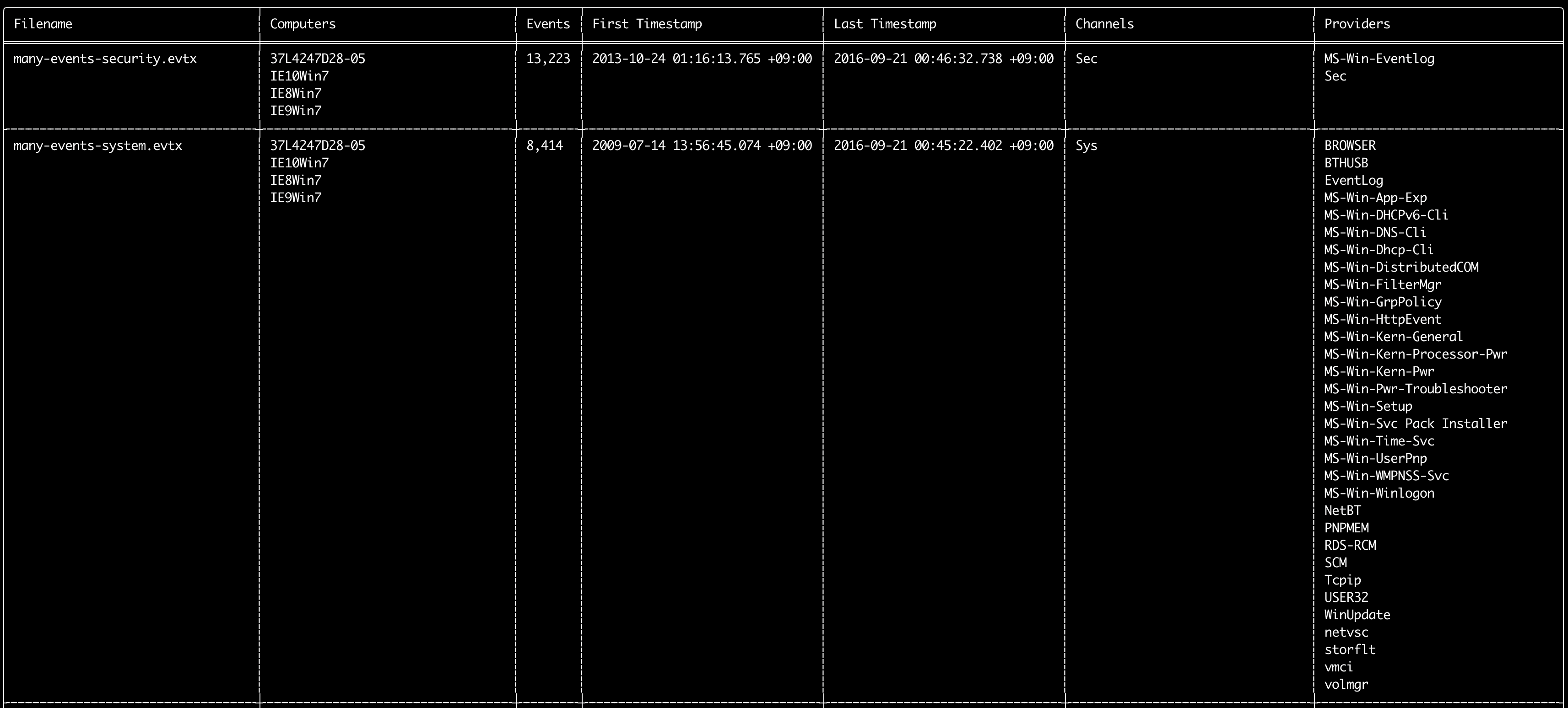
Sie können den Befehl log-metrics verwenden, um die folgenden Metadaten innerhalb von Ereignisprotokollen auszugeben:
* Filename
* Computer names
* Number of events
* First timestamp
* Last timestamp
* Channels
* Providers
Dieser Befehl verwendet keine Erkennungsregeln und durchsucht daher alle Ereignisse.
Usage:
  hayabusa.exe log-metrics <INPUT> [OPTIONS]

Input:
  -d, --directory <DIR>  Verzeichnis mit mehreren .evtx-Dateien
  -f, --file <FILE>      Dateipfad zu einer .evtx-Datei
  -l, --live-analysis    Analysiert den lokalen Ordner C:\Windows\System32\winevt\Logs

General Options:
  -C, --clobber                        Dateien beim Speichern überschreiben
  -h, --help                           Das Hilfemenü anzeigen
  -J, --json-input                     JSON-formatierte Protokolle anstelle von .evtx durchsuchen (.json oder .jsonl)
  -Q, --quiet-errors                   Modus für stille Fehler: keine Fehlerprotokolle speichern
  -x, --recover-records                evtx-Einträge aus dem Slack-Speicher extrahieren (default: disabled)
  -c, --rules-config <DIR>             Benutzerdefiniertes Regelkonfigurationsverzeichnis angeben (default: ./rules/config)
      --target-file-ext <FILE-EXT...>  Zusätzliche evtx-Dateierweiterungen angeben (ex: evtx_data)
      --threads <NUMBER>               Anzahl der Threads (default: optimal number for performance)
  -V, --validate-checksums             Prüfsummenvalidierung aktivieren

Filtering:
      --exclude-computer <COMPUTER...>  Angegebene Computernamen nicht durchsuchen (ex: ComputerA) (ex: ComputerA,ComputerB)
      --exclude-channel <CHANNEL...>    Angegebene Kanäle nicht durchsuchen (ex: System,Security)
      --exclude-filename <FILE...>      Angegebene evtx-Dateien nicht durchsuchen (ex: Security.evtx,System.evtx)
      --include-computer <COMPUTER...>  Nur angegebene Computernamen durchsuchen (ex: ComputerA) (ex: ComputerA,ComputerB)
      --include-channel <CHANNEL...>    Nur angegebene Kanäle einbeziehen (ex: System,Security)
      --include-filename <FILE...>      Nur angegebene evtx-Dateien einbeziehen (ex: Security.evtx,System.evtx)
      --time-offset <OFFSET>            Aktuelle Ereignisse basierend auf einem Offset durchsuchen (ex: 1y, 3M, 30d, 24h, 30m)

Output:
  -b, --disable-abbreviations  Abkürzungen deaktivieren
  -M, --multiline              Ereignisfeldinformationen für die CSV-Ausgabe durch Zeilenumbrüche trennen
  -o, --output <FILE>          Die Metriken im CSV-Format speichern (ex: metrics.csv)
  -S, --tab-separator          Ereignisfeldinformationen durch Tabulatoren trennen

Display Settings:
  -K, --no-color  Farbausgabe deaktivieren
  -q, --quiet     Stiller Modus: das Startbanner nicht anzeigen
  -v, --verbose   Ausführliche Informationen ausgeben

Time Format:
      --european-time     Zeitstempel im europäischen Zeitformat ausgeben (ex: 22-02-2022 22:00:00.123 +02:00)
  -O, --iso-8601          Zeitstempel im ursprünglichen ISO-8601-Format ausgeben (ex: 2022-02-22T10:10:10.1234567Z) (immer UTC)
      --rfc-2822          Zeitstempel im RFC-2822-Format ausgeben (ex: Fri, 22 Feb 2022 22:00:00 -0600)
      --rfc-3339          Zeitstempel im RFC-3339-Format ausgeben (ex: 2022-02-22 22:00:00.123456-06:00)
  -U, --utc               Zeit im UTC-Format ausgeben (default: local time)
      --us-military-time  Zeitstempel im US-Militärzeitformat ausgeben (ex: 02-22-2022 22:00:00.123 -06:00)
      --us-time           Zeitstempel im US-Zeitformat ausgeben (ex: 02-22-2022 10:00:00.123 PM -06:00)
Beispiele für den Befehl log-metrics
- Protokolldatei-Metadaten aus einer einzelnen Datei ausgeben:
hayabusa.exe log-metrics -f Security.evtx - Protokolldatei-Metadaten aus einem Verzeichnis ausgeben:
hayabusa.exe log-metrics -d ../logs - Ergebnisse in einer CSV-Datei speichern:
hayabusa.exe log-metrics -d ../logs -o log-metrics.csv
Screenshot von log-metrics
Befehl logon-summary
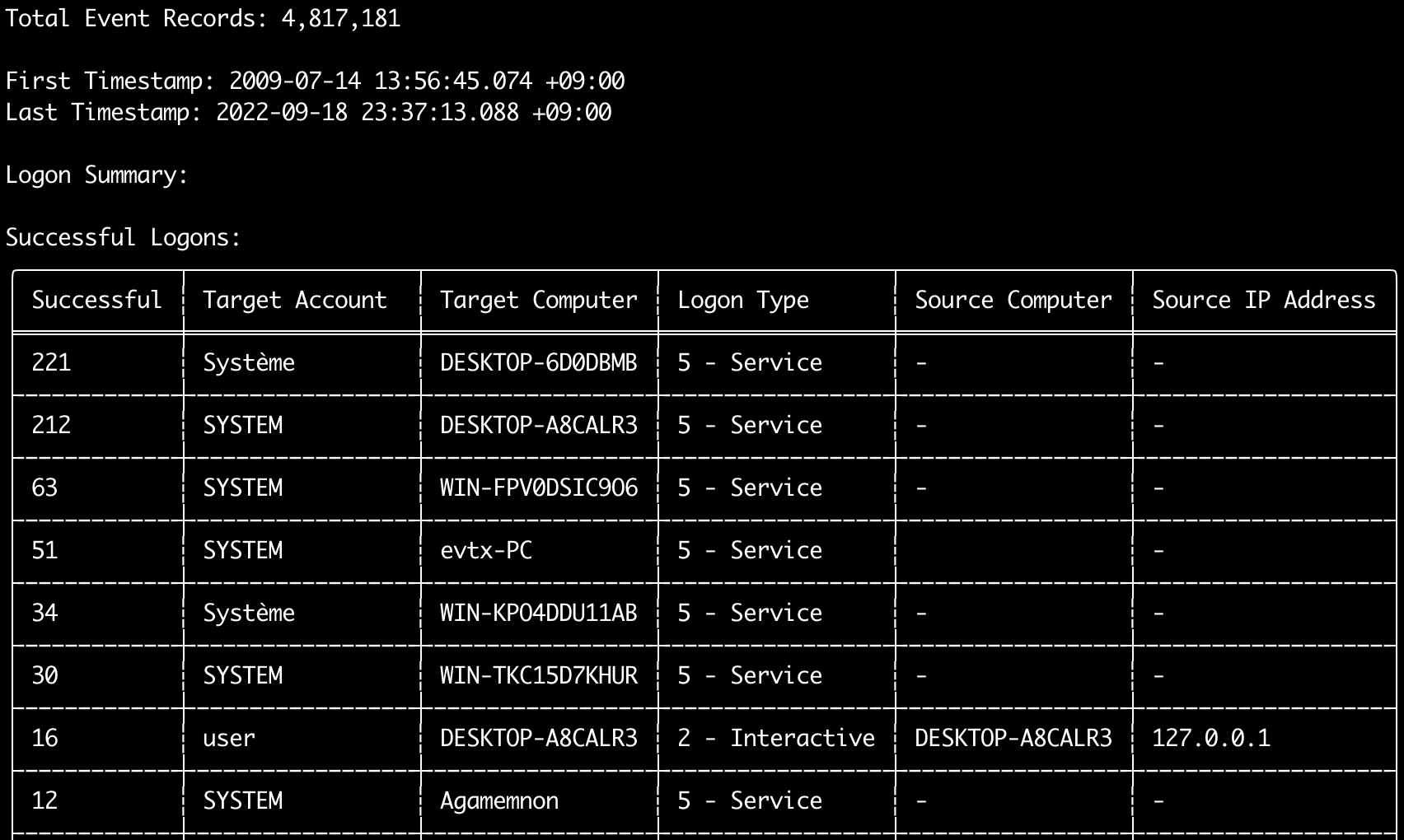
Sie können den Befehl logon-summary verwenden, um eine Zusammenfassung der Anmeldeinformationen auszugeben (Anmelde-Benutzernamen sowie die Anzahl erfolgreicher und fehlgeschlagener Anmeldungen).
Sie können die Anmeldeinformationen für eine evtx-Datei mit -f oder für mehrere evtx-Dateien mit der Option -d anzeigen.
Erfolgreiche Anmeldungen werden aus den folgenden Ereignissen entnommen:
* Security 4624 (Successful Logon)
* RDS-LSM 21 (Remote Desktop Service Local Session Manager Logon)
* RDS-GTW 302 (Remote Desktop Service Gateway Logon)
Fehlgeschlagene Anmeldungen werden aus Security 4625-Ereignissen entnommen.
Usage:
  hayabusa.exe logon-summary <INPUT> [OPTIONS]

Input:
  -d, --directory <DIR>  Verzeichnis mit mehreren .evtx-Dateien
  -f, --file <FILE>      Dateipfad zu einer .evtx-Datei
  -l, --live-analysis    Analysiert den lokalen Ordner C:\Windows\System32\winevt\Logs

General Options:
  -C, --clobber                        Dateien beim Speichern überschreiben
  -h, --help                           Das Hilfemenü anzeigen
  -J, --json-input                     JSON-formatierte Protokolle anstelle von .evtx durchsuchen (.json oder .jsonl)
  -Q, --quiet-errors                   Modus für stille Fehler: keine Fehlerprotokolle speichern
  -x, --recover-records                evtx-Einträge aus dem Slack-Speicher extrahieren (default: disabled)
  -c, --rules-config <DIR>             Benutzerdefiniertes Regelkonfigurationsverzeichnis angeben (default: ./rules/config)
      --target-file-ext <FILE-EXT...>  Zusätzliche evtx-Dateierweiterungen angeben (ex: evtx_data)
      --threads <NUMBER>               Anzahl der Threads (default: optimal number for performance)
  -V, --validate-checksums             Prüfsummenvalidierung aktivieren

Filtering:
      --exclude-computer <COMPUTER...>  Angegebene Computernamen nicht durchsuchen (ex: ComputerA) (ex: ComputerA,ComputerB)
      --include-computer <COMPUTER...>  Nur angegebene Computernamen durchsuchen (ex: ComputerA) (ex: ComputerA,ComputerB)
      --time-offset <OFFSET>            Aktuelle Ereignisse basierend auf einem Offset durchsuchen (ex: 1y, 3M, 30d, 24h, 30m)
      --timeline-end <DATE>             Endzeit der zu ladenden Ereignisprotokolle (ex: "2022-02-22 23:59:59 +09:00")
      --timeline-start <DATE>           Startzeit der zu ladenden Ereignisprotokolle (ex: "2020-02-22 00:00:00 +09:00")

Output:
  -G, --geo-ip <MAXMIND-DB-DIR>   GeoIP-Informationen (ASN, Stadt, Land) zu den Quell-IP-Adressen hinzufügen
  -X, --remove-duplicate-records  Doppelte Ereigniseinträge entfernen (default: disabled)
  -o, --output <FILENAME-PREFIX>  Die Anmeldezusammenfassung in zwei CSV-Dateien speichern (ex: -o logon-summary)

Display Settings:
  -K, --no-color  Farbausgabe deaktivieren
  -q, --quiet     Stiller Modus: das Startbanner nicht anzeigen
  -v, --verbose   Ausführliche Informationen ausgeben

Time Format:
      --european-time     Zeitstempel im europäischen Zeitformat ausgeben (ex: 22-02-2022 22:00:00.123 +02:00)
  -O, --iso-8601          Zeitstempel im ursprünglichen ISO-8601-Format ausgeben (ex: 2022-02-22T10:10:10.1234567Z) (immer UTC)
      --rfc-2822          Zeitstempel im RFC-2822-Format ausgeben (ex: Fri, 22 Feb 2022 22:00:00 -0600)
      --rfc-3339          Zeitstempel im RFC-3339-Format ausgeben (ex: 2022-02-22 22:00:00.123456-06:00)
  -U, --utc               Zeit im UTC-Format ausgeben (default: local time)
      --us-military-time  Zeitstempel im US-Militärzeitformat ausgeben (ex: 02-22-2022 22:00:00.123 -06:00)
      --us-time           Zeitstempel im US-Zeitformat ausgeben (ex: 02-22-2022 10:00:00.123 PM -06:00)
GeoIP-Anreicherung bei logon-summary
Wenn -G, --geo-ip auf ein Verzeichnis mit den MaxMind-Datenbanken GeoLite2-ASN.mmdb, GeoLite2-Country.mmdb und GeoLite2-City.mmdb zeigt, wird die Quell-IP-Adresse jeder Zeile nachgeschlagen und beiden CSV-Dateien werden die Spalten Source ASN, Source Country und Source City hinzugefügt.
In der Terminaltabelle ist nur für eine davon Platz, daher wird dort Source Country angezeigt (bei leerem Wert wird auf die ASN-Spalte zurückgegriffen, denn dort stehen die Platzhalter Local/Private für nicht routbare Adressen).
Beispiele für den Befehl logon-summary
- Anmeldezusammenfassung ausgeben:
hayabusa.exe logon-summary -f Security.evtx - Ergebnisse der Anmeldezusammenfassung speichern:
hayabusa.exe logon-summary -d ../logs -o logon-summary.csv - GeoIP-Informationen zu den Quell-IP-Adressen hinzufügen:
hayabusa.exe logon-summary -d ../logs -G /usr/local/share/GeoIP -o logon-summary.csv
Screenshots von logon-summary

Befehl pivot-keywords-list
Sie können den Befehl pivot-keywords-list verwenden, um eine Liste eindeutiger Pivot-Schlüsselwörter zu erstellen, mit denen Sie schnell abnormale Benutzer, Hostnamen, Prozesse usw. identifizieren sowie Ereignisse korrelieren können.
Wichtig: Standardmäßig gibt Hayabusa Ergebnisse aus allen Ereignissen (informational und höher) zurück, daher empfehlen wir dringend, den Befehl pivot-keywords-list mit der Option -m, --min-level zu kombinieren.
Beginnen Sie beispielsweise damit, nur Schlüsselwörter aus critical-Alarmen mit -m critical zu erstellen, und fahren Sie dann mit -m high, -m medium usw. fort.
In Ihren Ergebnissen werden höchstwahrscheinlich gängige Schlüsselwörter enthalten sein, die auf viele normale Ereignisse zutreffen. Nachdem Sie die Ergebnisse manuell überprüft und eine Liste eindeutiger Schlüsselwörter in einer einzelnen Datei erstellt haben, können Sie dann mit einem Befehl wie grep -f keywords.txt timeline.csv eine eingegrenzte Zeitleiste verdächtiger Aktivitäten erstellen.
Usage:
  hayabusa.exe pivot-keywords-list <INPUT> [OPTIONS]

Input:
  -d, --directory <DIR>  Verzeichnis mit mehreren .evtx-Dateien
  -f, --file <FILE>      Dateipfad zu einer .evtx-Datei
  -l, --live-analysis    Analysiert den lokalen Ordner C:\Windows\System32\winevt\Logs

General Options:
  -C, --clobber                        Dateien beim Speichern überschreiben
  -h, --help                           Das Hilfemenü anzeigen
  -J, --json-input                     JSON-formatierte Protokolle anstelle von .evtx durchsuchen (.json oder .jsonl)
  -w, --no-wizard                      Keine Fragen stellen. Nach allen Ereignissen und Alarmen suchen
  -Q, --quiet-errors                   Modus für stille Fehler: keine Fehlerprotokolle speichern
  -x, --recover-records                evtx-Einträge aus dem Slack-Speicher extrahieren (default: disabled)
  -c, --rules-config <DIR>             Benutzerdefiniertes Regelkonfigurationsverzeichnis angeben (default: ./rules/config)
      --target-file-ext <FILE-EXT...>  Zusätzliche evtx-Dateierweiterungen angeben (ex: evtx_data)
      --threads <NUMBER>               Anzahl der Threads (default: optimal number for performance)
  -V, --validate-checksums             Prüfsummenvalidierung aktivieren

Filtering:
  -E, --eid-filter                      Nur gängige EIDs für höhere Geschwindigkeit durchsuchen (./rules/config/target_event_IDs.txt)
  -D, --enable-deprecated-rules         Regeln mit dem Status deprecated aktivieren
  -n, --enable-noisy-rules              Als noisy eingestufte Regeln aktivieren (./rules/config/noisy_rules.txt)
  -u, --enable-unsupported-rules        Regeln mit dem Status unsupported aktivieren
  -e, --exact-level <LEVEL>             Nur Regeln mit einer bestimmten Stufe laden (informational, low, medium, high, critical)
      --exclude-computer <COMPUTER...>  Angegebene Computernamen nicht durchsuchen (ex: ComputerA) (ex: ComputerA,ComputerB)
      --exclude-eid <EID...>            Bestimmte EIDs für höhere Geschwindigkeit nicht durchsuchen (ex: 1) (ex: 1,4688)
      --exclude-status <STATUS...>      Regeln entsprechend dem Status nicht laden (ex: experimental) (ex: stable,test)
      --exclude-tag <TAG...>            Regeln mit bestimmten Tags nicht laden (ex: sysmon)
      --include-computer <COMPUTER...>  Nur angegebene Computernamen durchsuchen (ex: ComputerA) (ex: ComputerA,ComputerB)
      --include-eid <EID...>            Nur angegebene EIDs für höhere Geschwindigkeit durchsuchen (ex: 1) (ex: 1,4688)
      --include-status <STATUS...>      Nur Regeln mit bestimmtem Status laden (ex: experimental) (ex: stable,test)
      --include-tag <TAG...>            Nur Regeln mit bestimmten Tags laden (ex: attack.execution,attack.discovery)
  -m, --min-level <LEVEL>               Mindeststufe für zu ladende Regeln (default: informational)
      --time-offset <OFFSET>            Aktuelle Ereignisse basierend auf einem Offset durchsuchen (ex: 1y, 3M, 30d, 24h, 30m)
      --timeline-end <DATE>             Endzeit der zu ladenden Ereignisprotokolle (ex: "2022-02-22 23:59:59 +09:00")
      --timeline-start <DATE>           Startzeit der zu ladenden Ereignisprotokolle (ex: "2020-02-22 00:00:00 +09:00")

Output:
  -o, --output <FILENAME-PREFIX>  Pivot-Schlüsselwörter in separaten Dateien speichern (ex: PivotKeywords)

Display Settings:
  -K, --no-color  Farbausgabe deaktivieren
  -q, --quiet     Stiller Modus: das Startbanner nicht anzeigen
  -v, --verbose   Ausführliche Informationen ausgeben
Beispiele für den Befehl pivot-keywords-list
- Pivot-Schlüsselwörter auf dem Bildschirm ausgeben:
hayabusa.exe pivot-keywords-list -d ../logs -m critical - Eine Liste von Pivot-Schlüsselwörtern aus kritischen Alarmen erstellen und die Ergebnisse speichern. (Die Ergebnisse werden in
keywords-Ip Addresses.txt,keywords-Users.txtusw. gespeichert):
Konfigurationsdatei für den Befehl pivot-keywords-list
Sie können anpassen, nach welchen Schlüsselwörtern Sie suchen möchten, indem Sie ./rules/config/pivot_keywords.txt bearbeiten.
Diese Seite enthält die Standardeinstellung.
Das Format ist KeywordName.FieldName. Beim Erstellen der Liste von Users listet Hayabusa beispielsweise alle Werte in den Feldern SubjectUserName, TargetUserName und User auf.
Befehl search
Mit dem Befehl search können Sie eine Schlüsselwortsuche über alle Ereignisse durchführen.
(Nicht nur über die Hayabusa-Erkennungsergebnisse.)
Dies ist nützlich, um festzustellen, ob es in Ereignissen, die von Hayabusa nicht erkannt werden, Beweise gibt.
Usage:
  hayabusa.exe search <INPUT> <--keywords "<KEYWORDS>" OR --regex "<REGEX>"> [OPTIONS]

Display Settings:
  -K, --no-color  Farbausgabe deaktivieren
  -q, --quiet     Stiller Modus: das Startbanner nicht anzeigen
  -v, --verbose   Ausführliche Informationen ausgeben

General Options:
  -C, --clobber                        Dateien beim Speichern überschreiben
  -h, --help                           Das Hilfemenü anzeigen
  -Q, --quiet-errors                   Modus für stille Fehler: keine Fehlerprotokolle speichern
  -x, --recover-records                evtx-Einträge aus dem Slack-Speicher extrahieren (default: disabled)
  -c, --rules-config <DIR>             Benutzerdefiniertes Regelkonfigurationsverzeichnis angeben (default: ./rules/config)
      --target-file-ext <FILE-EXT...>  Zusätzliche evtx-Dateierweiterungen angeben (ex: evtx_data)
      --threads <NUMBER>               Anzahl der Threads (default: optimal number for performance)
  -s, --sort                           Ergebnisse vor dem Speichern der Datei sortieren (Warnung: dies verbraucht deutlich mehr Arbeitsspeicher!)
  -V, --validate-checksums             Prüfsummenvalidierung aktivieren

Input:
  -d, --directory <DIR>  Verzeichnis mit mehreren .evtx-Dateien
  -f, --file <FILE>      Dateipfad zu einer .evtx-Datei
  -l, --live-analysis    Analysiert den lokalen Ordner C:\Windows\System32\winevt\Logs

Filtering:
  -a, --and-logic              Schlüsselwörter mit UND-Logik suchen (default: OR)
  -F, --filter <FILTER...>     Nach bestimmten Feld(ern) filtern
  -i, --ignore-case            Schlüsselwortsuche ohne Beachtung der Groß-/Kleinschreibung
  -k, --keyword <KEYWORD...>   Nach Schlüsselwort(en) suchen
  -r, --regex <REGEX>          Mit regulärem Ausdruck suchen
      --time-offset <OFFSET>   Aktuelle Ereignisse basierend auf einem Offset durchsuchen (ex: 1y, 3M, 30d, 24h, 30m)
      --timeline-end <DATE>    Endzeit der zu ladenden Ereignisprotokolle (ex: "2022-02-22 23:59:59 +09:00")
      --timeline-start <DATE>  Startzeit der zu ladenden Ereignisprotokolle (ex: "2020-02-22 00:00:00 +09:00")

Output:
  -b, --disable-abbreviations  Abkürzungen deaktivieren
  -J, --json-output            Die Suchergebnisse im JSON-Format speichern (ex: -J -o results.json)
  -L, --jsonl-output           Die Suchergebnisse im JSONL-Format speichern (ex: -L -o results.jsonl)
  -M, --multiline              Ereignisfeldinformationen für die CSV-Ausgabe durch Zeilenumbrüche trennen
  -o, --output <FILE>          Die Suchergebnisse im CSV-Format speichern (ex: search.csv)
  -S, --tab-separator          Ereignisfeldinformationen durch Tabulatoren trennen

Time Format:
      --european-time     Zeitstempel im europäischen Zeitformat ausgeben (ex: 22-02-2022 22:00:00.123 +02:00)
  -O, --iso-8601          Zeitstempel im ursprünglichen ISO-8601-Format ausgeben (ex: 2022-02-22T10:10:10.1234567Z) (immer UTC)
      --rfc-2822          Zeitstempel im RFC-2822-Format ausgeben (ex: Fri, 22 Feb 2022 22:00:00 -0600)
      --rfc-3339          Zeitstempel im RFC-3339-Format ausgeben (ex: 2022-02-22 22:00:00.123456-06:00)
  -U, --utc               Zeit im UTC-Format ausgeben (default: local time)
      --us-military-time  Zeitstempel im US-Militärzeitformat ausgeben (ex: 02-22-2022 22:00:00.123 -06:00)
      --us-time           Zeitstempel im US-Zeitformat ausgeben (ex: 02-22-2022 10:00:00.123 PM -06:00)
Beispiele für den Befehl search
- Das Verzeichnis
../hayabusa-sample-evtxnach dem Schlüsselwortmimikatzdurchsuchen:
Hinweis: Das Schlüsselwort wird gefunden, wenn
mimikatzirgendwo in den Daten vorkommt. Es handelt sich nicht um eine exakte Übereinstimmung.
- Das Verzeichnis
../hayabusa-sample-evtxnach den Schlüsselwörternmimikatzoderkalidurchsuchen:
- Das Verzeichnis
../hayabusa-sample-evtxnach dem Schlüsselwortmimikatzdurchsuchen und Groß-/Kleinschreibung ignorieren:
- Das Verzeichnis
../hayabusa-sample-evtxmithilfe regulärer Ausdrücke nach IP-Adressen durchsuchen:
- Das Verzeichnis
../hayabusa-sample-evtxdurchsuchen und alle Ereignisse anzeigen, bei denen das FeldWorkstationNamegleichkaliist:
Hinweis:
.*ist der reguläre Ausdruck, der auf jedes Ereignis zutrifft.
Konfigurationsdateien für den Befehl search
./rules/config/channel_abbreviations.txt: Zuordnungen von Kanalnamen und ihren Abkürzungen.